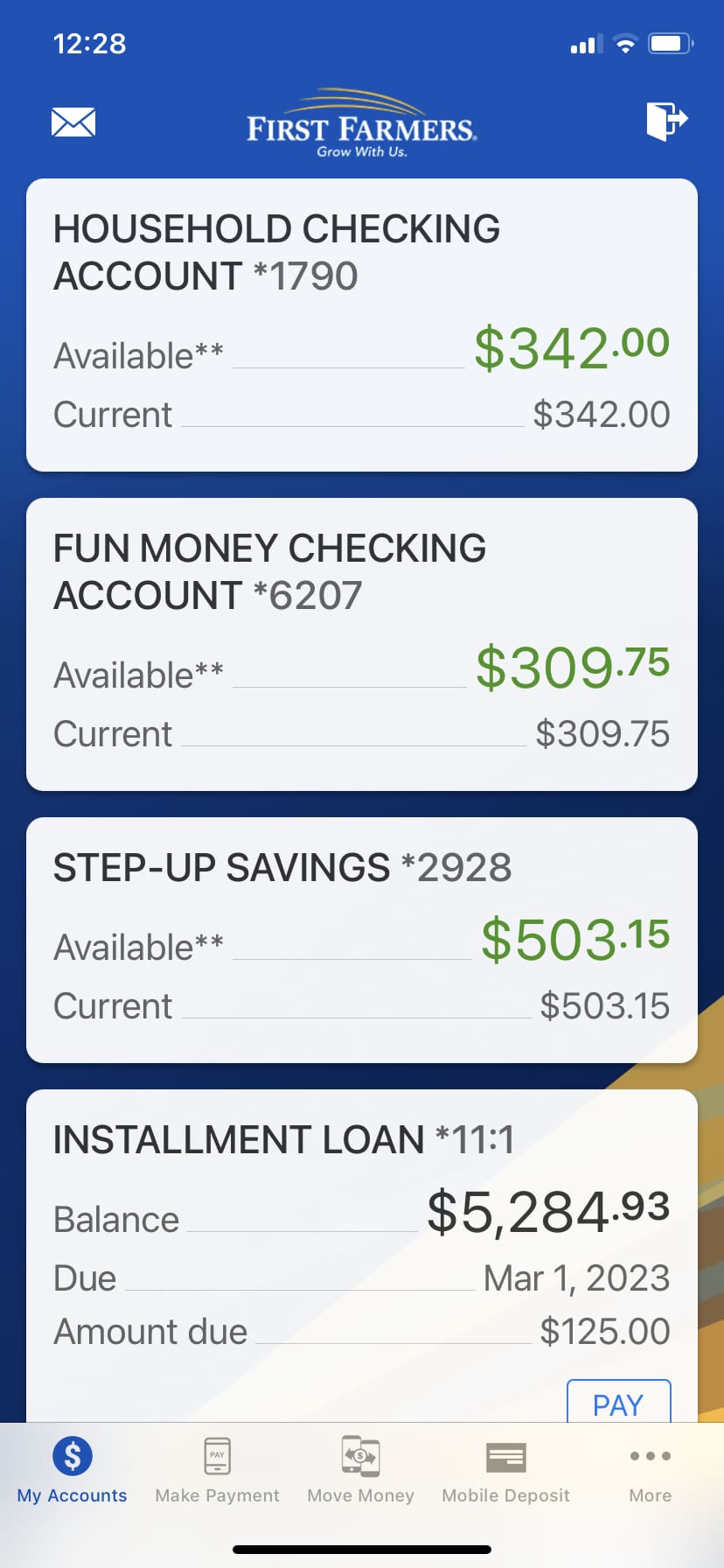
A Digital Banking Experience that provides you with the tools to manage your finances when convenient.
Getting Started
Download the First Farmers Mobile App from the Google Play™ or Apple® App Store.
SEARCH –
Simply search First Farmers Mobile Banking to download.
LOGIN –
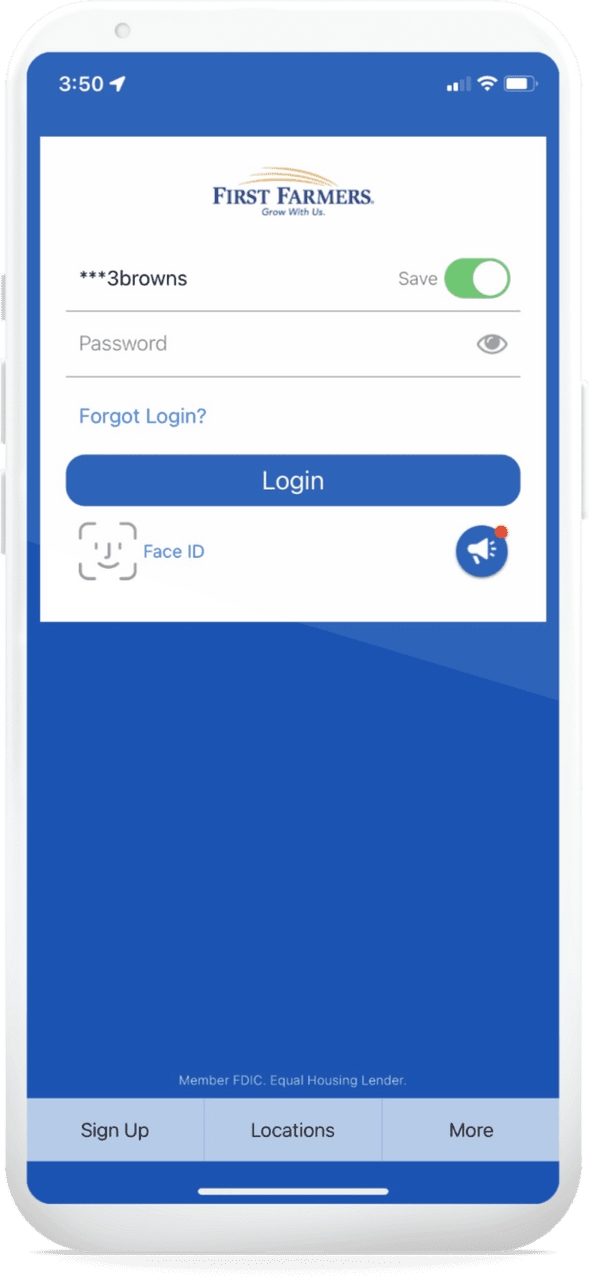
Login with the User ID and password and follow verification steps.
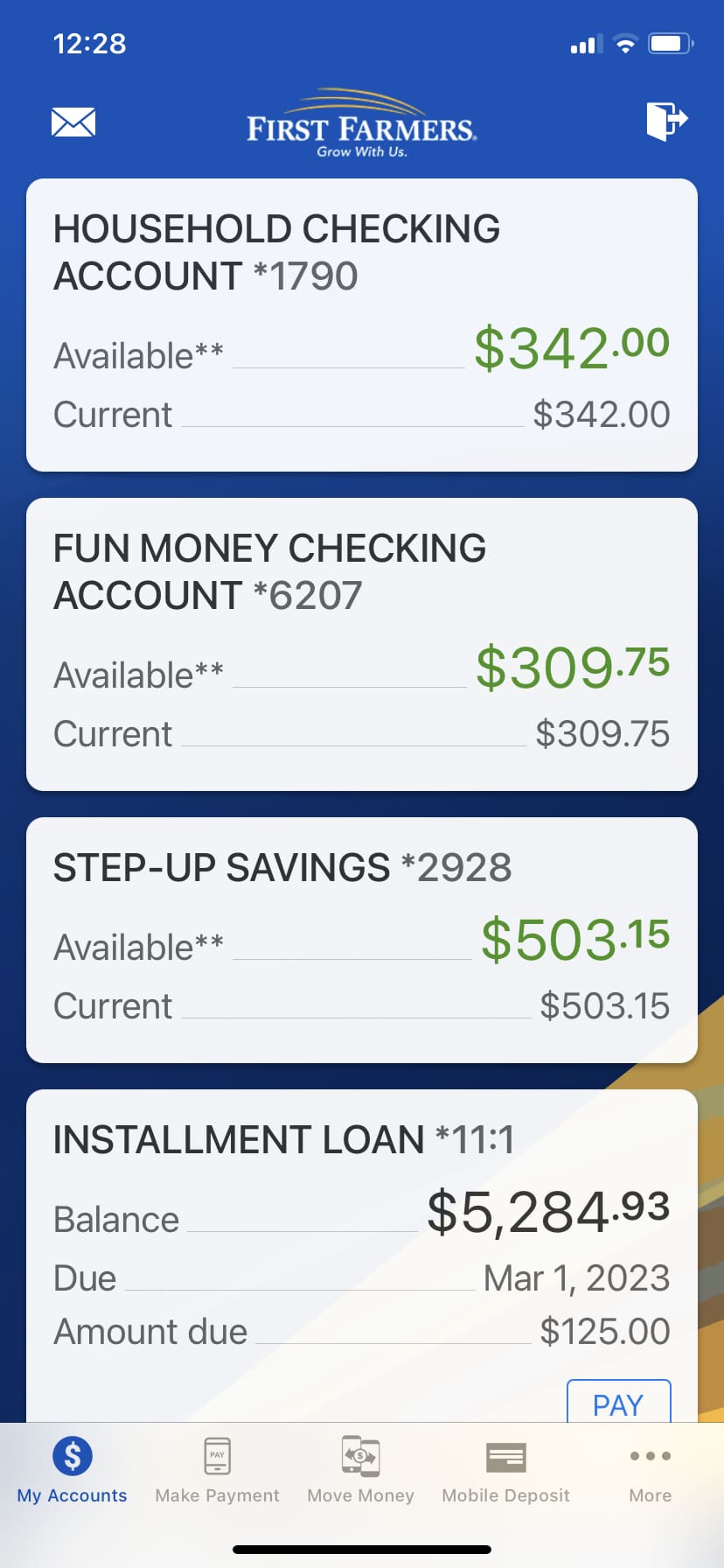
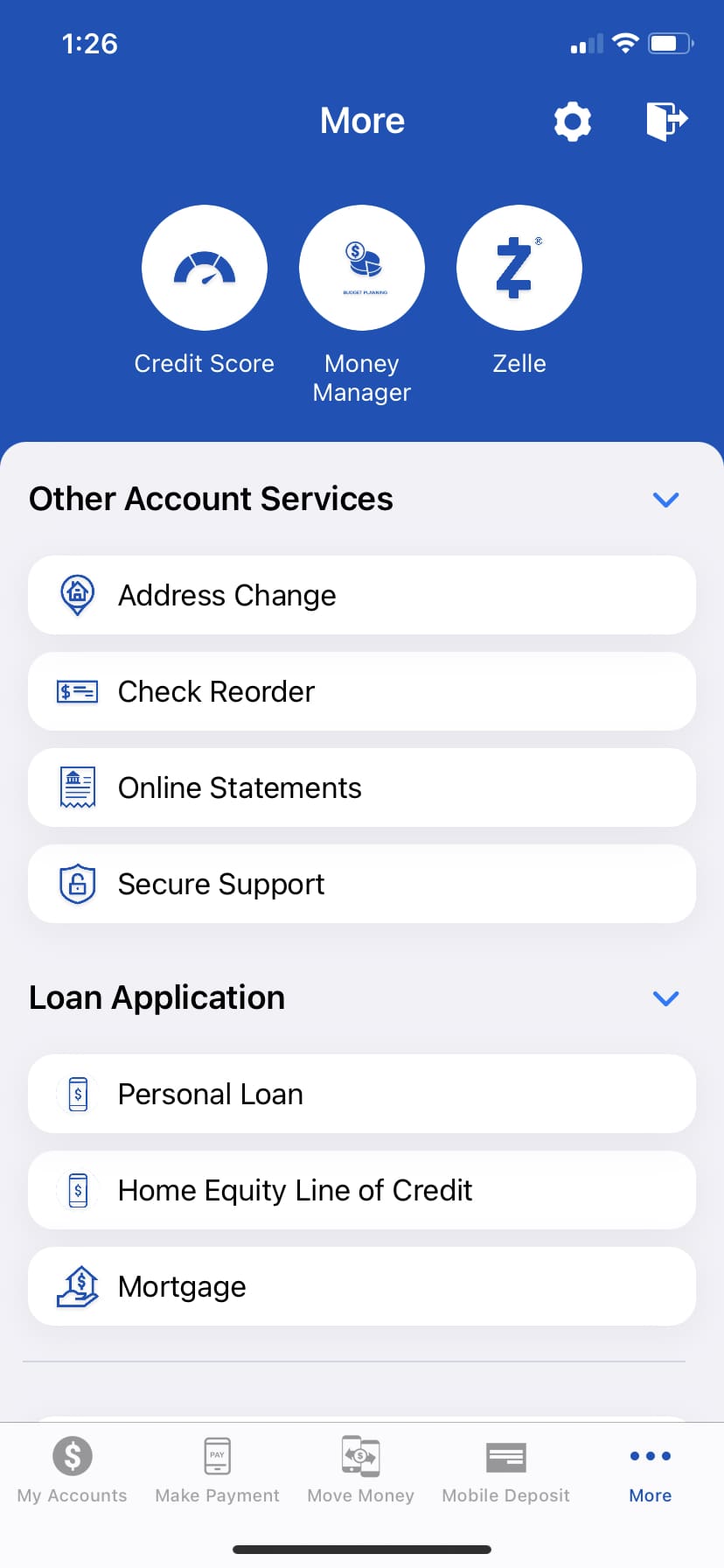
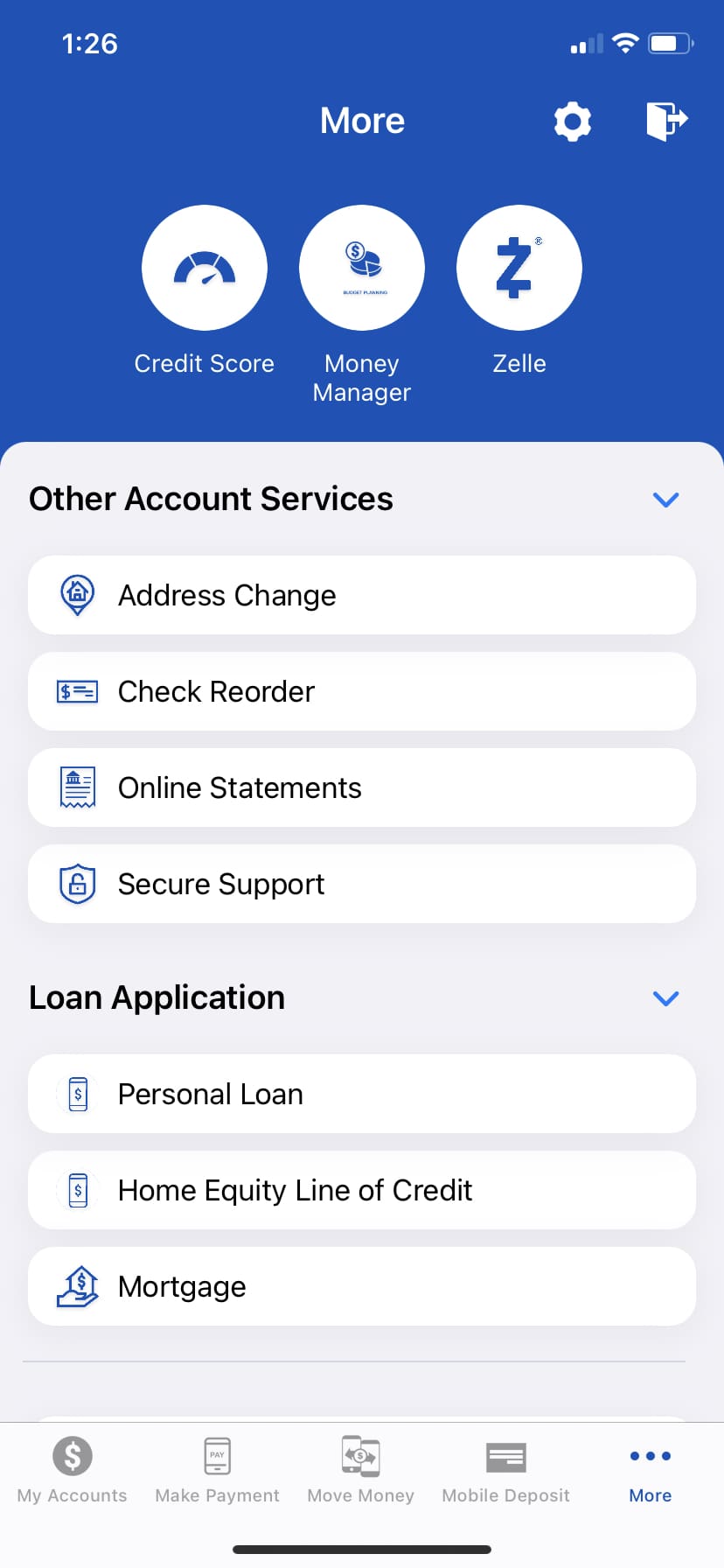
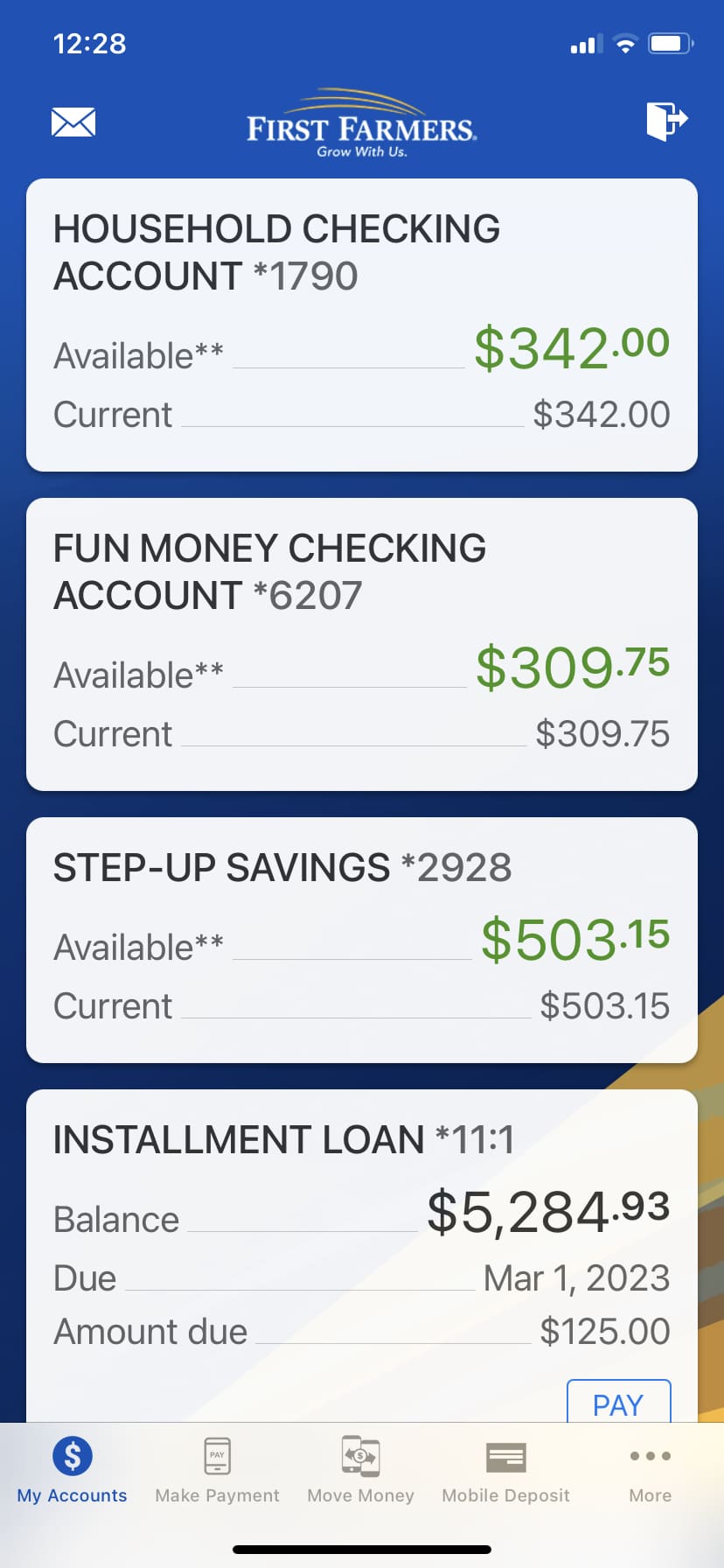
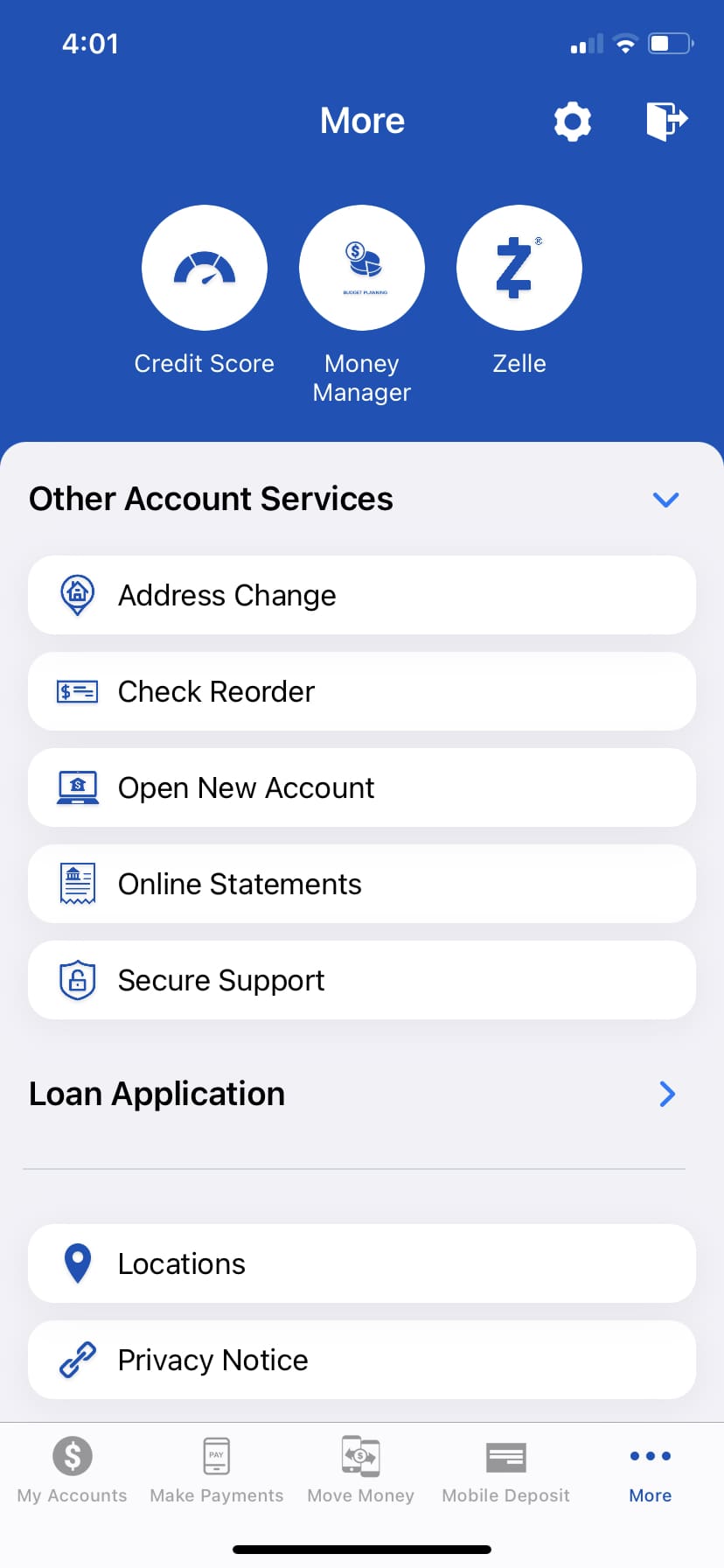
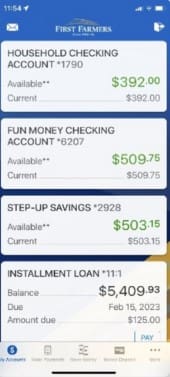
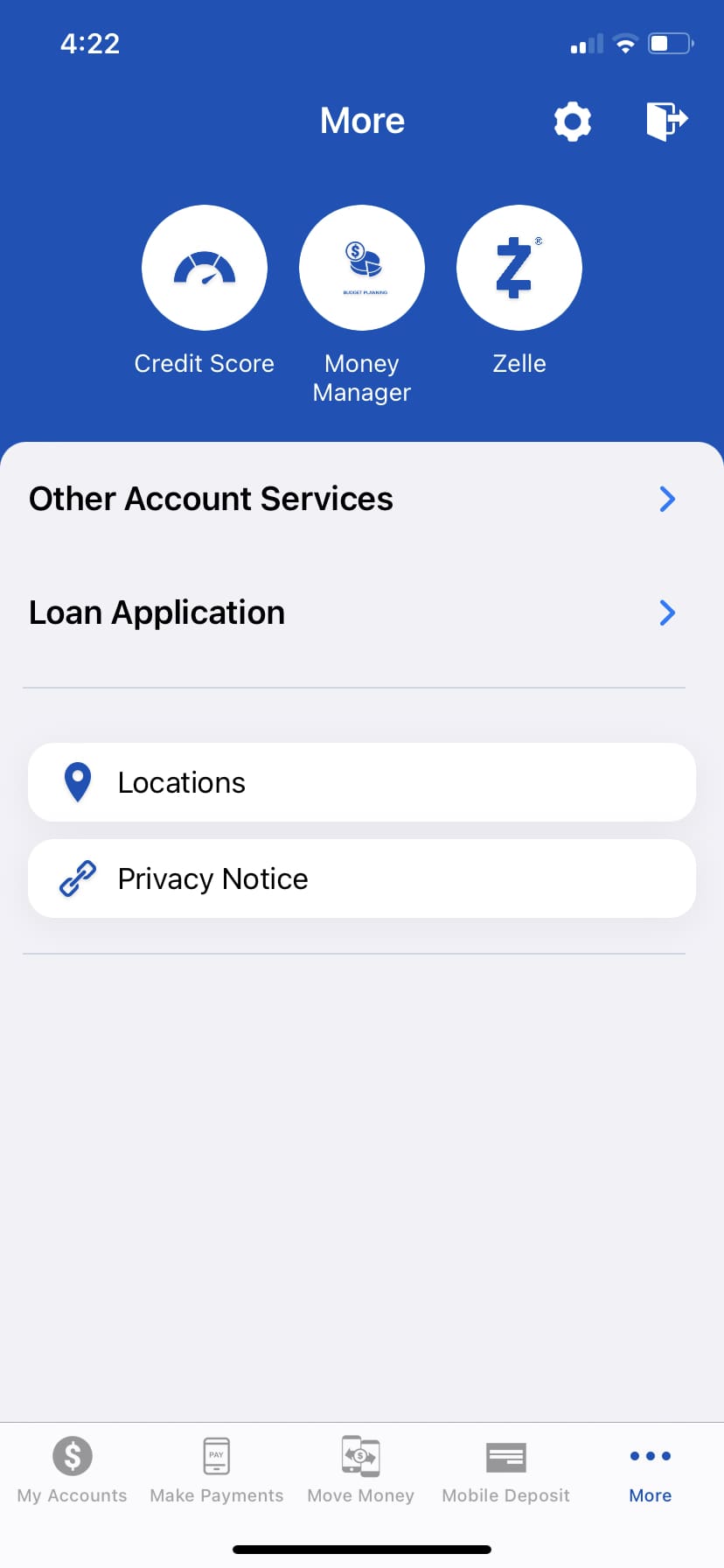
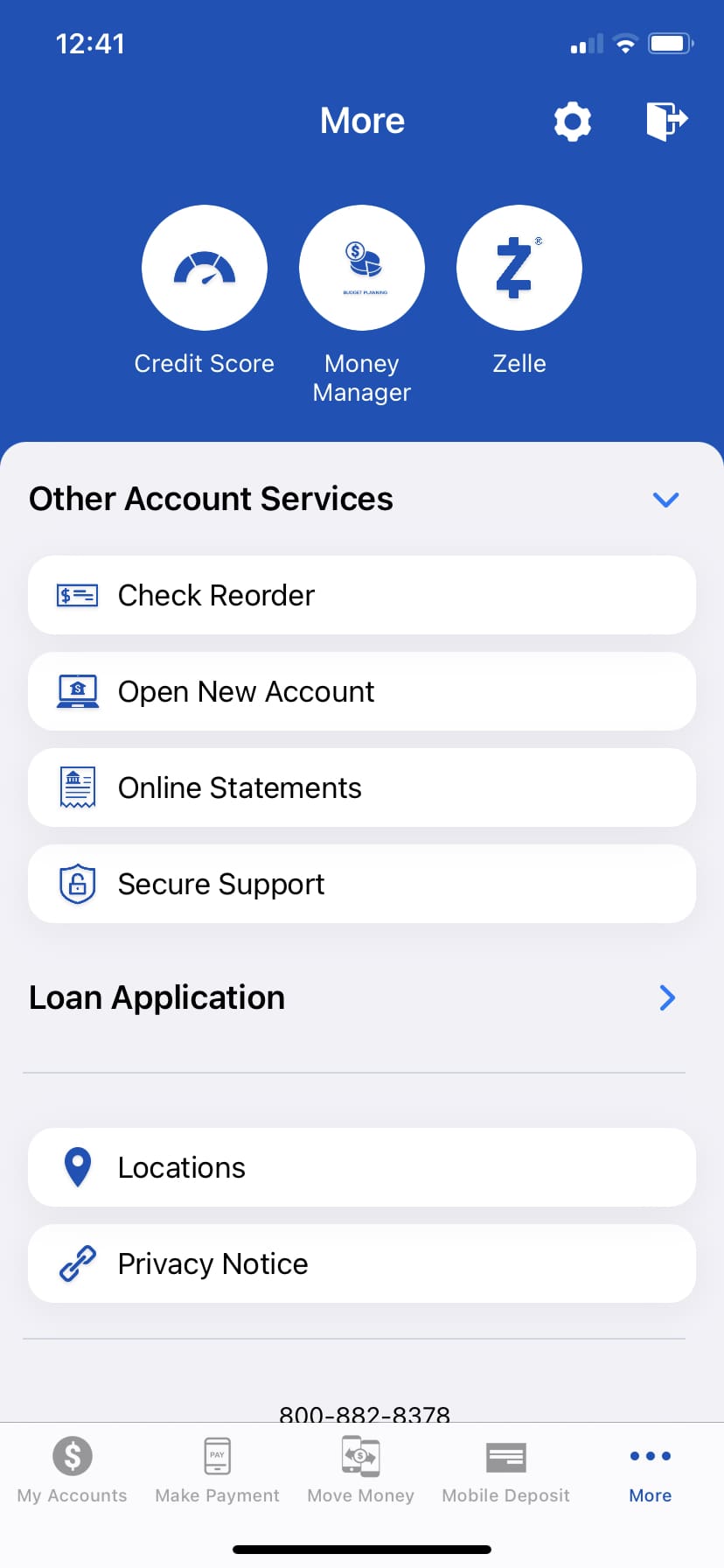
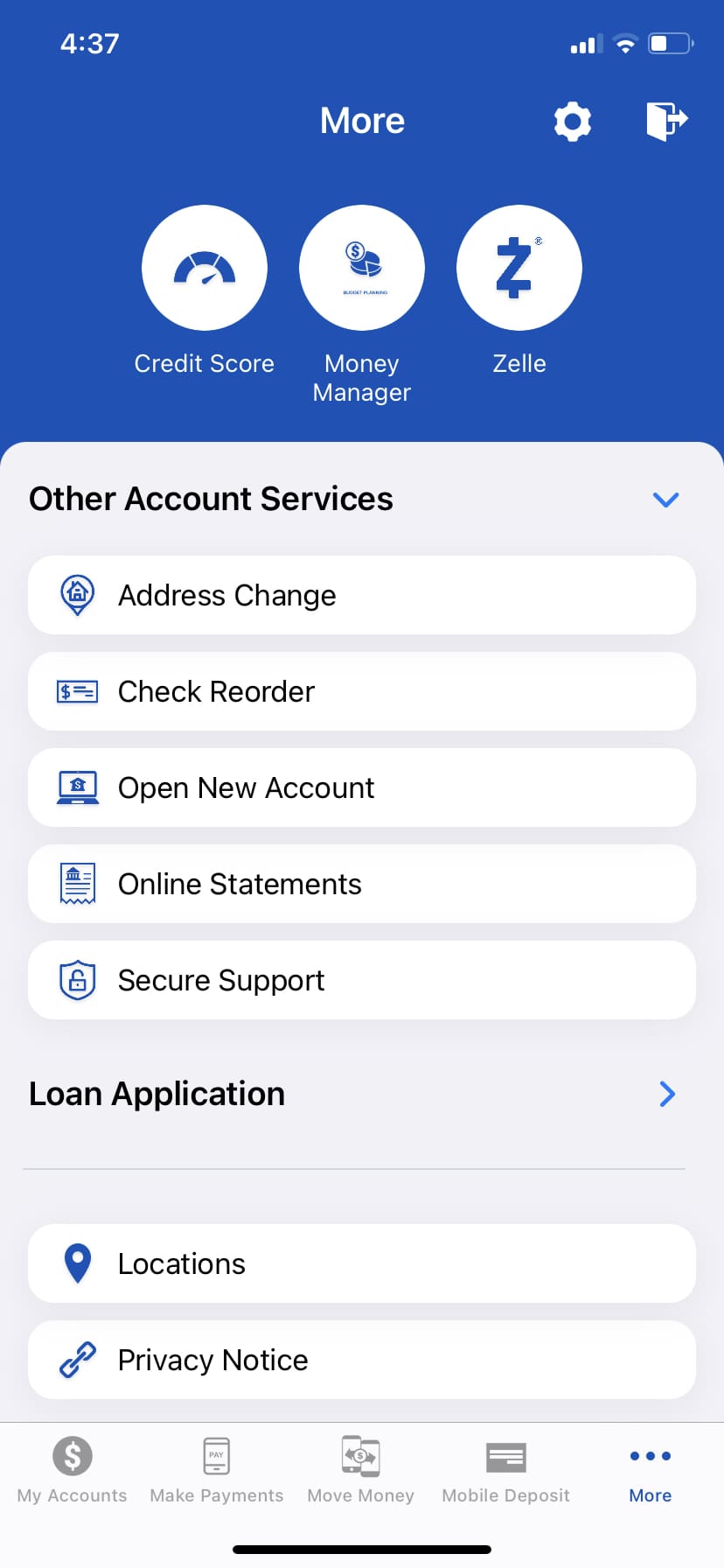
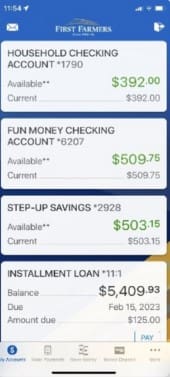
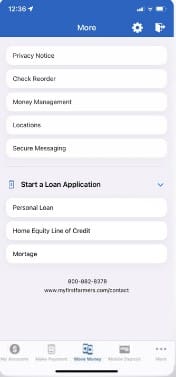
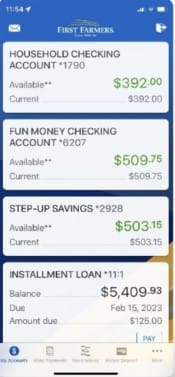
MAIN SCREEN – From the home screen you can access account information, make payments, move money, and mobile deposit. Select the … button to access credit score, money manager, Zelle®, account services, loan applications, locations, and more.
*Face ID® and Apple App Store are registered trademarks of Apple Inc.
*Google Play is a trademark of Google LLC.
*Early Warning Services, LLC. Zelle and the Zelle related marks are wholly owned by Early Warning Services, LLC and are used herein under license.
Account Alerts and Notifications
Receive alerts and notifications regarding low balance, large deposits, balance update, and more.
STEP 1 – After logging in, select Settings to turn on Push Notifications.
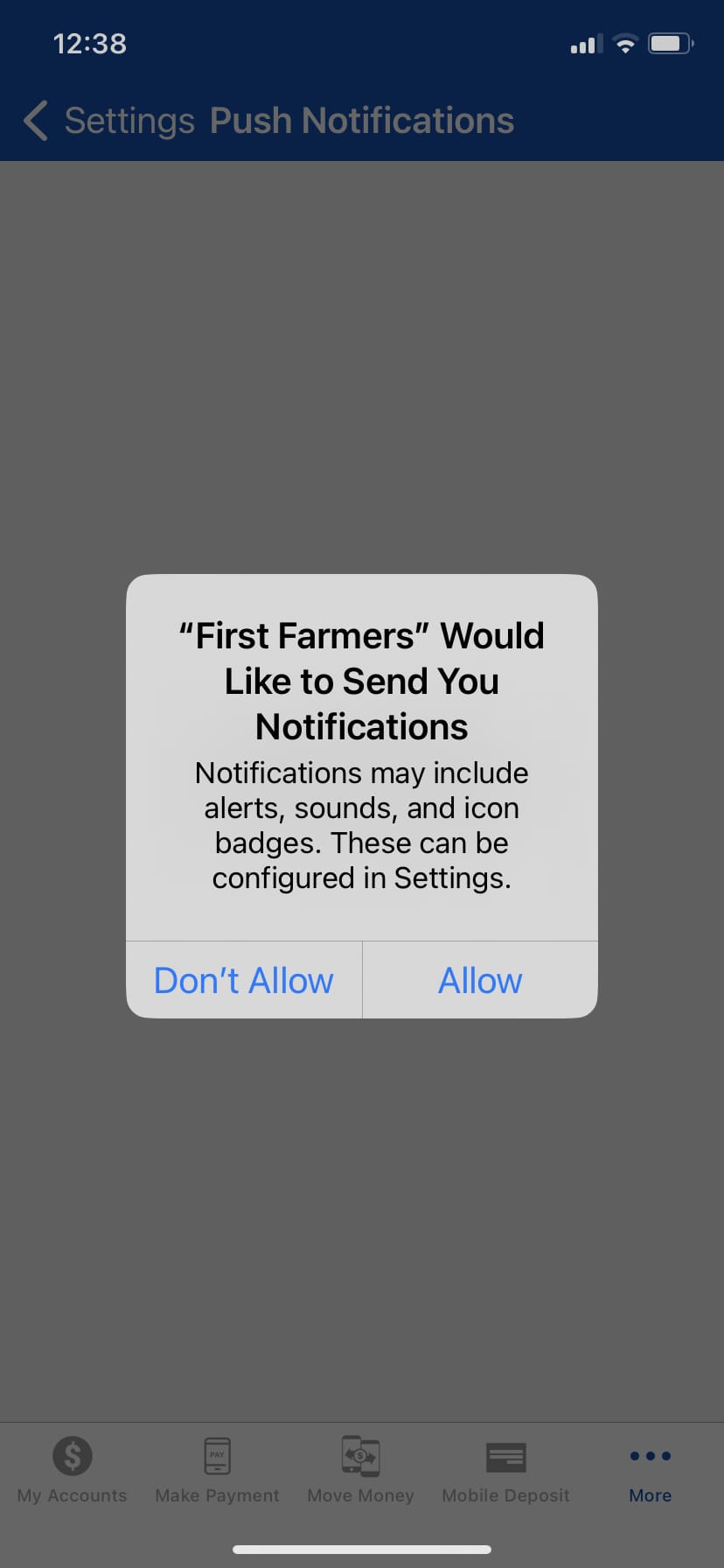
STEP 2 – Allow notifications from First Farmers.
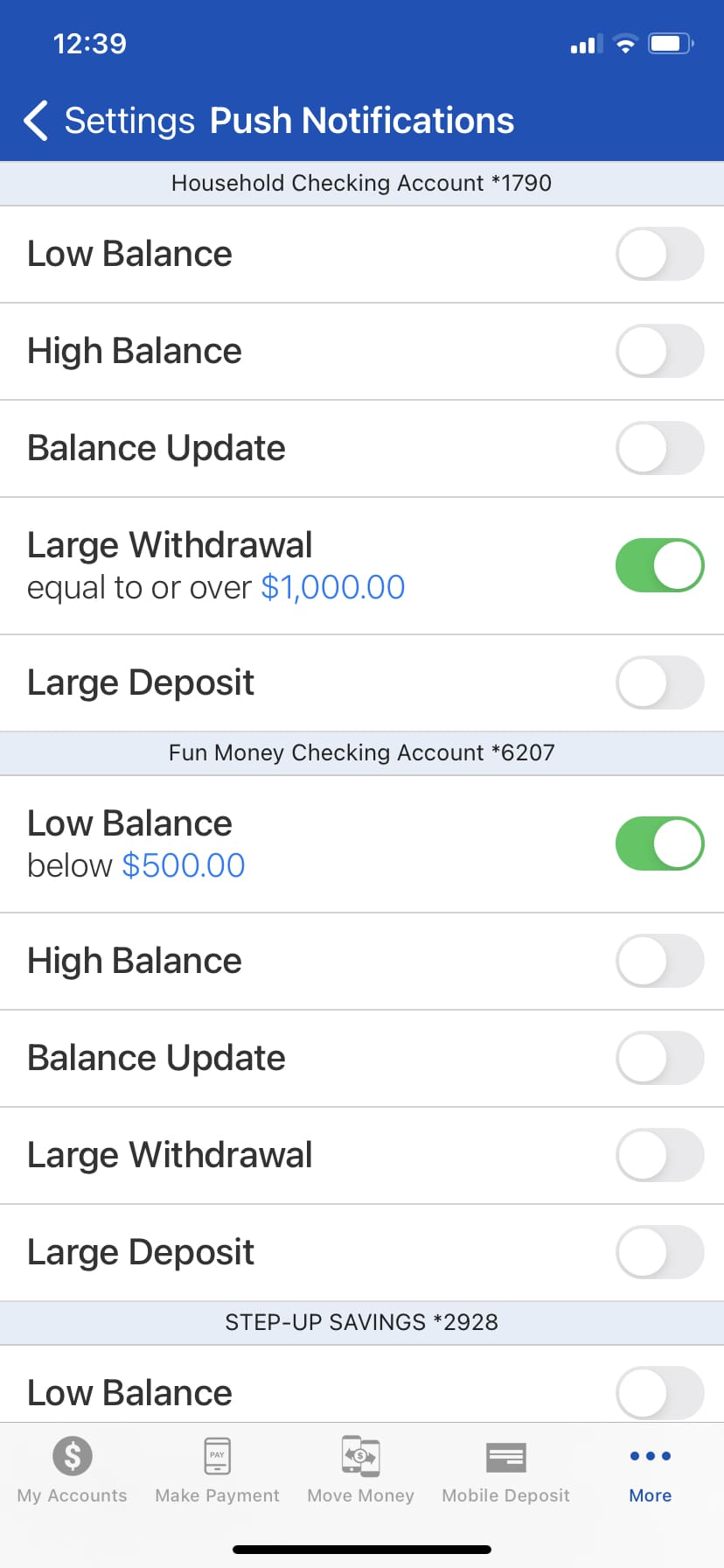
STEP 3 -Choose the Account to receive notifications.
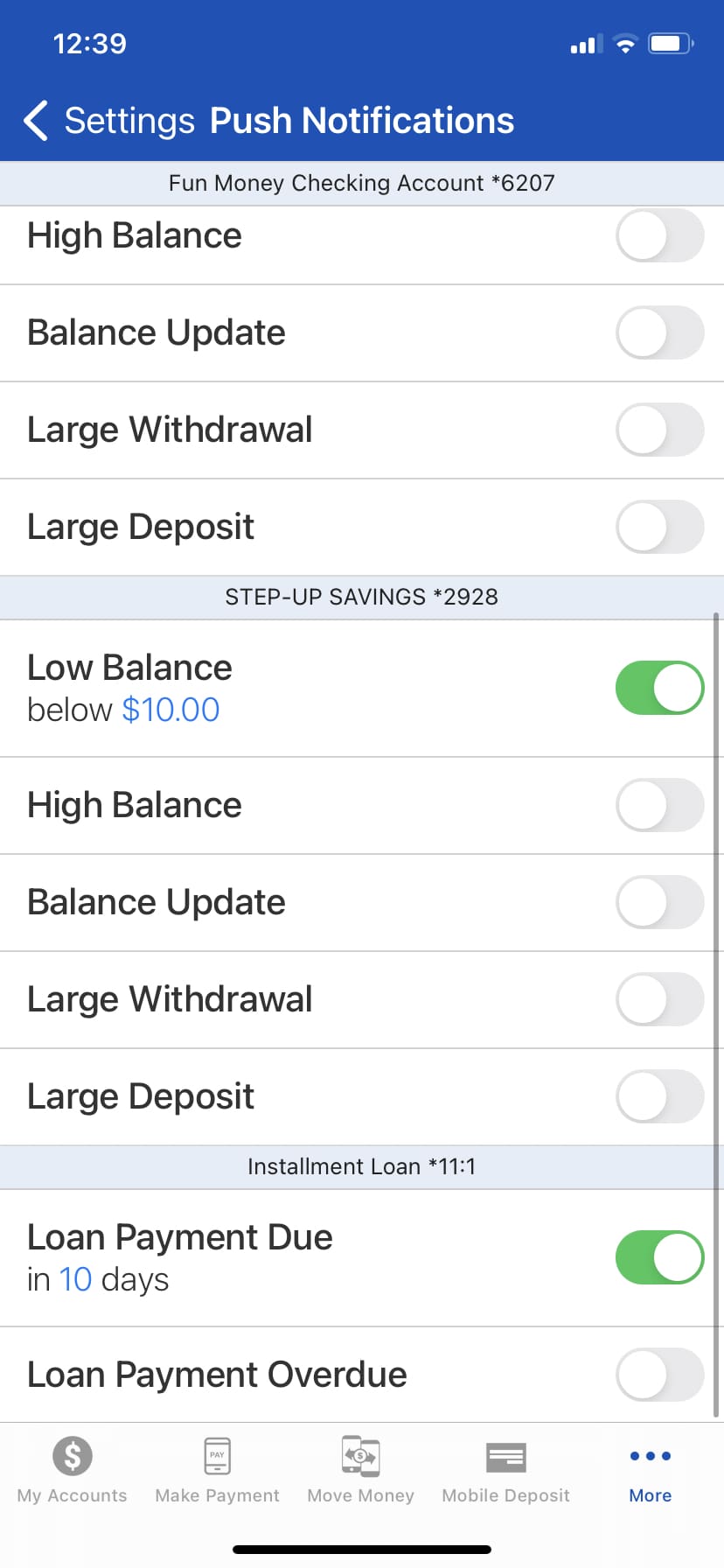
STEP 4 – Toggle on the alert for each option.
Bill Pay
Add a payee or select a payee to pay bills on the go within the mobile app.
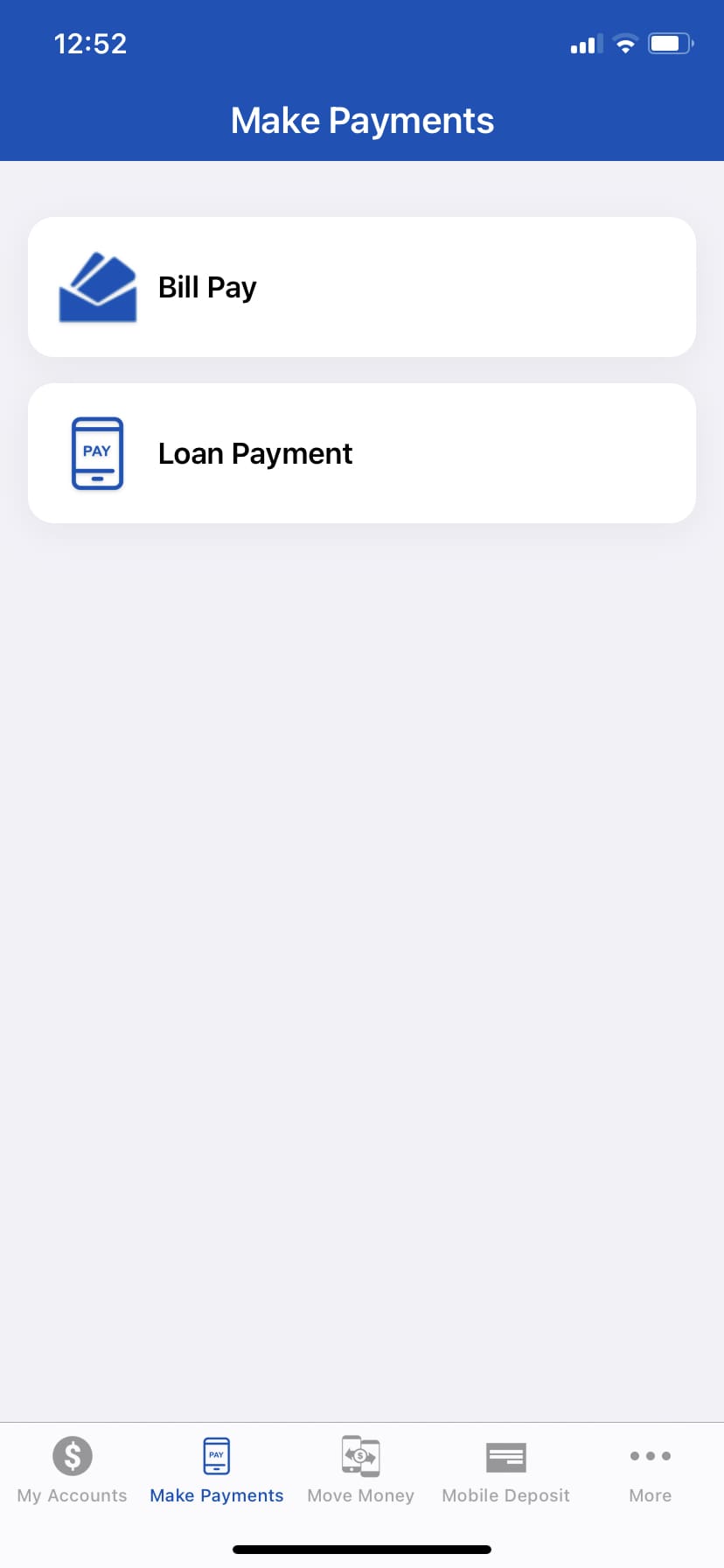
STEP 1 – Select the Make Payments button at the bottom of the Home Screen.
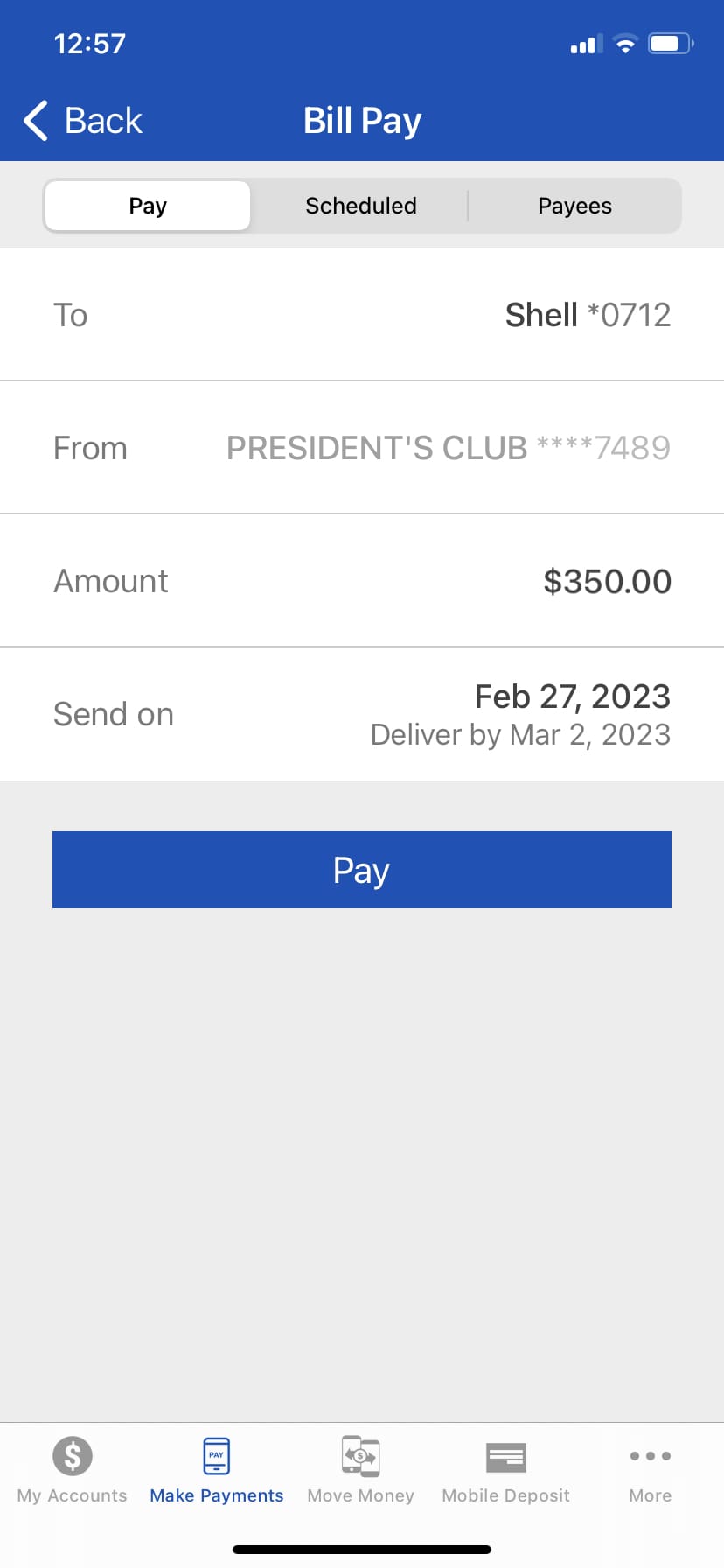
STEP 2 – Select Bill Pay, then Add or Select the payee for payment.
STEP 3 – Complete the details and select Pay.
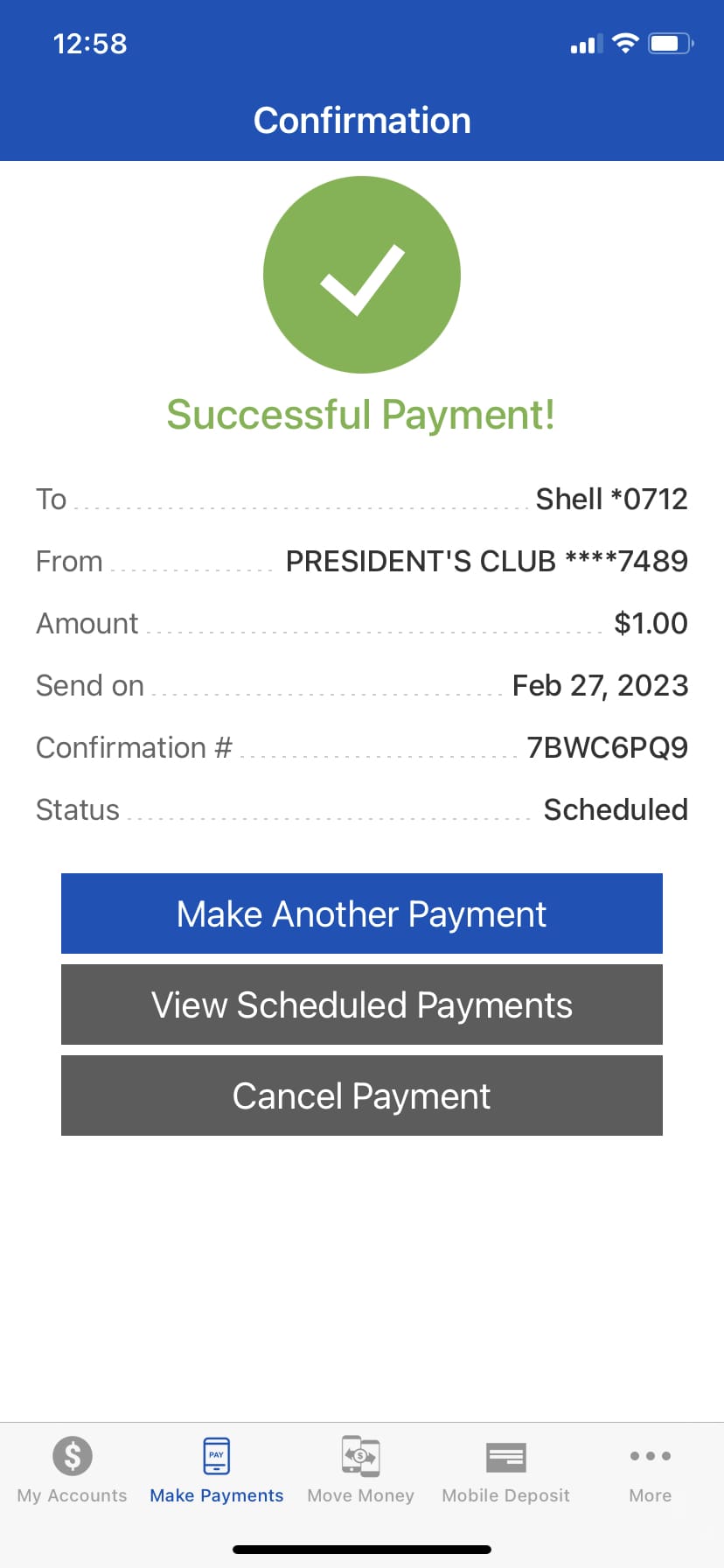
STEP 4 – Successful Payment – Make Another, View Scheduled, or Cancel Payment.
Bill Pay – Scheduled, eBills, and Auto Pay
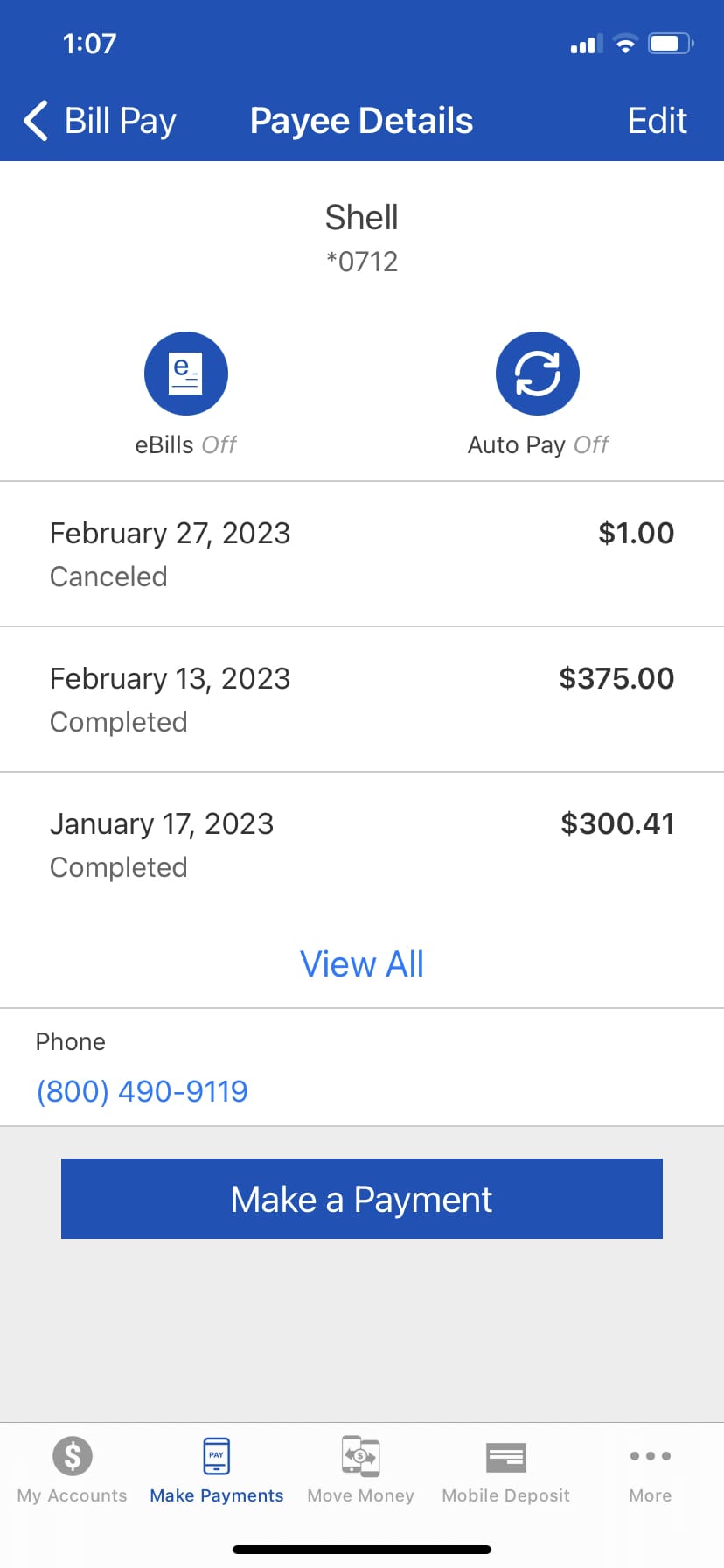
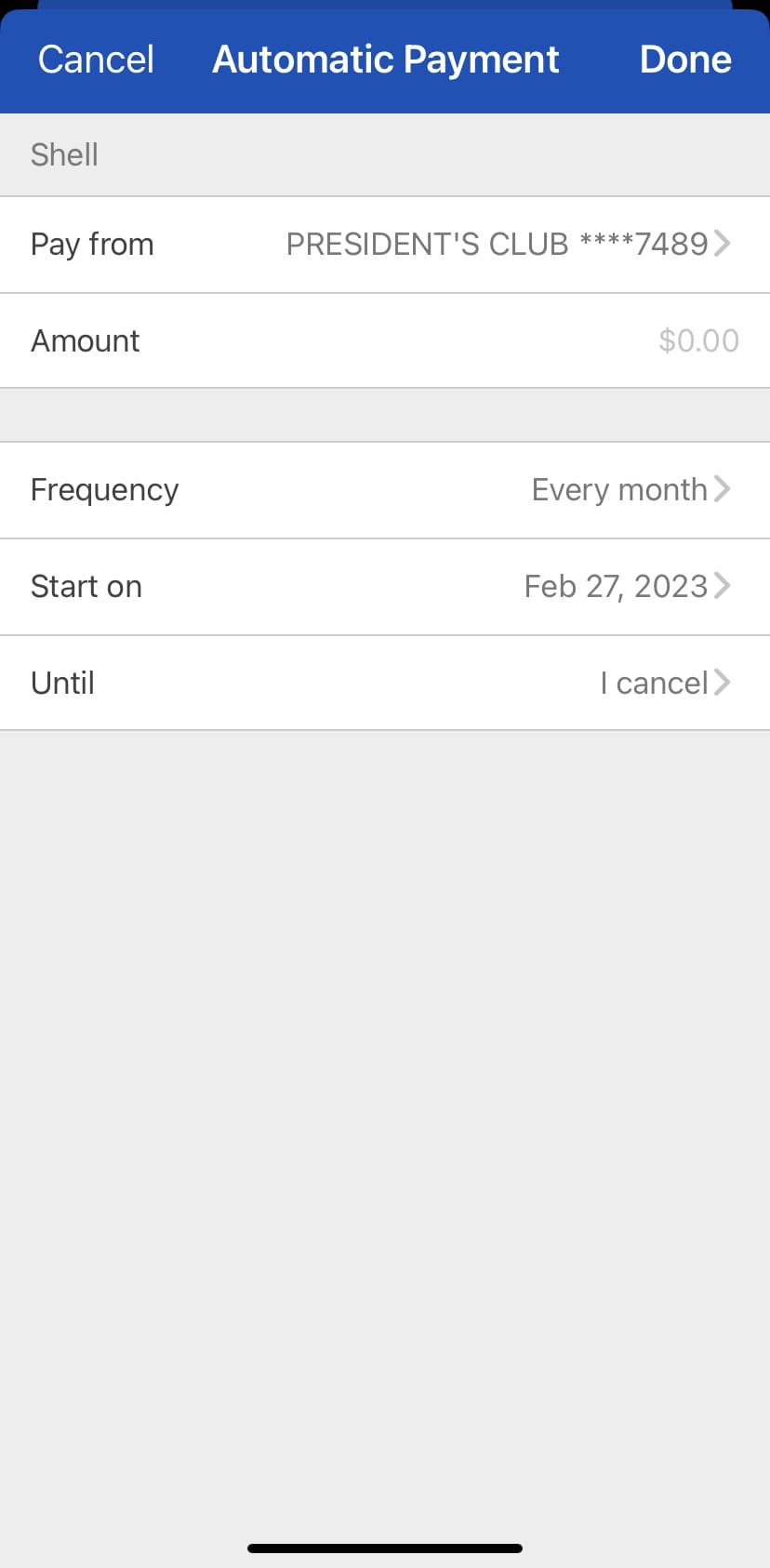
Options available by payee for eBill and Auto Pay.
STEP 1 – Select Payees from menu tab, add or select payee for eBill or Auto Pay then turn on desired feature.
STEP 2 – Complete set up for the payee to eBill or Auto Pay.
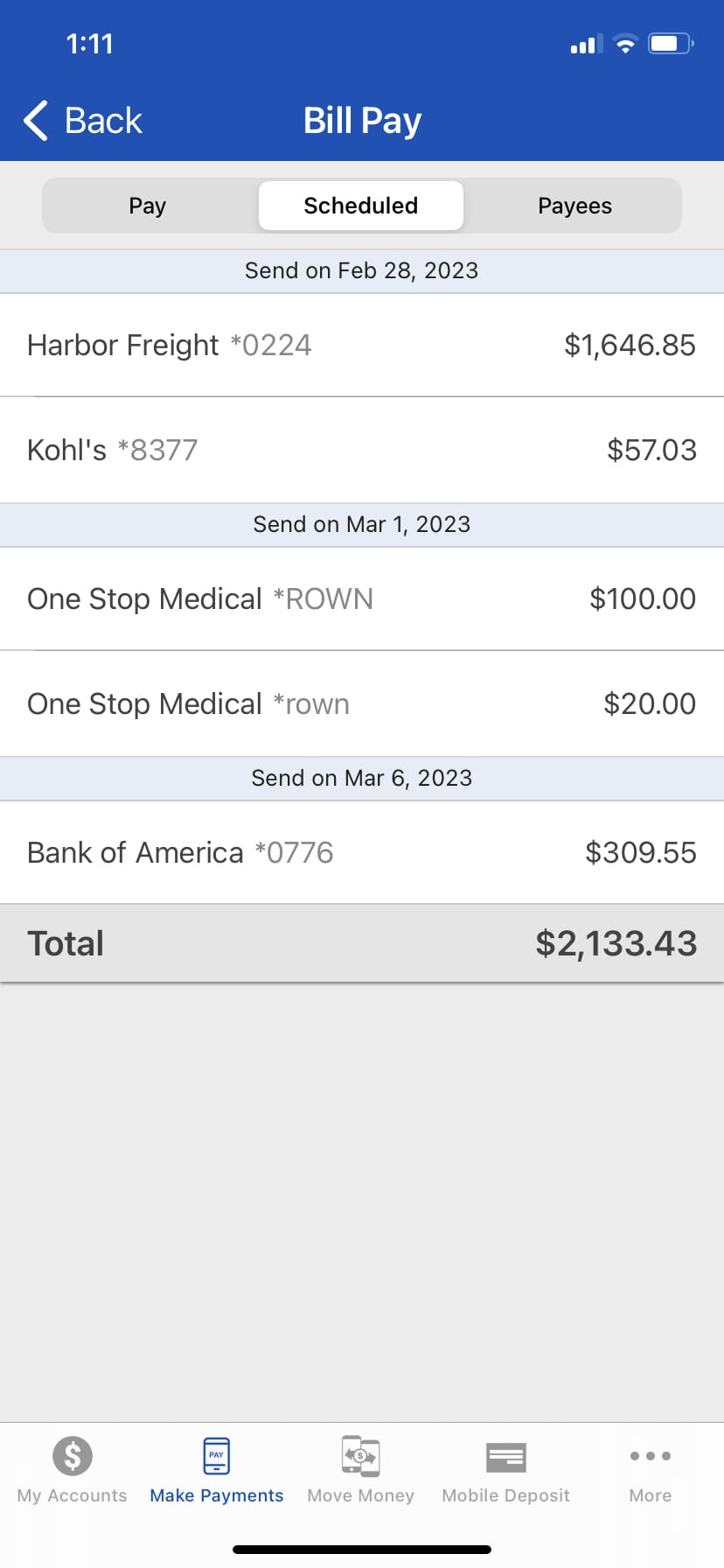
Scheduled Payments – Select Scheduled from the menu tab to view upcoming payments.
Credit Score
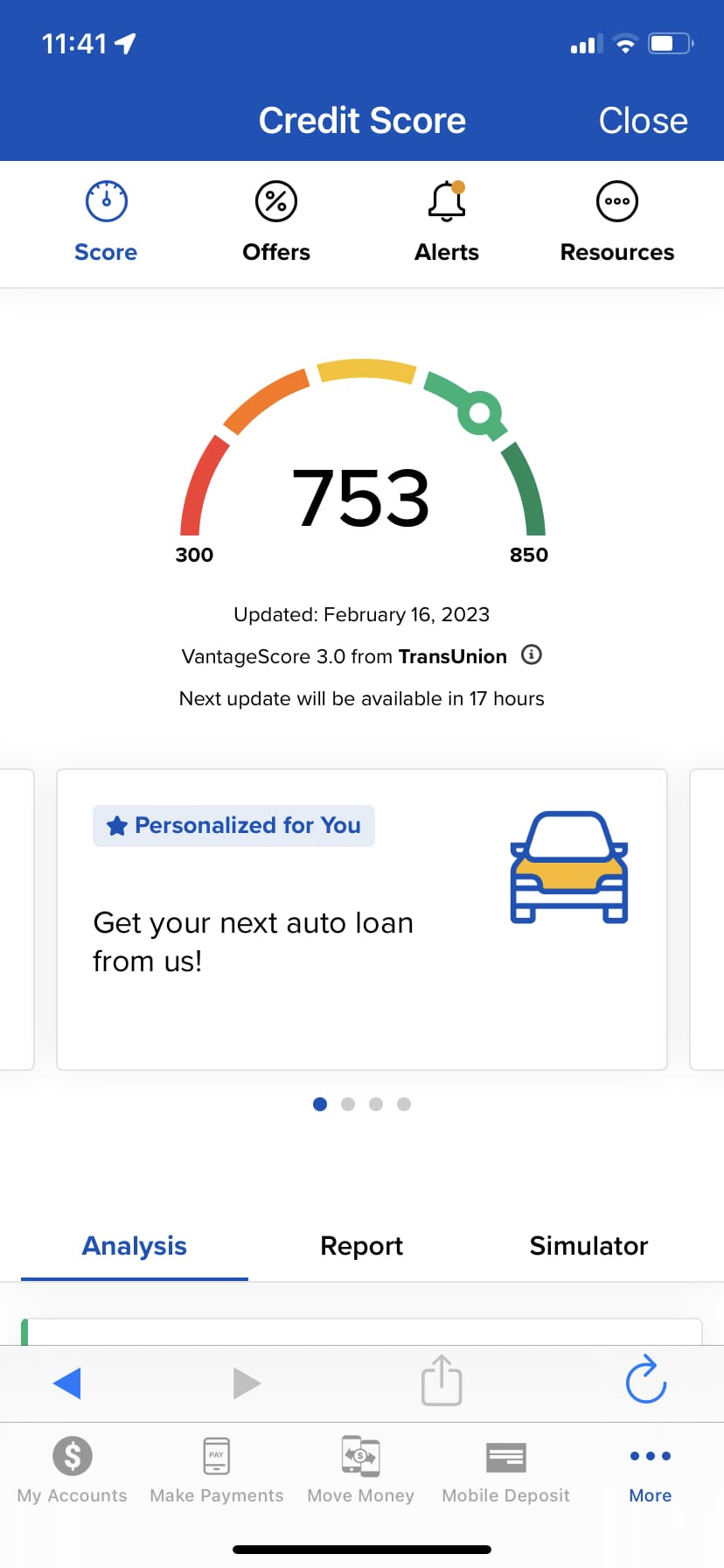
Credit Score provides a level of credit awareness by providing real-time credit monitoring alerts.
STEP 1 – From the main menu select the … button, then click the Credit Score image.
STEP 2 -Once the terms and conditions are accepted, select analysis, report, or simulator for more information.
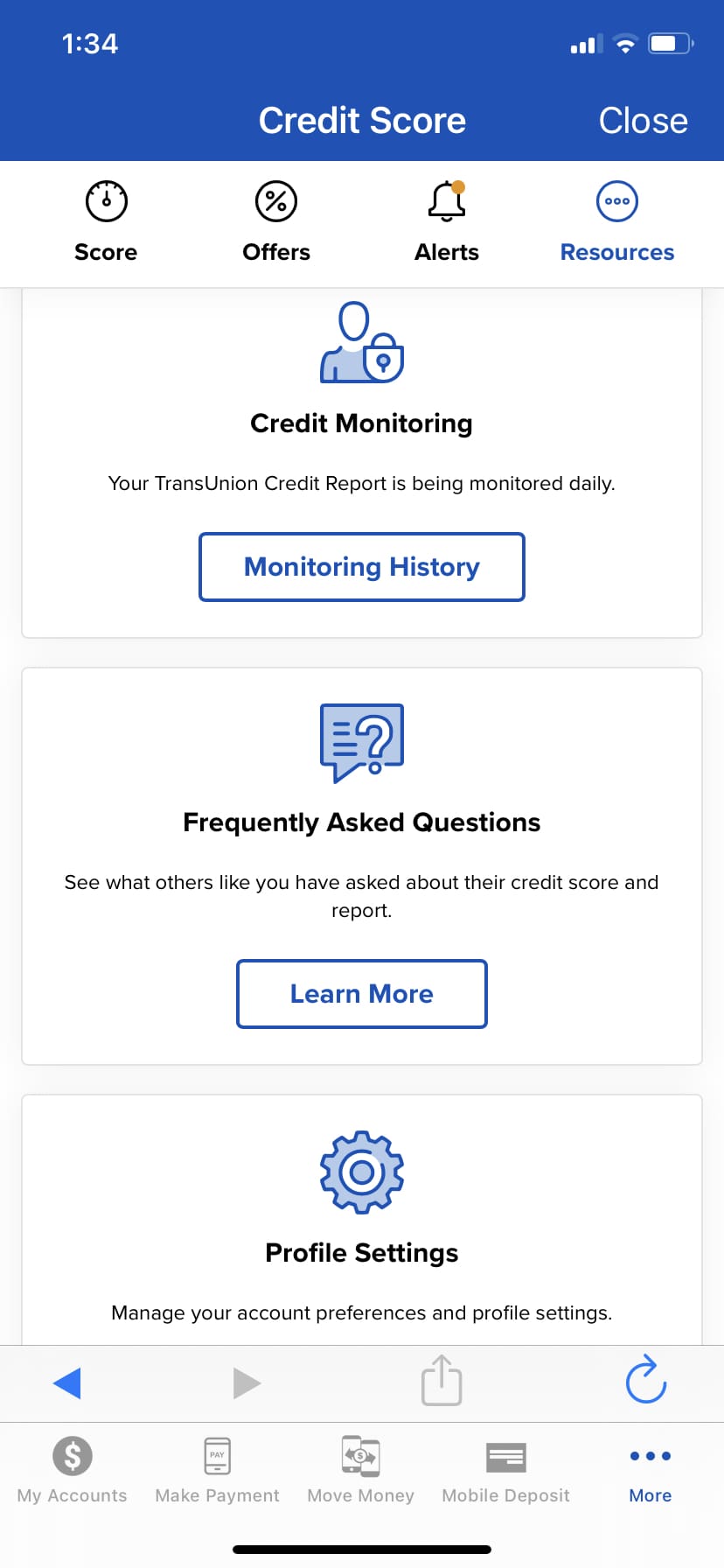
Credit Monitoring and FAQs – View history, Frequently Asked Questions, and set profile preferences.
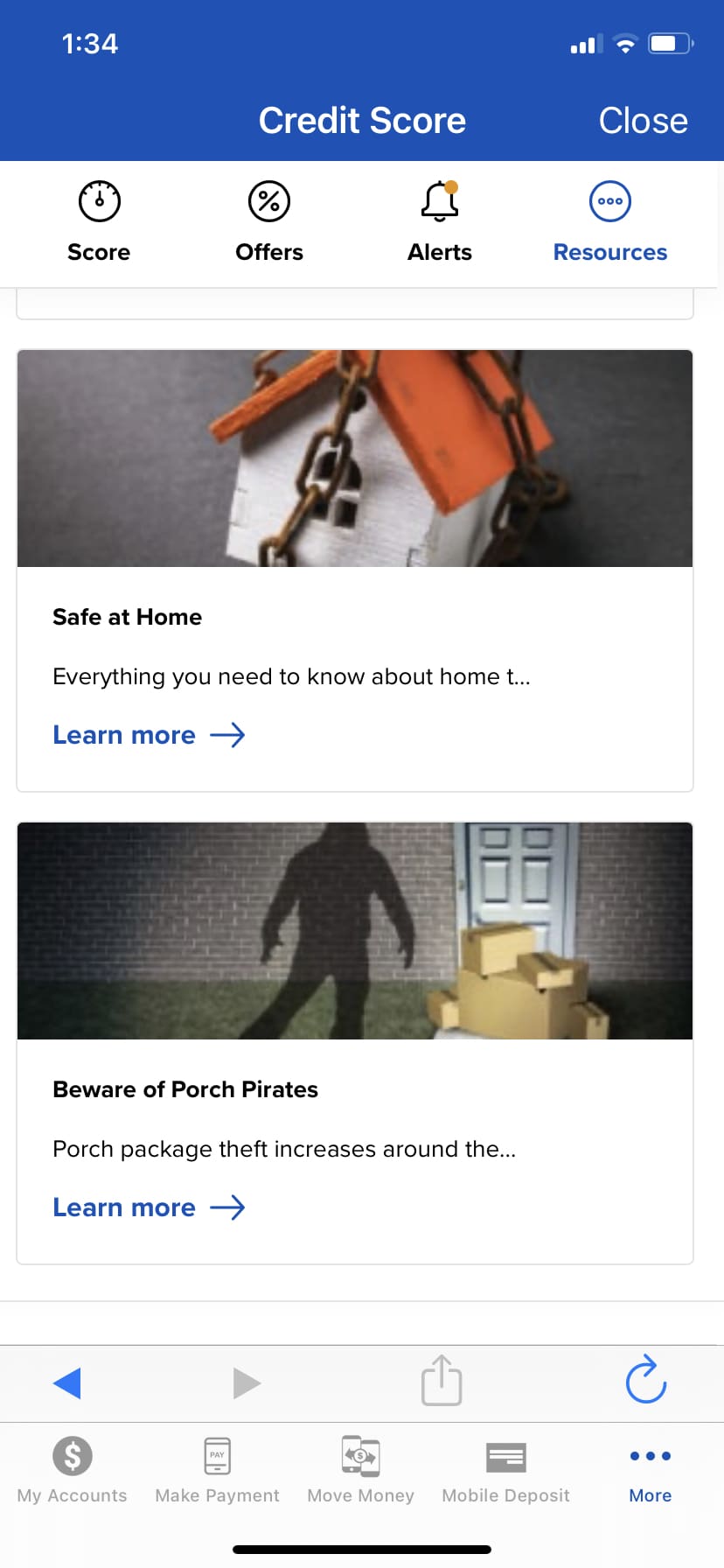
RESOURCES – Learn how to change your credit score and other valuable credit tips.
Check Reorder
Safely and securely reorder checks from the convenience of the mobile app.
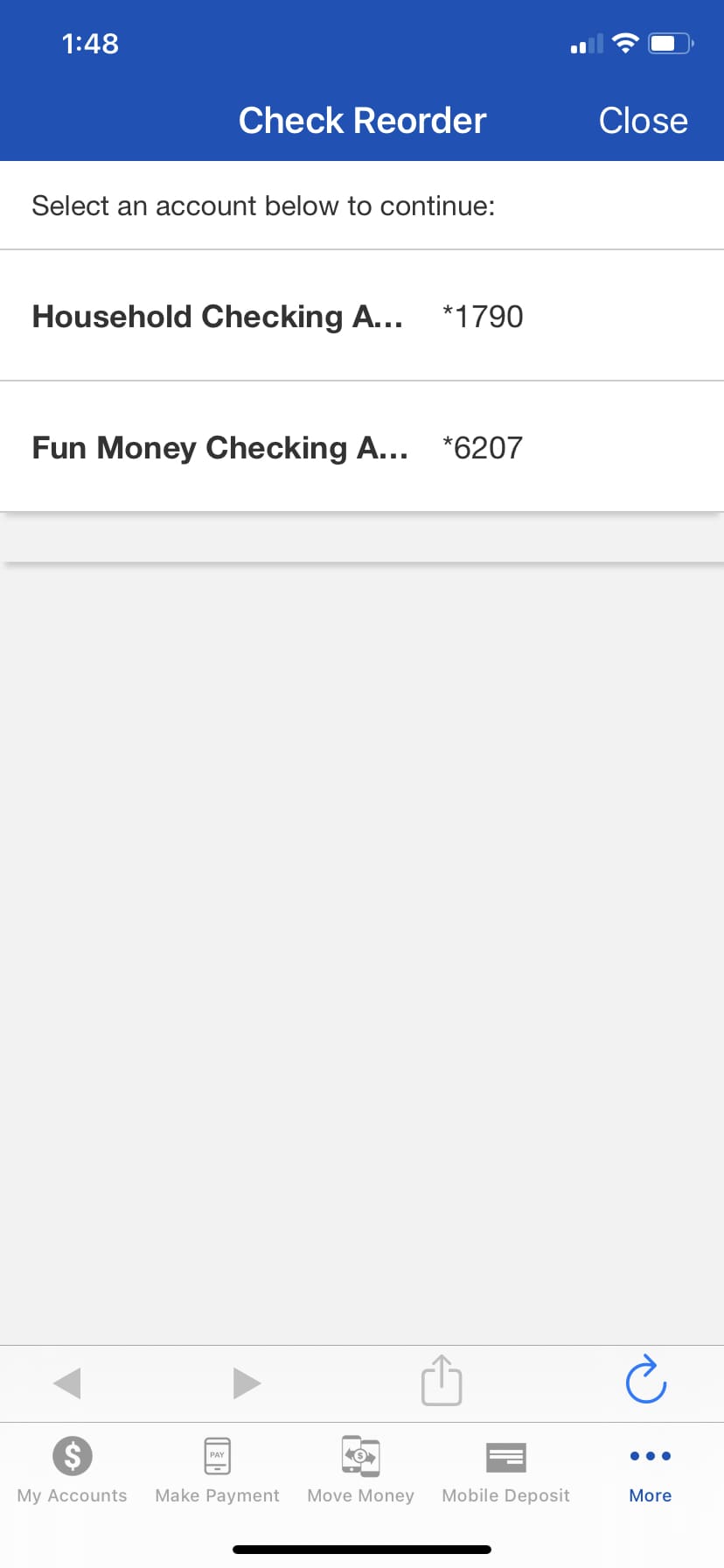
STEP 1 – Select the … button, then Other Account Services, and Check Reorder.
STEP 2 – Select the desired account to order checks.
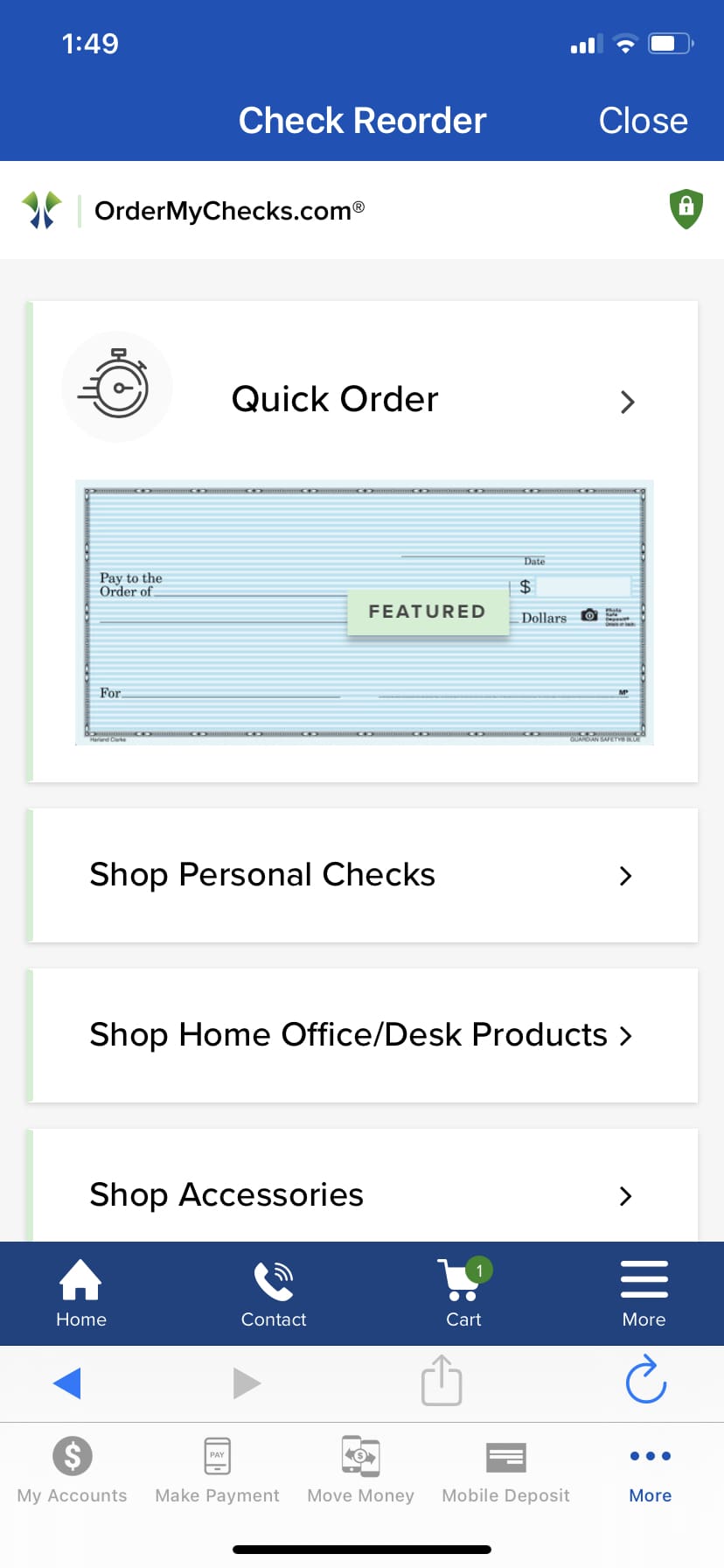
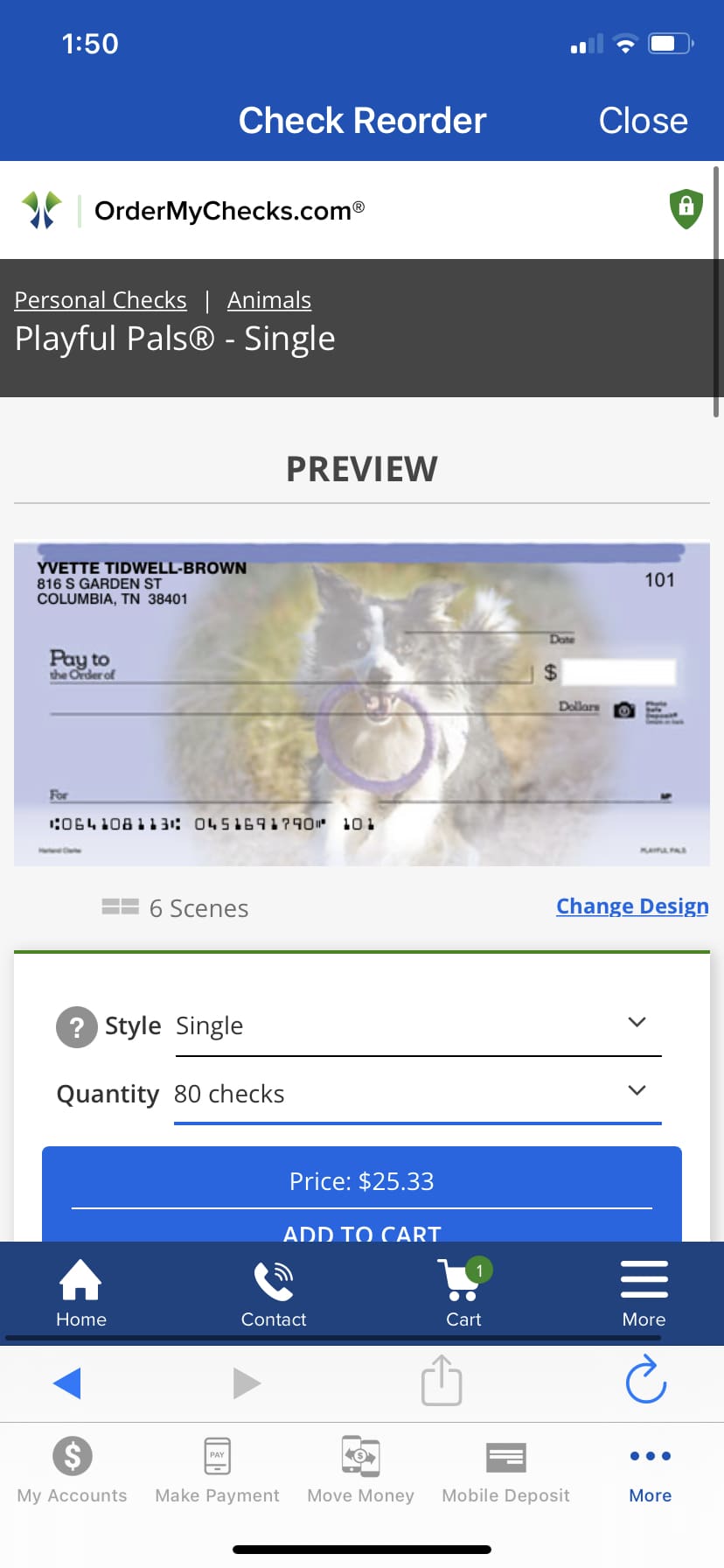
STEP 3 – Choose the style of checks and complete the necessary information.
STEP 4 – Preview check order, click the cart and submit order.
External Transfer
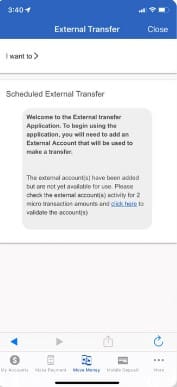
Set up external transfers from the convenience of the mobile app.
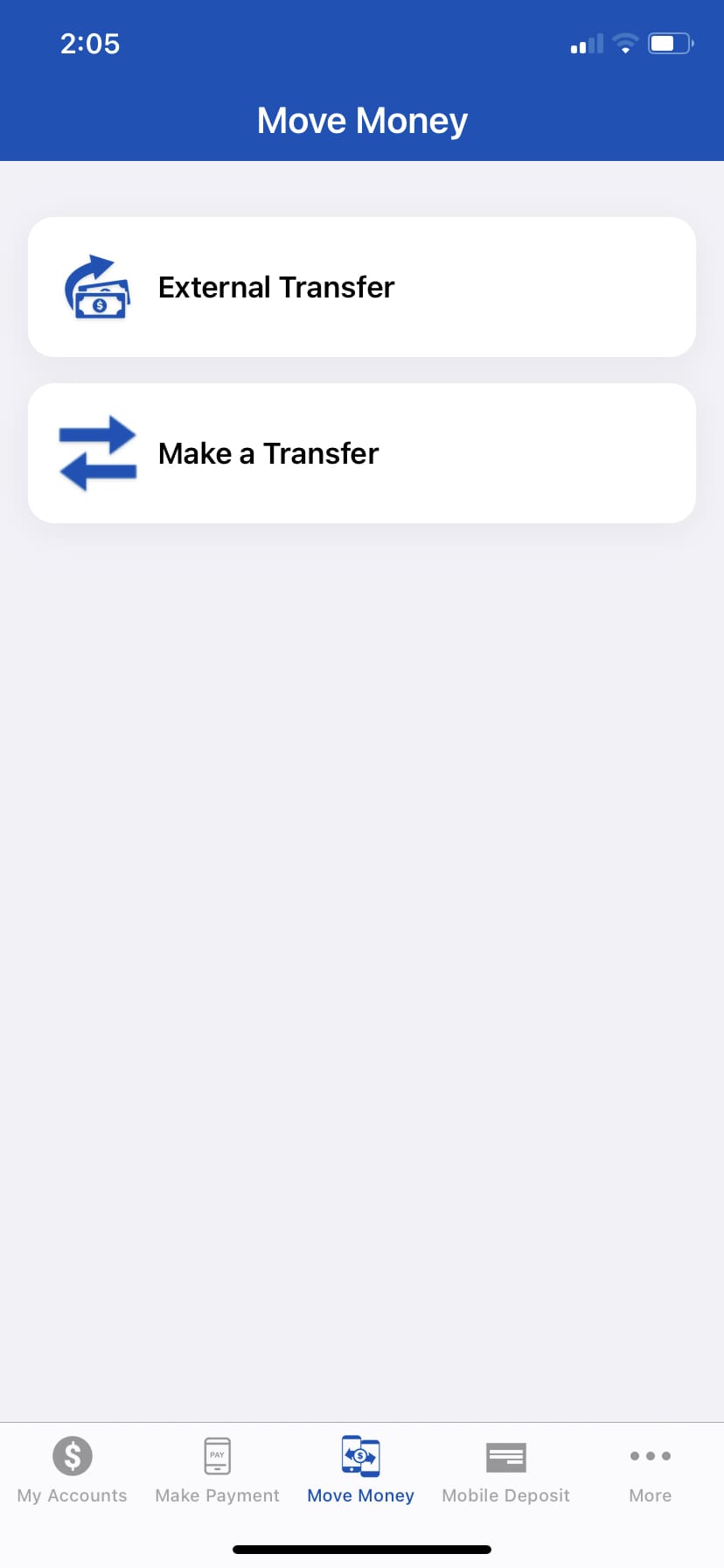
STEP 1 – From the home screen select the Move Money.
STEP 2 – Select external transfer.
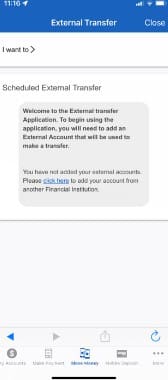
STEP 3 – Click here to being set up to checking or savings account.
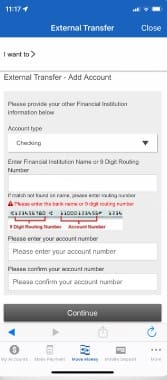
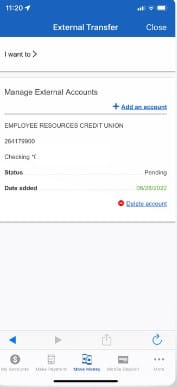
STEP 4 – Complete information and continue.
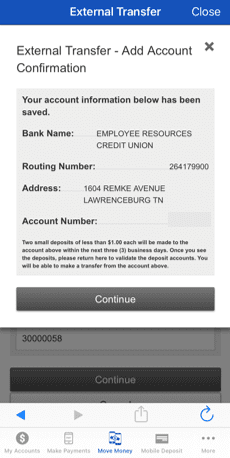
STEP 5 – Verify information and continue.
STEP 6 – Validate account. Depending on connecting account, it may take up to 3 days.
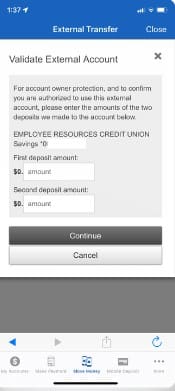
STEP 7 – Complete Validation.
STEP 8 – Enter deposit amounts from external account and continue.
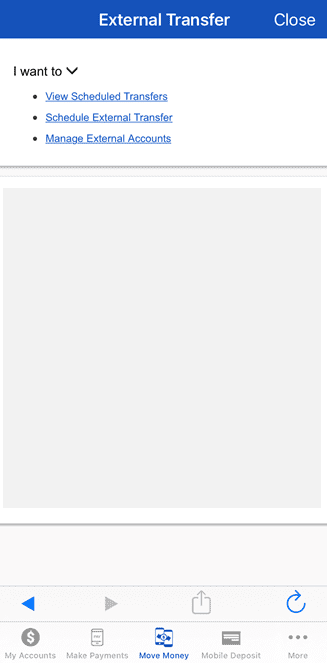
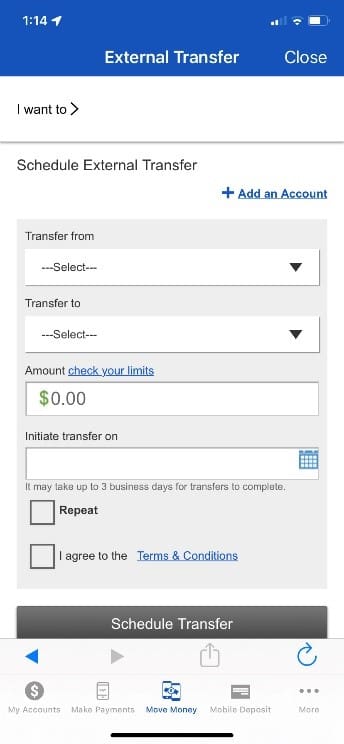
STEP 9 – From the drop down menu, select I Want To and then Schedule External Transfer.
STEP 10 – Complete the required information, read the terms & conditions, mark
agree, then select Schedule Transfer.
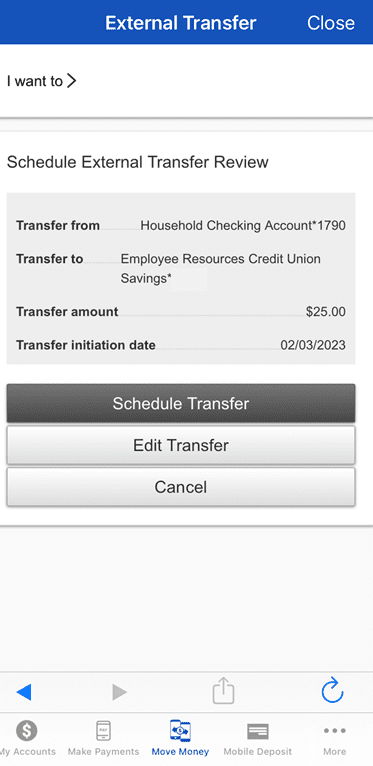
STEP 11 – Verify the information is
correct and select Schedule Transfer.
Forgot Password or Username
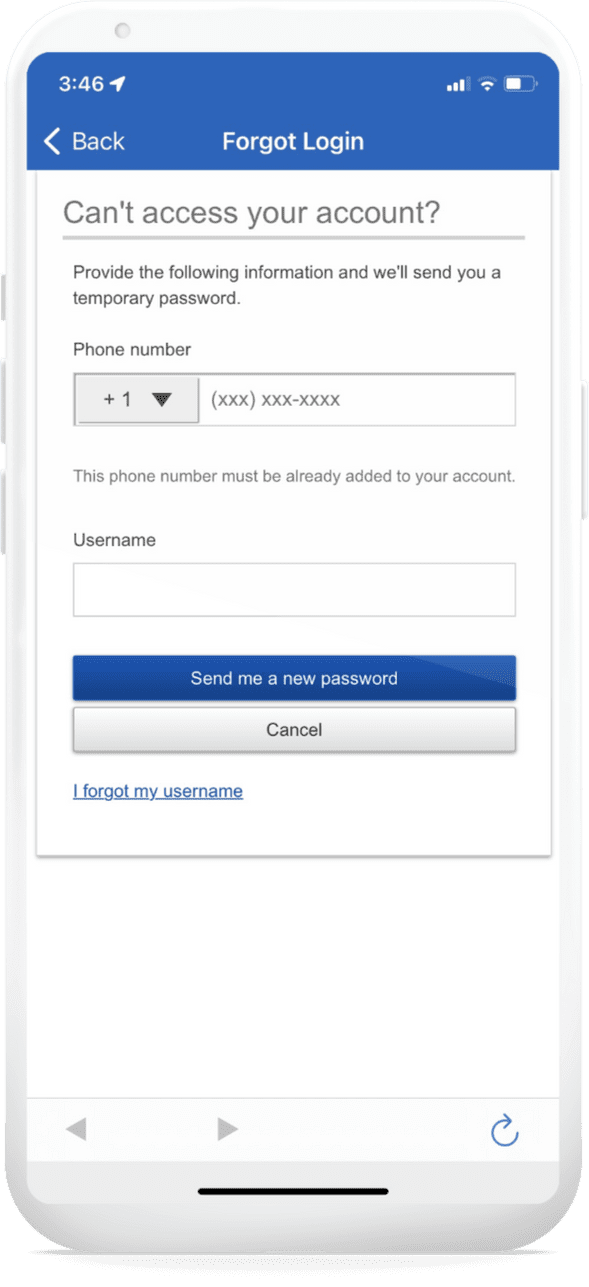
Forgot your password or username? No worries, with Forgot Login, you can reset your password or have your username sent to the email address on file.
STEP 1 – From the login screen on your phone, select Forgot Login?
STEP 2 – Follow the steps to reset your password or securely retrieve your username.
*Face ID® is a registered trademark of Apple Inc.
Loan Payments
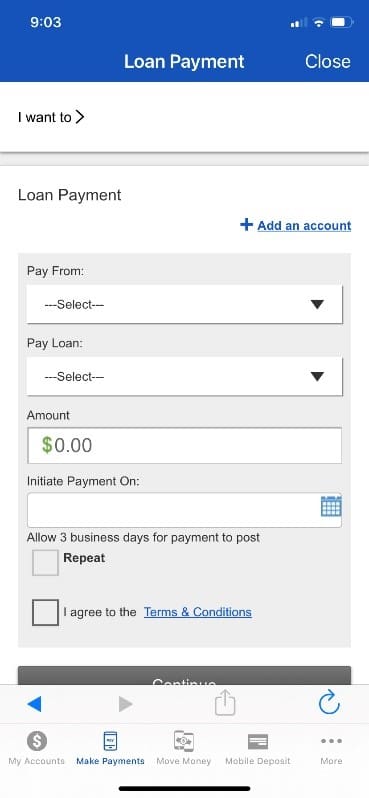
Making loan payments from any account just got easier. First set up External Transfers to establish a banking relationship between accounts. See External Transfers for step by step instructions.
STEP 1 – Select Make Payments, then Loan Payment.
STEP 2 – Select Pay from Bank Account, Complete all required information, review the Terms and Conditions, mark I agree, Select Continue.
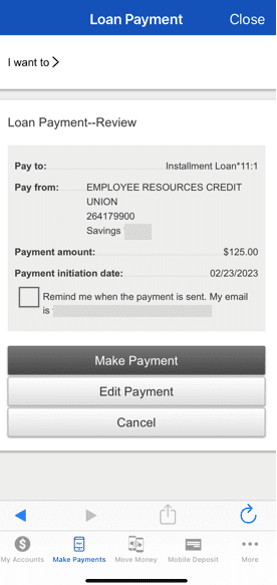
STEP 3 – Review details, select Make Payment, Edit Payment, or Cancel.
Location / Business Hours
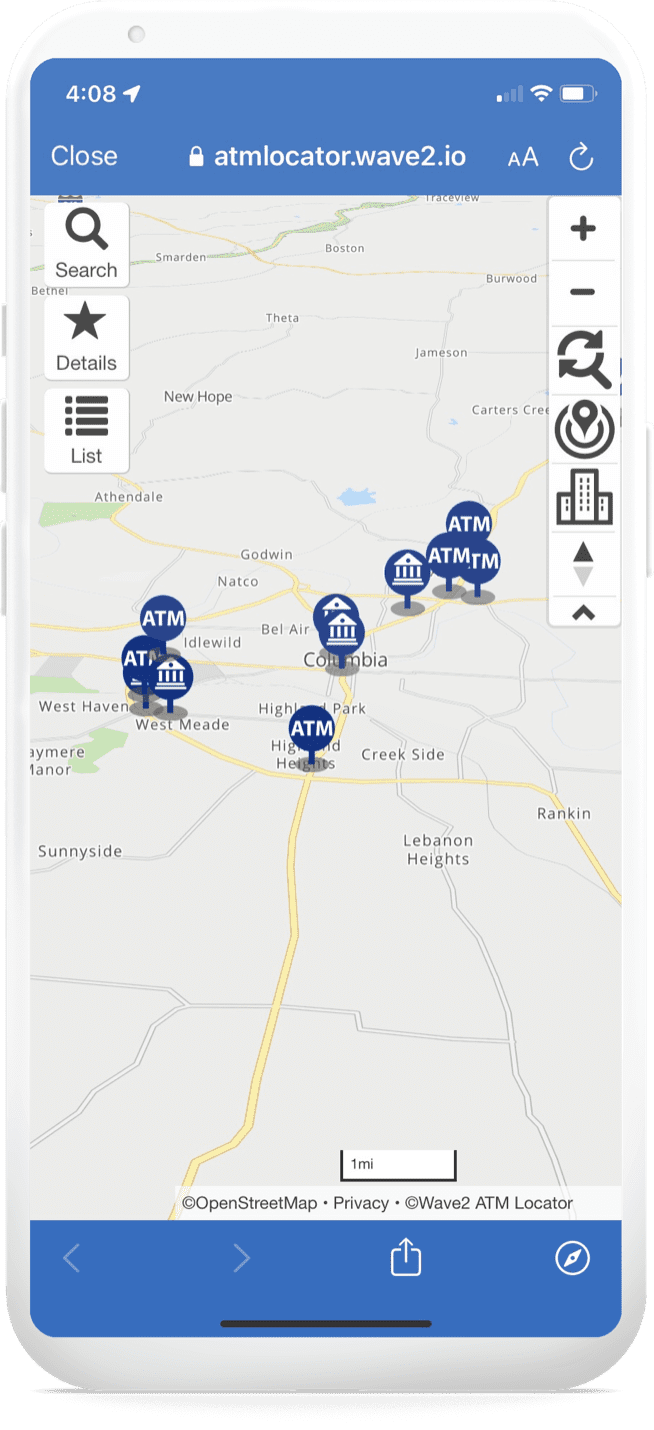
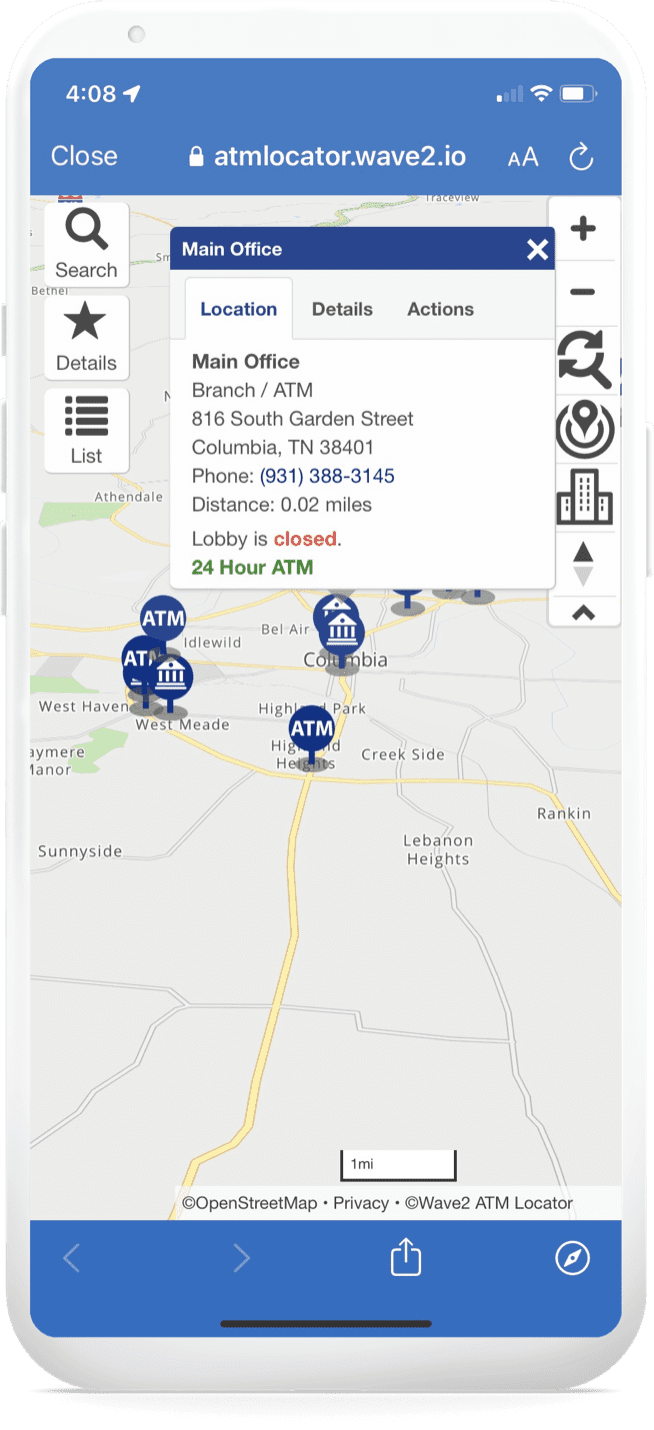
Locate the nearest branch or ATM and view operating hours.
STEP 1 – Select the … button, then click Locations.
STEP 2 – Select the location for branch or ATM.
STEP 3 – View hours of operation and contact information.
Check Deposit
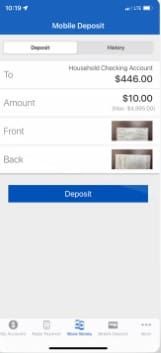
Save a trip to the bank by depositing checks from your smartphone wherever you are.
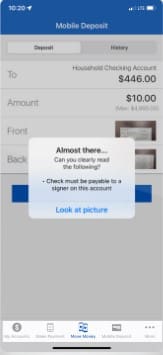
STEP 1 – After logging in, tap the Mobile Deposit button on the bottom of the screen.
STEP 2 – Choose the deposit account and enter the amount of the check. Tap Front and Back to snap photos of the check.
STEP 3 – Don’t forget to sign the back of the check and write For Mobile Deposit Only.
STEP 4 – Tap the Deposit button to complete the process.
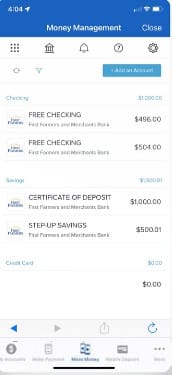
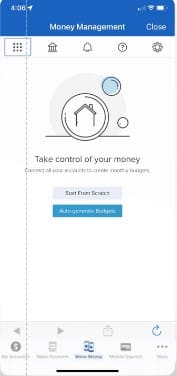
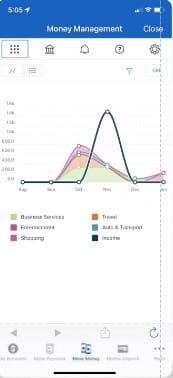
Money Management – Set Up
View your financial accounts in one place to set goals and view spending trends and habits.
STEP 1 – After logging in, tap the … on the bottom of the screen.
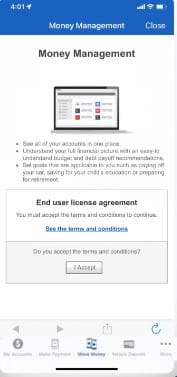
STEP 2 – Select Money Management then accept the terms and conditions to begin.
STEP 3 – Connect all your financial
accounts – bank accounts, credit
cards, loans, and retirement.
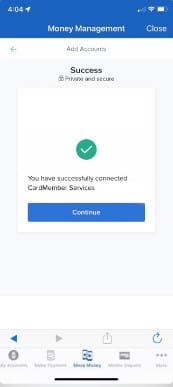
STEP 4 – View the aggregate of your financial status in one place.
Money Manager – Budgeting Tools
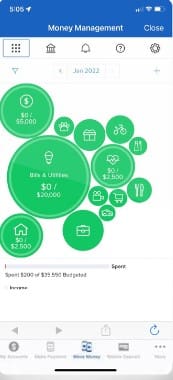
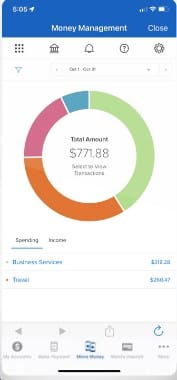
Take control of your money with the money manager budgeting tools. Set spending limits, compare trends, and monitor goals.
STEP 1 – After connecting Accounts.
STEP 2 – Set spending limits for monthly expense.
STEP 3 – Track spending and income.
STEP 4 – Compare trends to set goals.
Online Account Opening
Online account opening is available to existing First Farmers customers with digital banking. Online options are limited to select account types and are subject to change without notice.
Step 1 – From the main menu options, select More … , then Open New Account.
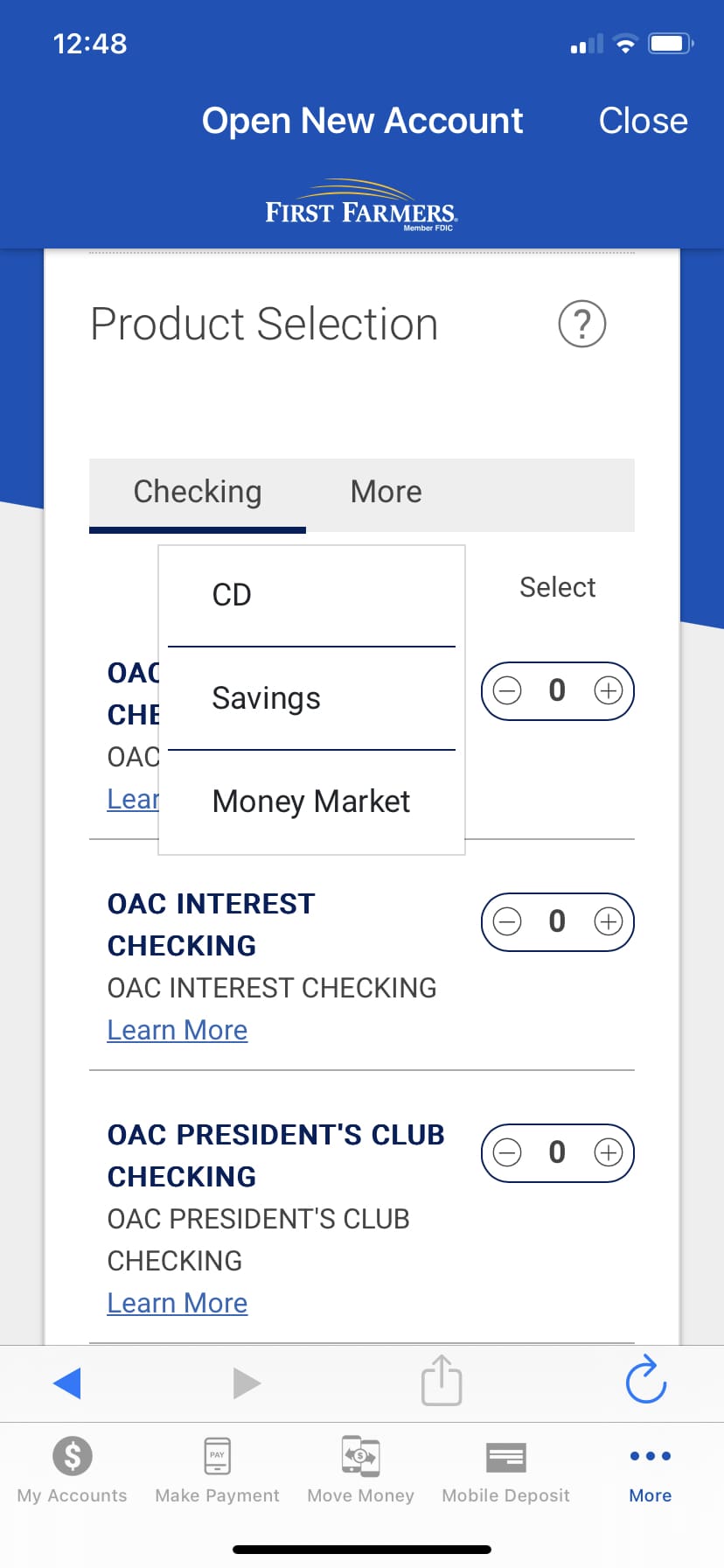
Step 2 – Next, choose the product selection. Options include Regular, Interest, or President’s Club Checking Accounts and Money Market, Savings, and CD accounts. Use the Learn More for a list of features for each product option.
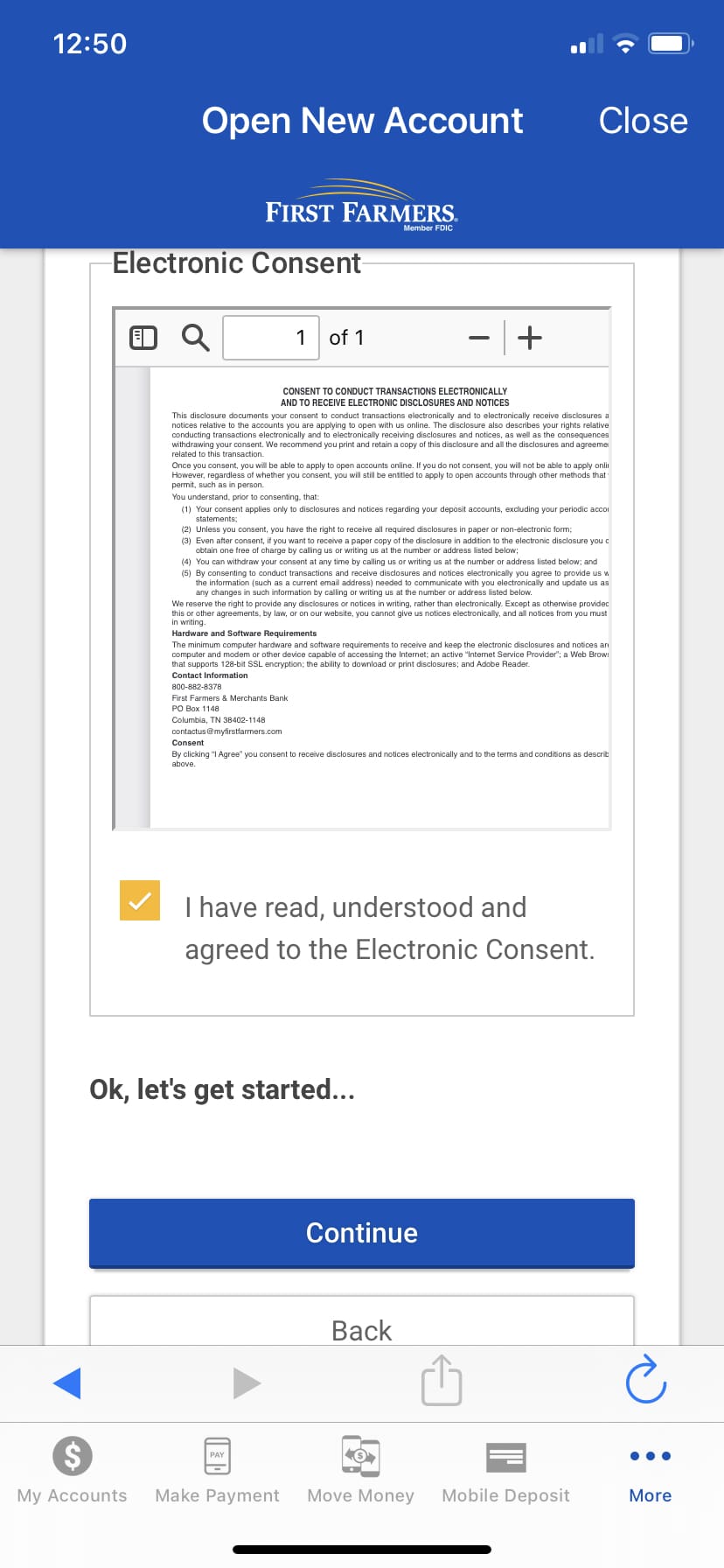
Step 3 – When ready to open the account, select the desired account and Add to Cart and Continue. Complete the ownership, review and accept the Electronic Consent.
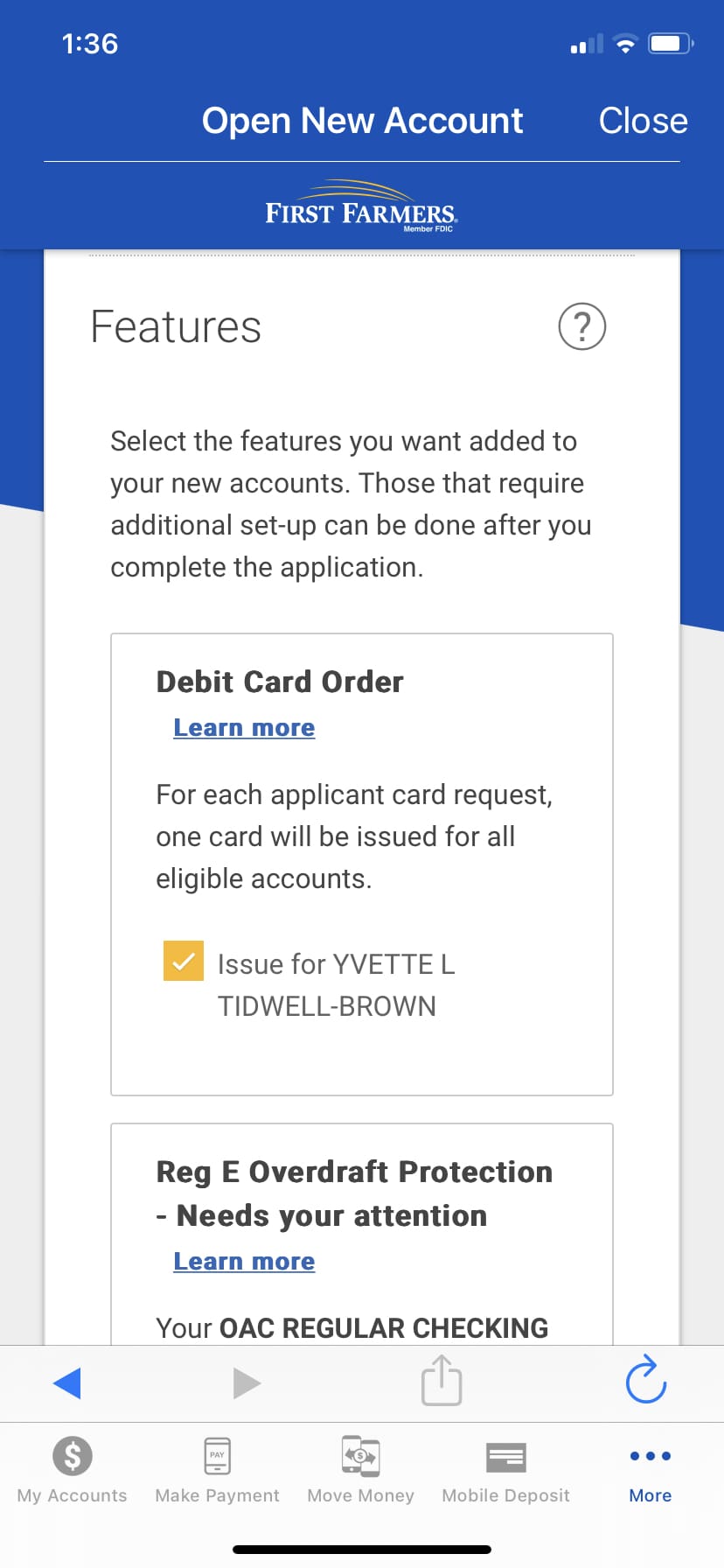
Step 4 – If additional features are available, you will have
the option to opt-in or opt-out of each service.
Below is an example of a debit card option. Use
the learn more link for more information. After
all selections have been made, click Continue.
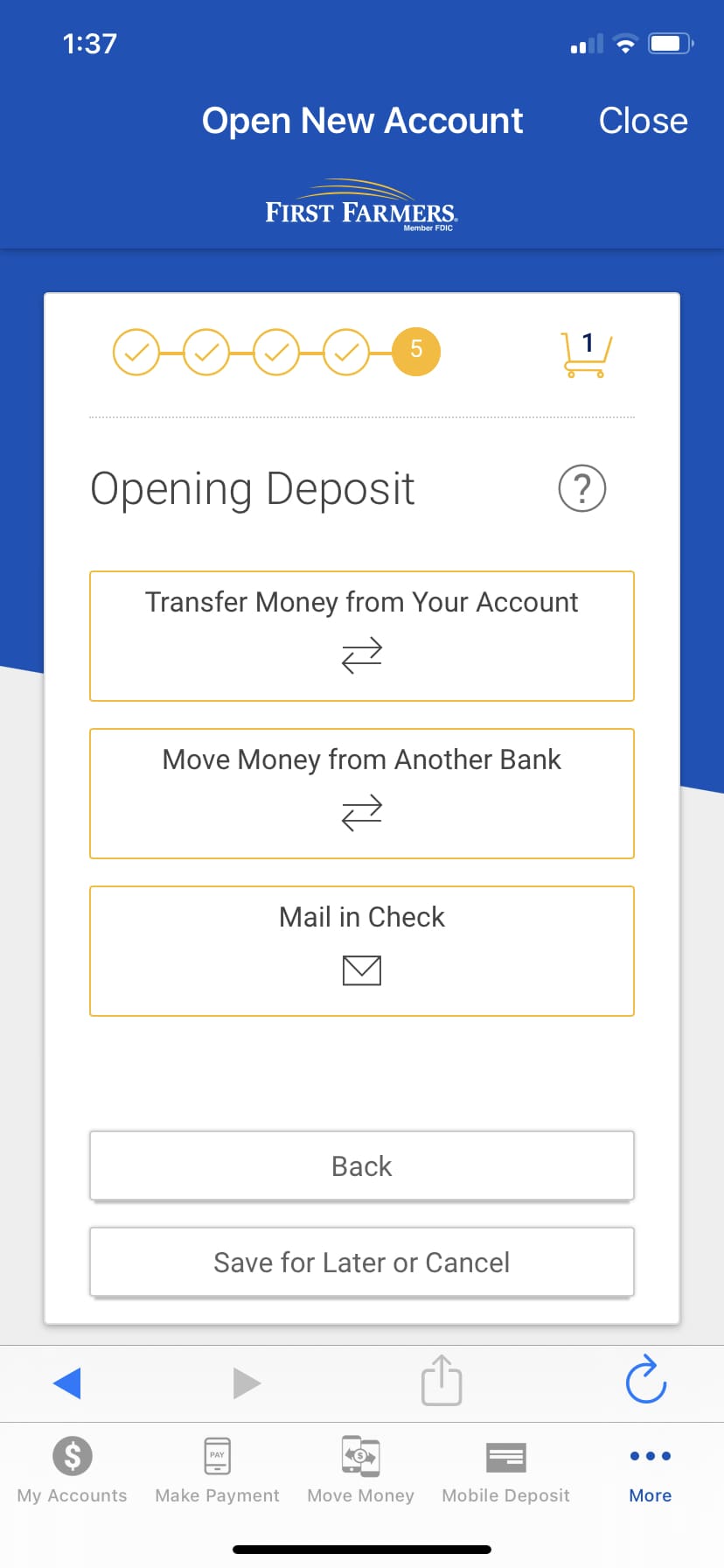
Step 5 – Next you will select the method to fund the new
account. Options include: transfer funds from a First Farmers account, transfer from another financial institution, or mail a check. Complete the steps necessary depending on the selected funding option.
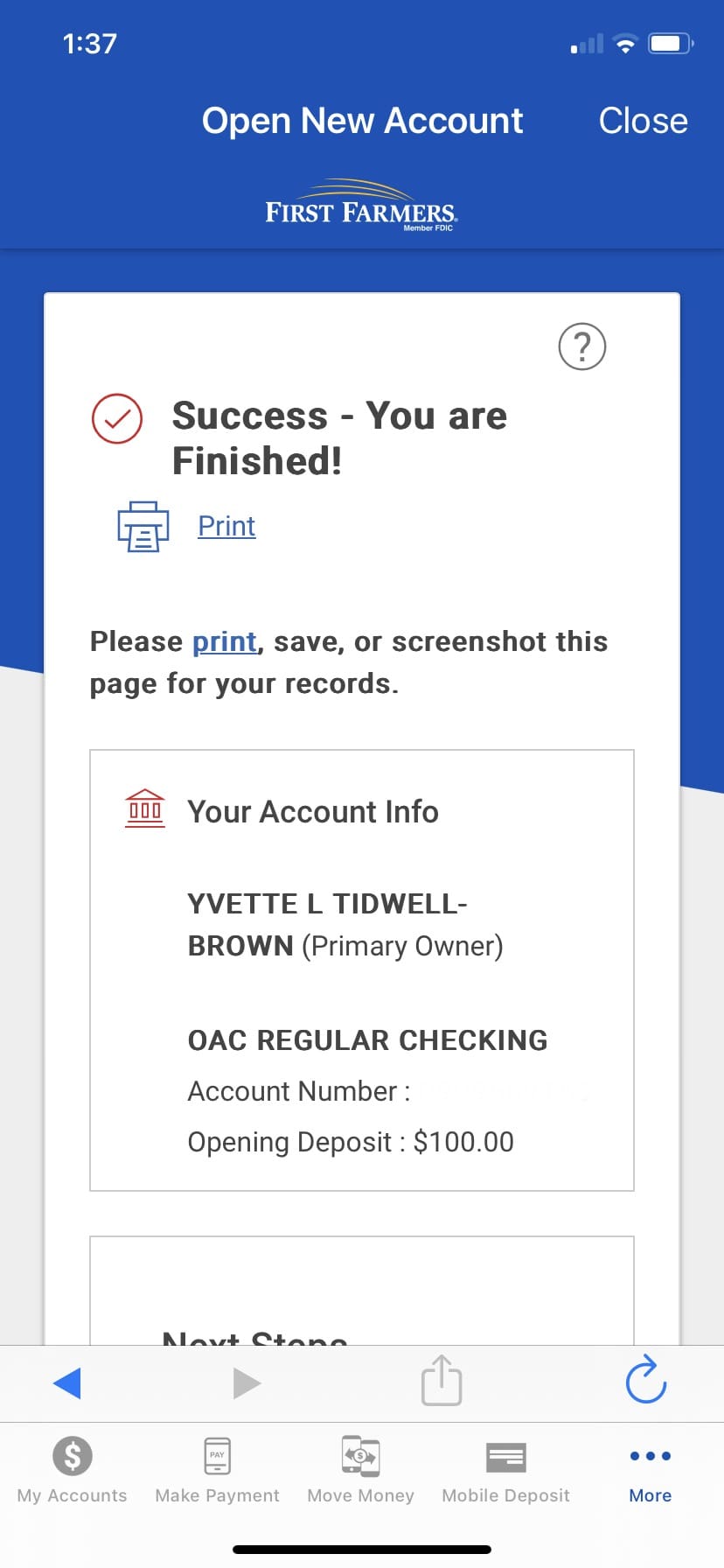
Step 6 – You are finished, Click print and check your email for confirmation.
Quick Balance – Phone and Apple Watch®
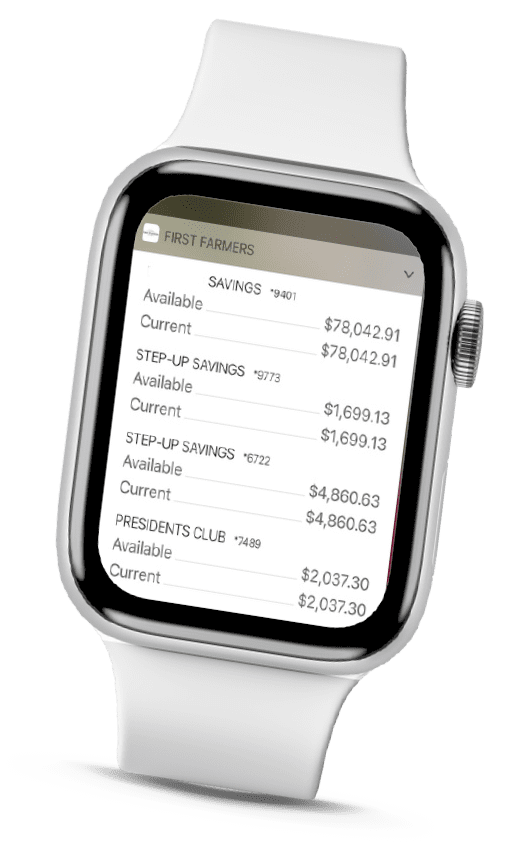
Fast and easy method to view account balances on a phone or Apple Watch® at a glance.
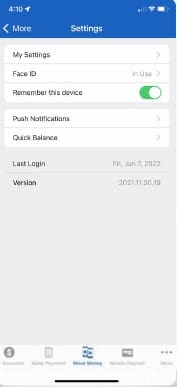
STEP 1 – Go to … then select Settings.
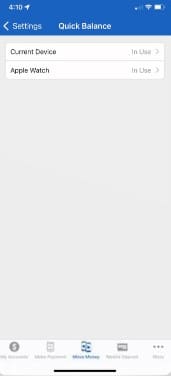
STEP 2 – Choose Quick Balance.
STEP 3 Turn On Apple Watch® and Current Device to enable the quick balance view.
Apple Watch®
*Apple Watch® is a registered trademark of Apple Inc.
Secure Communication
Safely and securely communicate with one of our digital banking specialists from the mobile app.
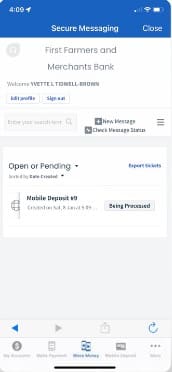
STEP 1 – After logging in, tap the … on the bottom of the screen, from Other Account Services, click Secure Messaging.
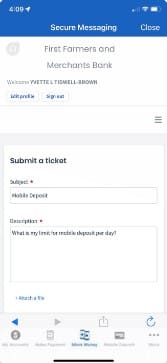
STEP 2 – Choose new message to submit a ticket to a digital banking specialist.
STEP 3 – Don’t forget to complete the required fields then submit.
Start a Loan Application
Start an application at your convenience for a variety of loans from your phone.
STEP 1 – After logging in, tap the … on the bottom of the home screen.
STEP 2 – Click Start a Loan Application for Personal, Home Equity Line of Credit, or Mortgage.
STEP 3 – Complete the required fields.
Transfer Funds / Move Money
After you’ve established a transfer relationship, easily transfer between accounts no matter where you are.
STEP 1 – Simply click the Move Money button on the bottom of the screen and then
select Make a Transfer
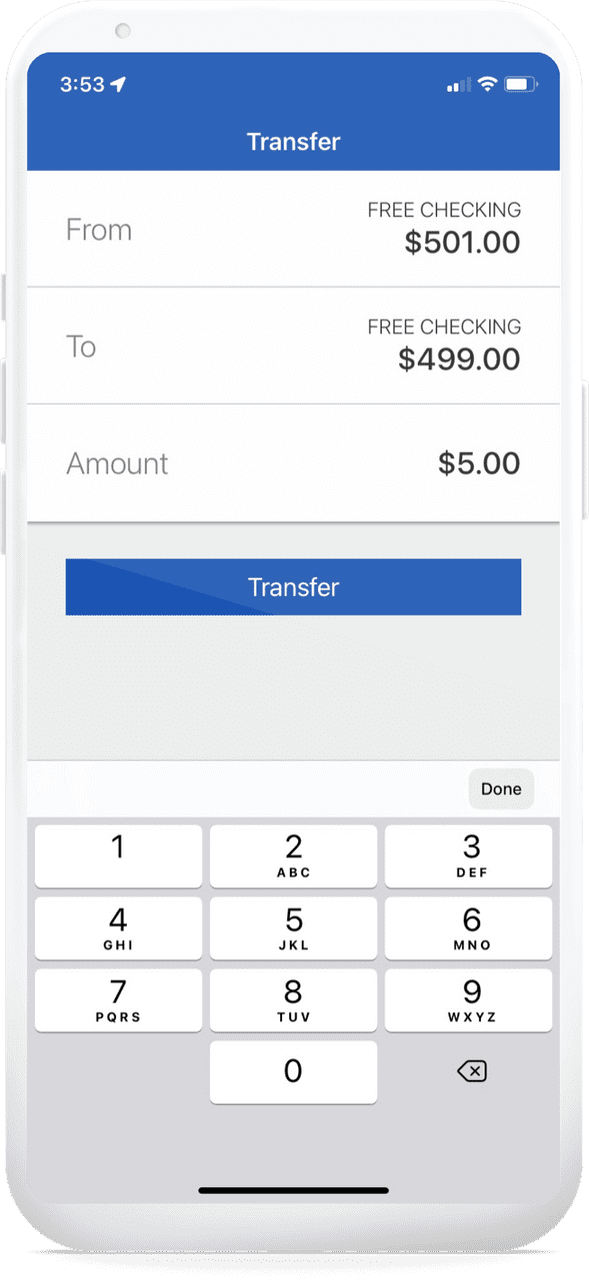
STEP 2 – Select the To / From Account information, enter the amount, and click Transfer.
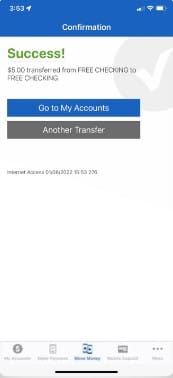
STEP 3 – Transfer is a Success. Go to My Accounts or Make Transfer from screen.
Zelle®
An easy and secure way to send, receive, and request money to and from friends, family, and others you trust using your First Farmers mobile app.
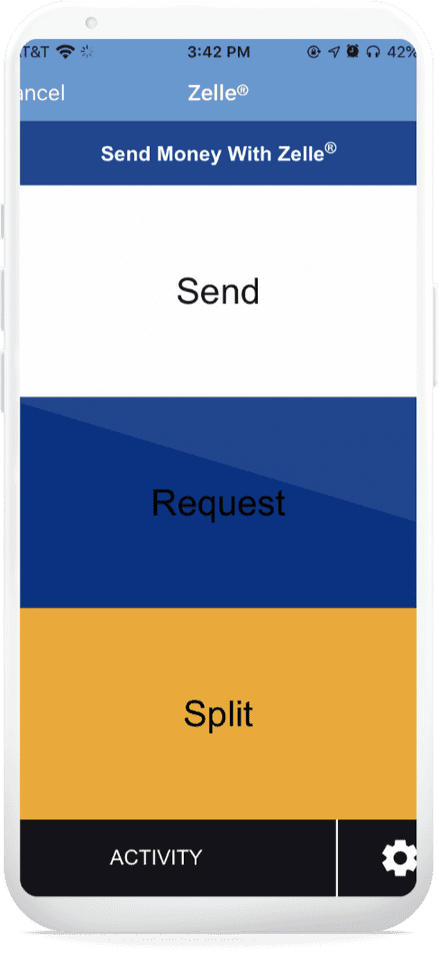
SET UP – Tap the . . button on the bottom of the screen, then click Zelle®. Enter your email address or U.S. phone number to set up your Zelle profile.
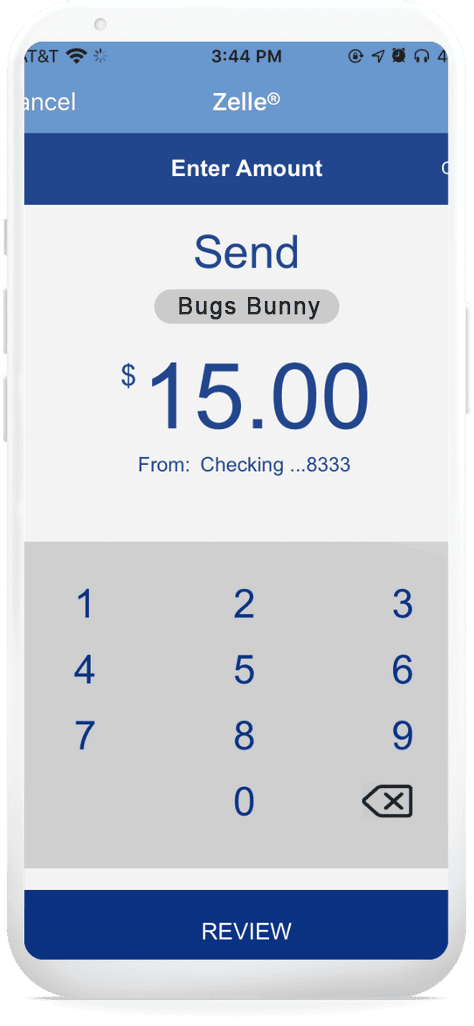
SEND – To send money, select Send, choose someone from your mobile device’s contacts, add the amount to send, then hit Send.
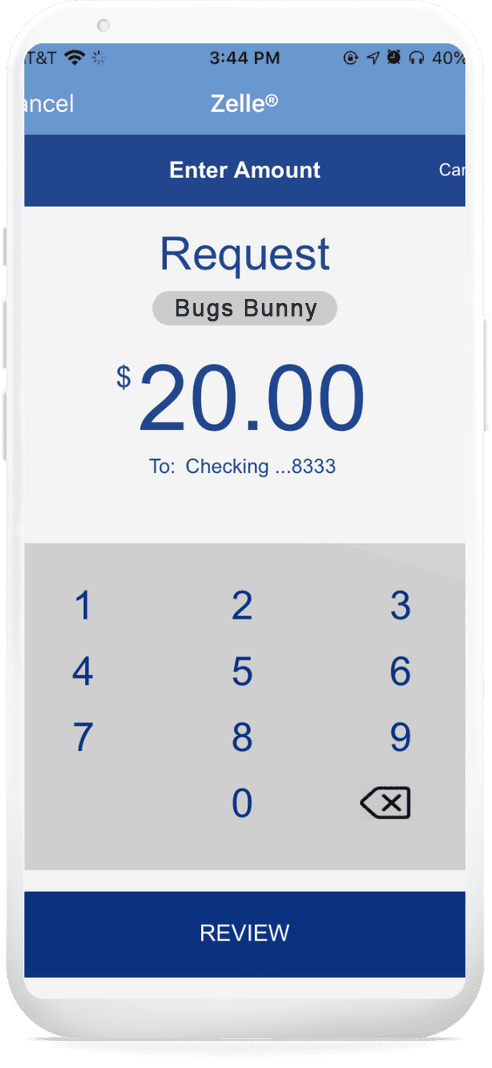
REQUEST – To request money, select Request, choose the individual from whom you’d like to request money, enter the amount, and hit Request.
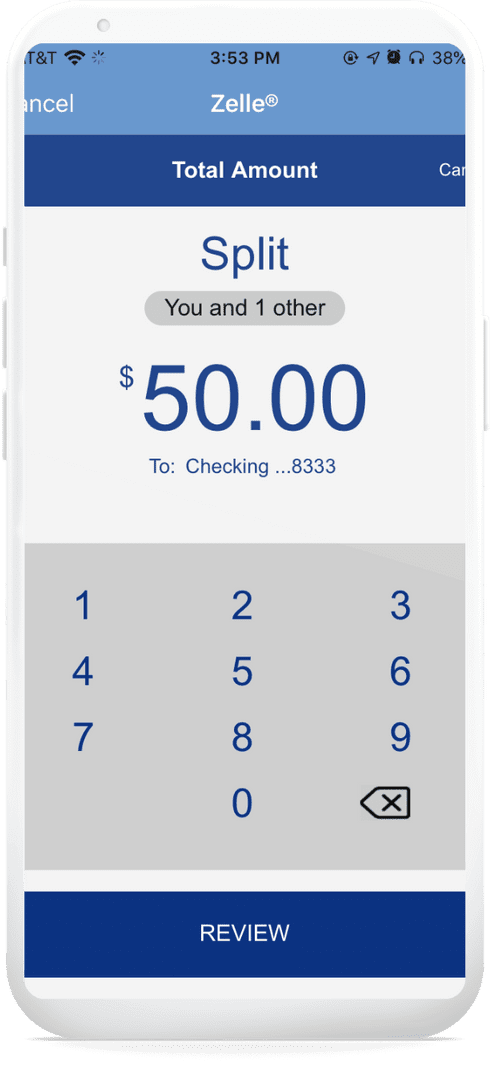
SPLIT – To split a cost, select Split, choose the individual(s) with whom you’d like to split, and enter the total amount of the bill.
SPLIT – The amount will be split evenly among those selected. Tap Review then Split to complete.
Early Warning Services, LLC. Zelle® and the Zelle® related marks are wholly owned by Early Warning Services, LLC and are used herein under license.
SecurLOCK EquipTM
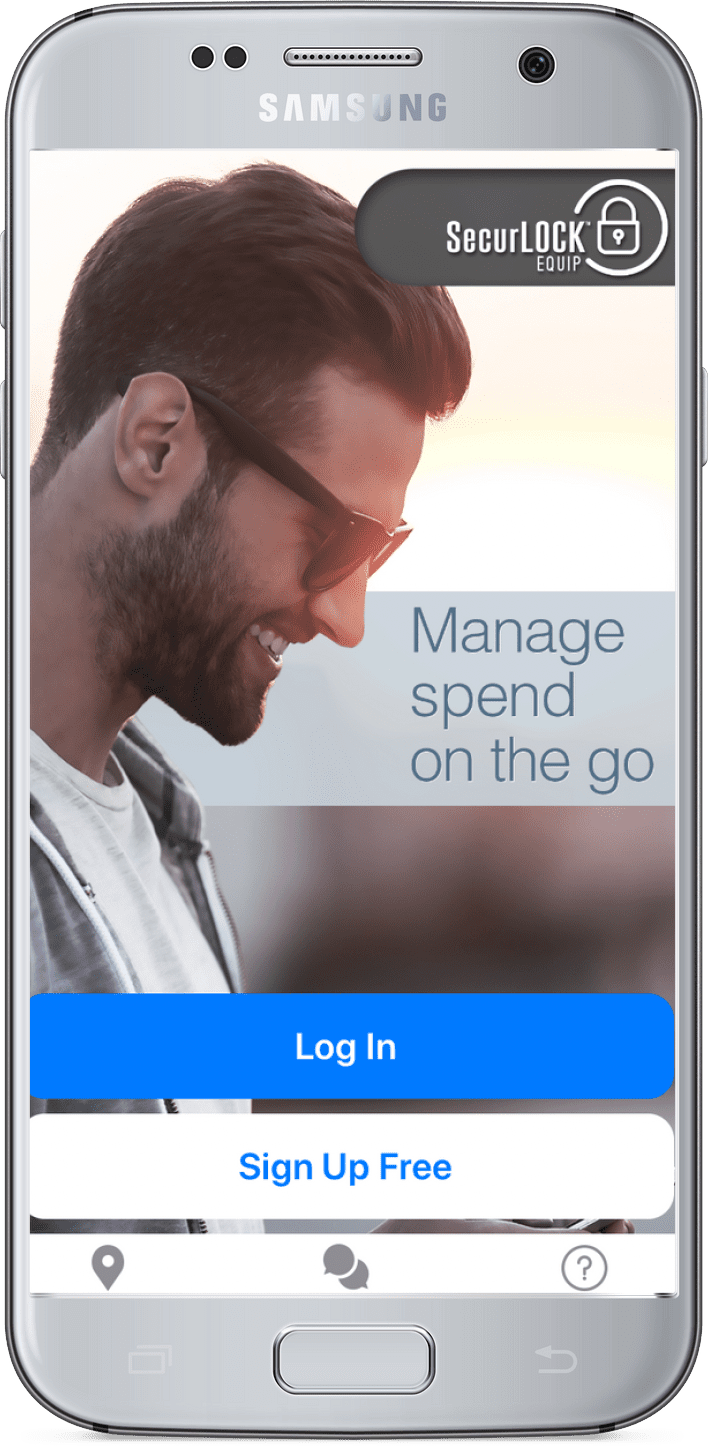
Peace of mind is in your hands with the SecurLOCK EquipTM mobile app. Available in the Google Play™ or Apple® App Store. Download the app to set debit card limits and alerts.
DOWNLOAD – Search SecurLOCK Equip to download from the app store.
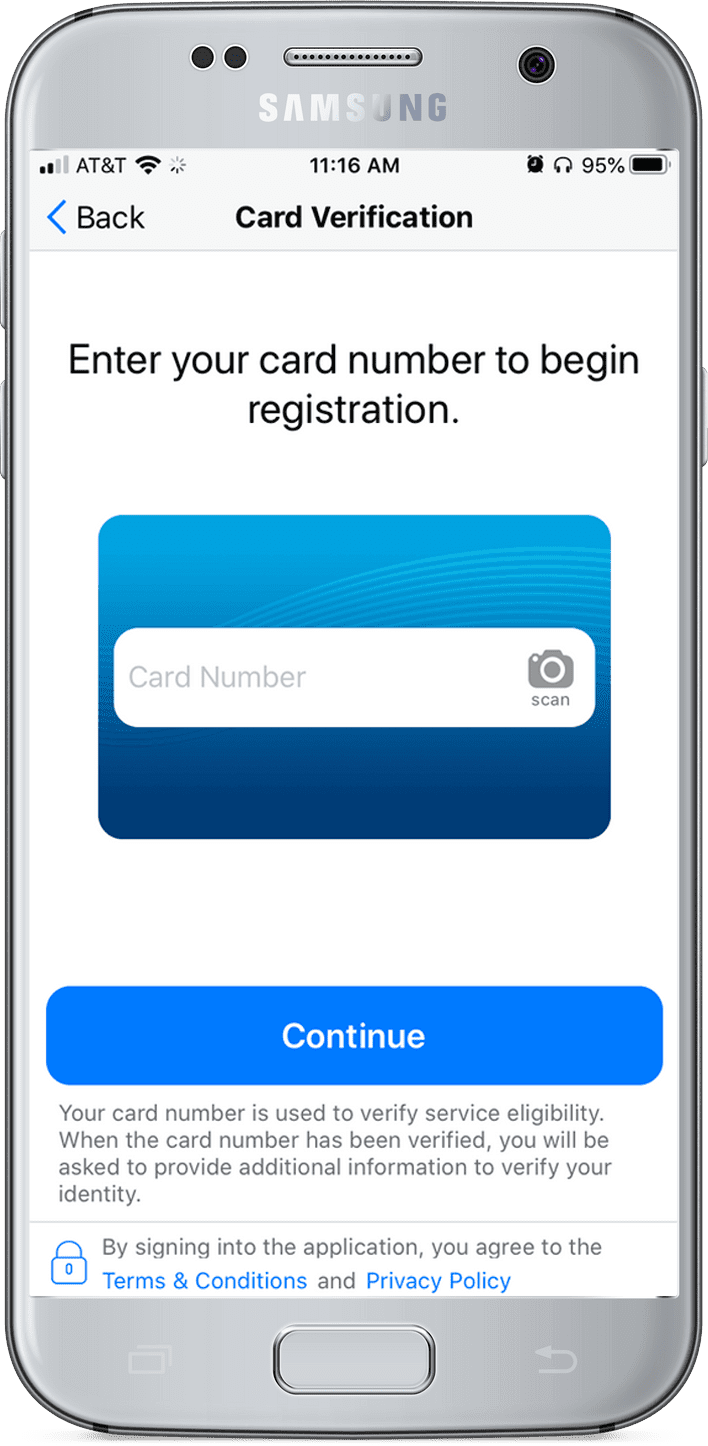
SET UP – Type or scan your First Farmers debit card number. The following screens will walk you through setting up your profile for the app.
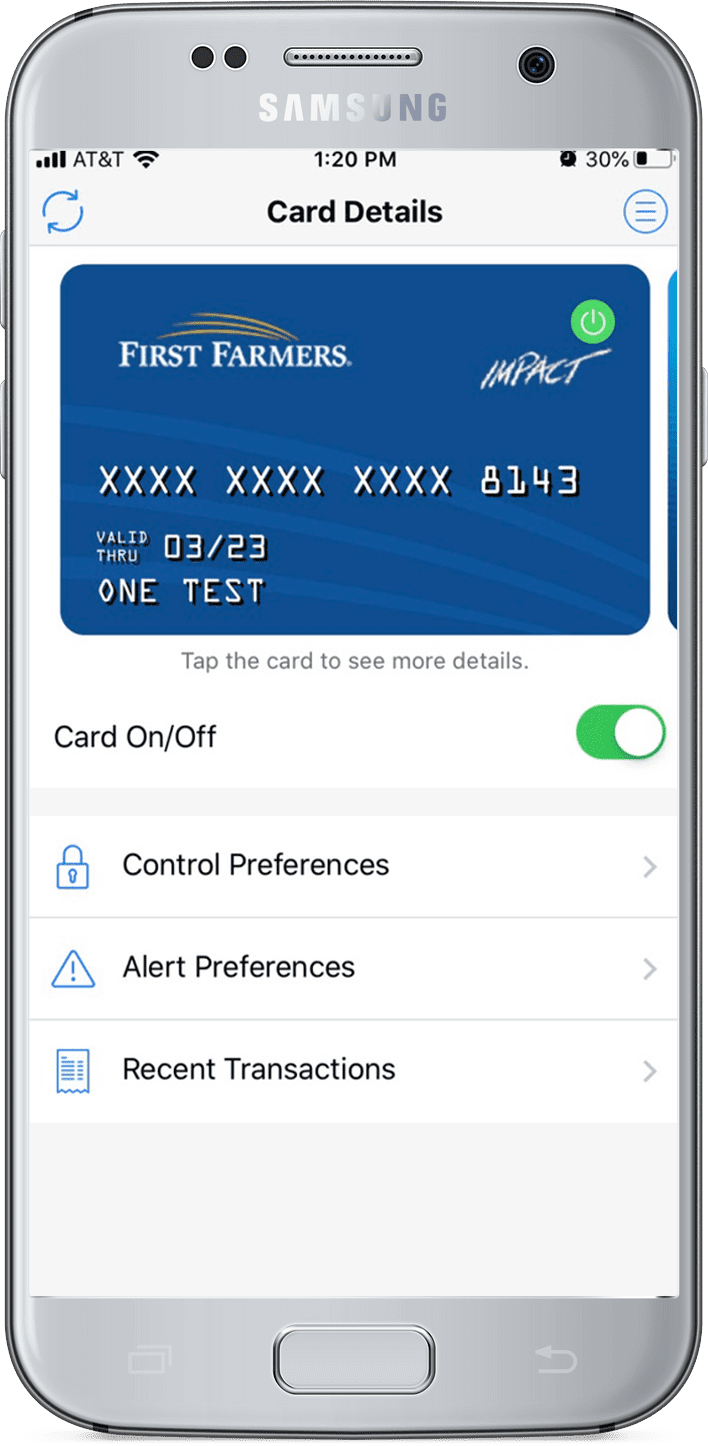
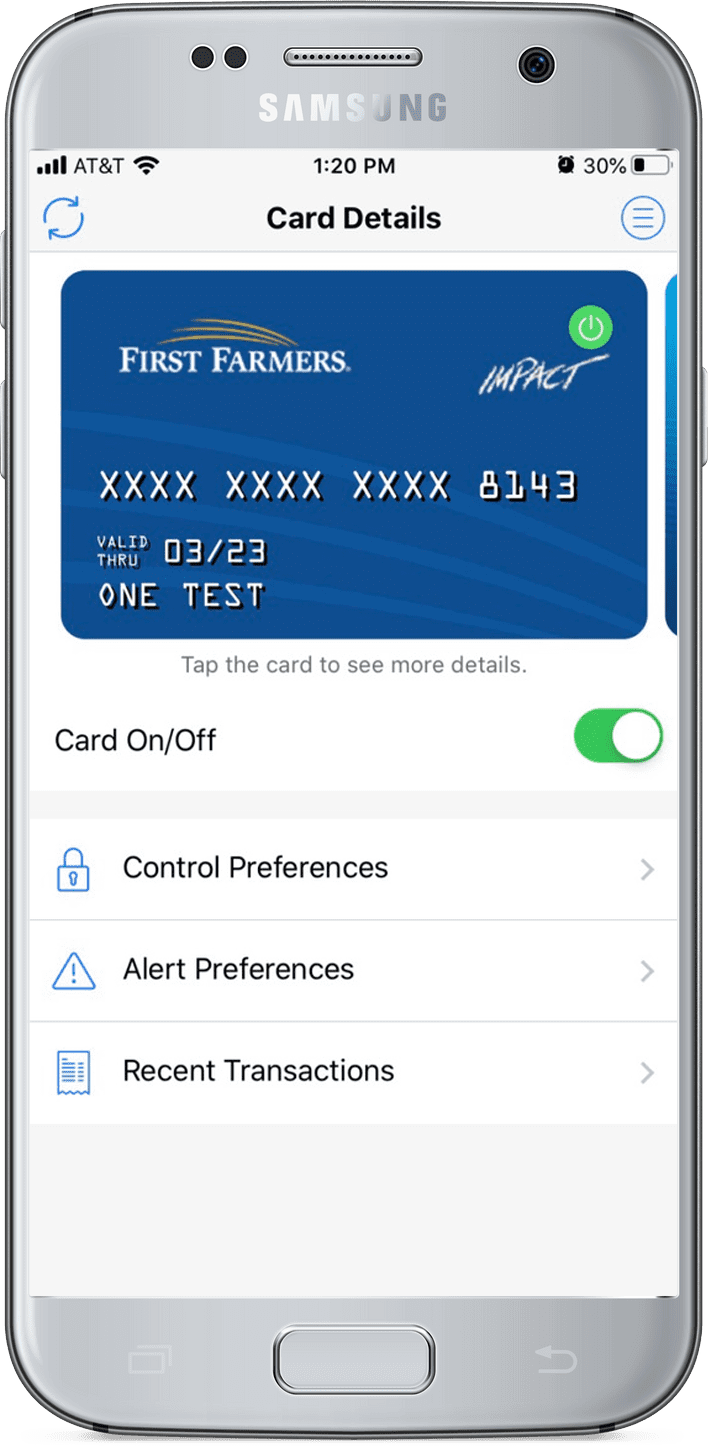
ON/OFF – Easily turn your debit card on and off from the main screen. Use this feature if your card has been misplaced.*
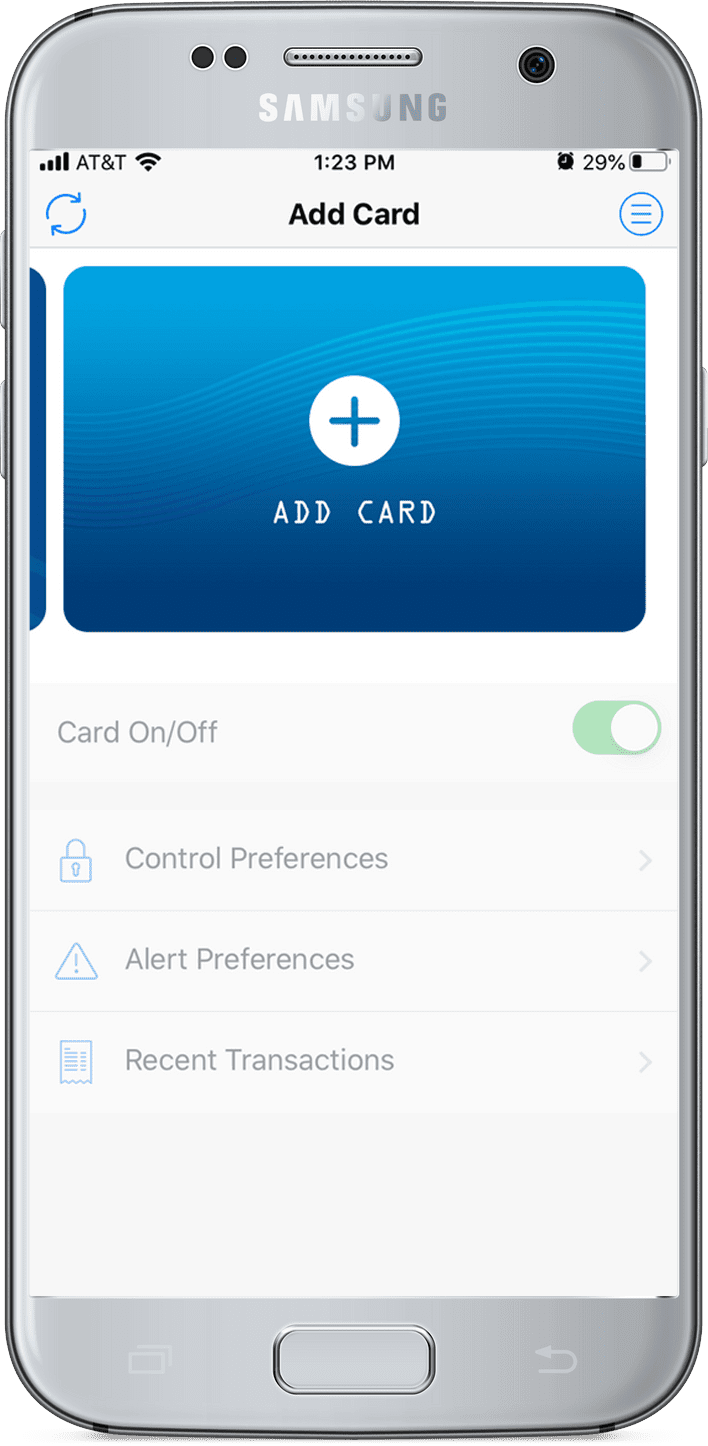
ADD ANOTHER CARD – To add more than one card, simply swipe left on the main screen, then tap +Add Card.
SecurLOCK EquipTM is a trademark of FIS, LLC
*Google Play is a trademark of Google LLC.
*Apple App Store is a registered trademark of Apple Inc.
*If your card cannot be found, call (800) 882-8378 or visit a branch to report your card lost or stolen. The lost or stolen card will be deactivated, and a new card and card number will be issued to you.
SecurLOCK EquipTM – Controls
Control which transactions should be approved by location, merchant types, transaction types, and spending limits.
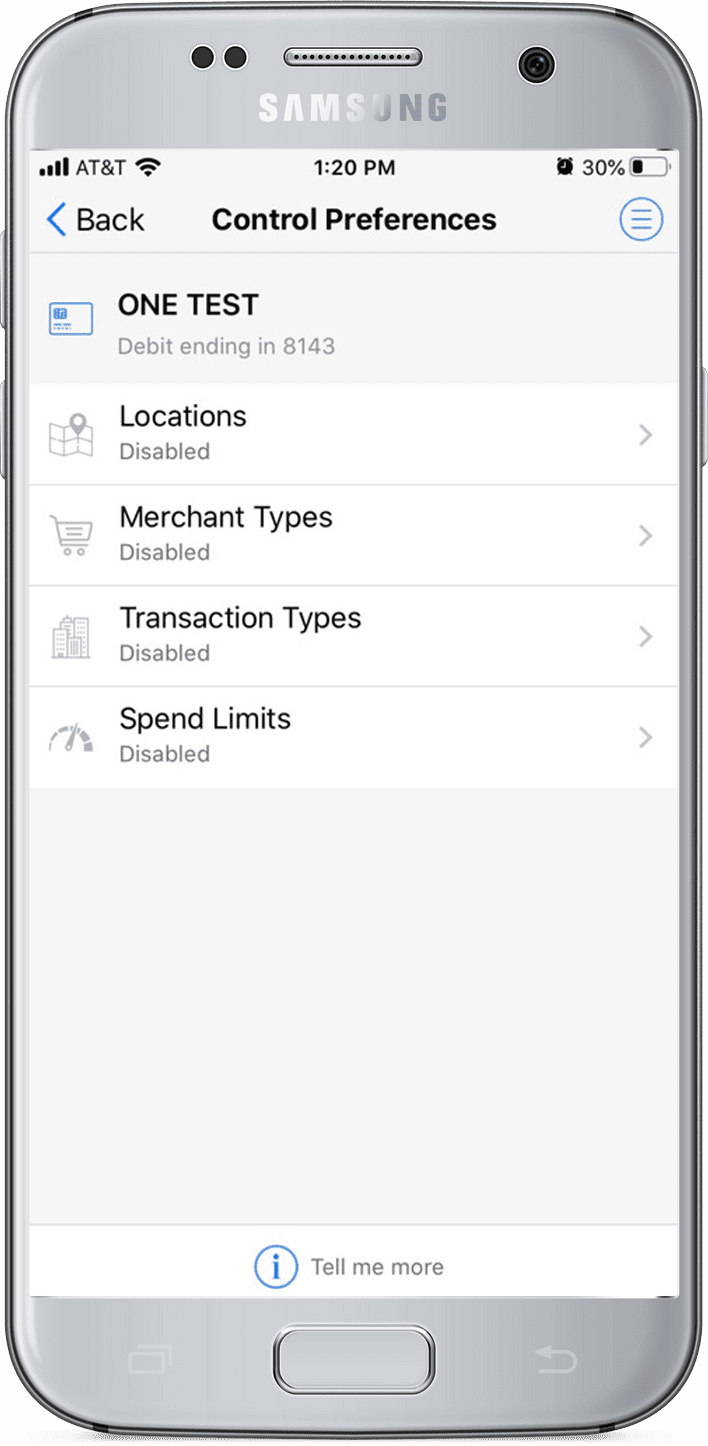
CONTROL PREFERENCES – From the main screen, tap Control Preferences.
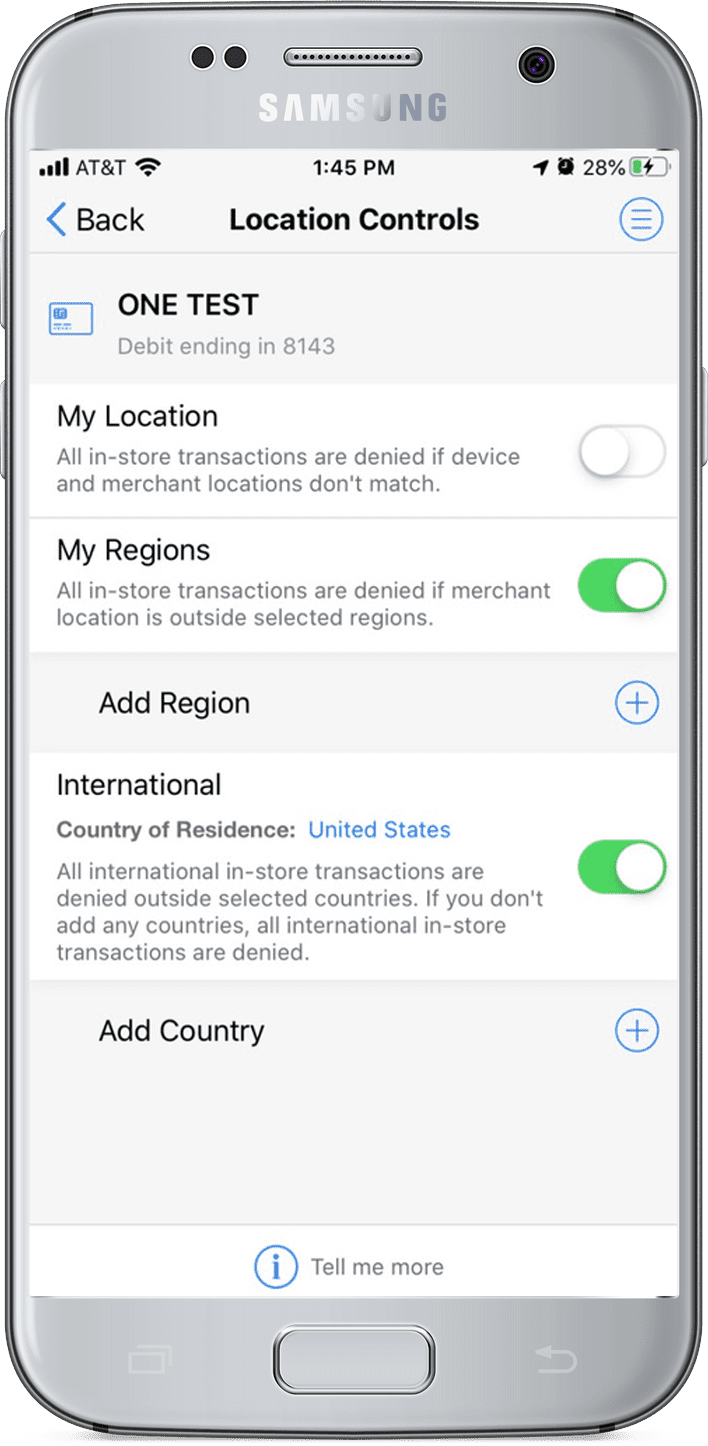
LOCATIONS – When My Location is enabled, your card can only be used when your mobile phone is in the same zip code as the merchant. When Regions is enabled, you set the specific regions in which transactions should be approved. If traveling Internationally, add the countries you will visit to enable purchases to be approved.
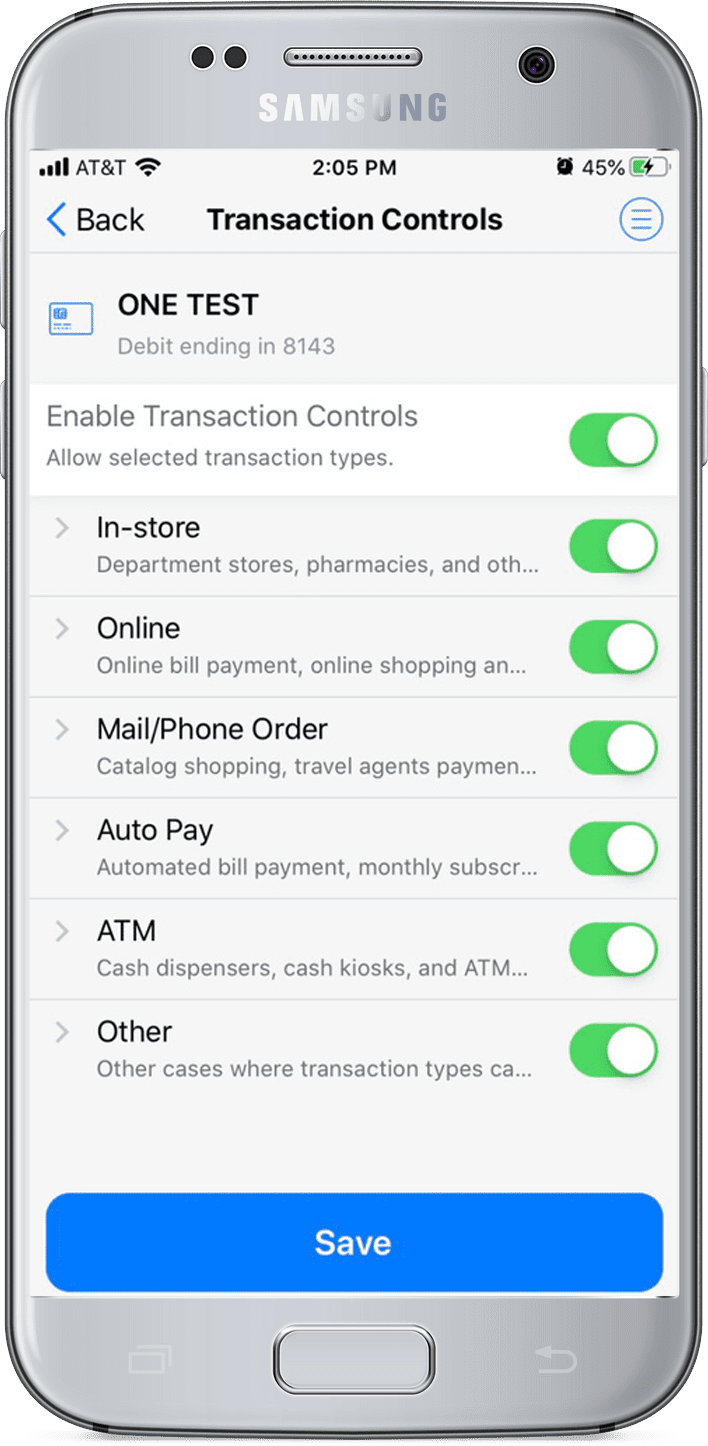
TRANSACTION TYPES – Specify the types of transactions that may be made with your card.
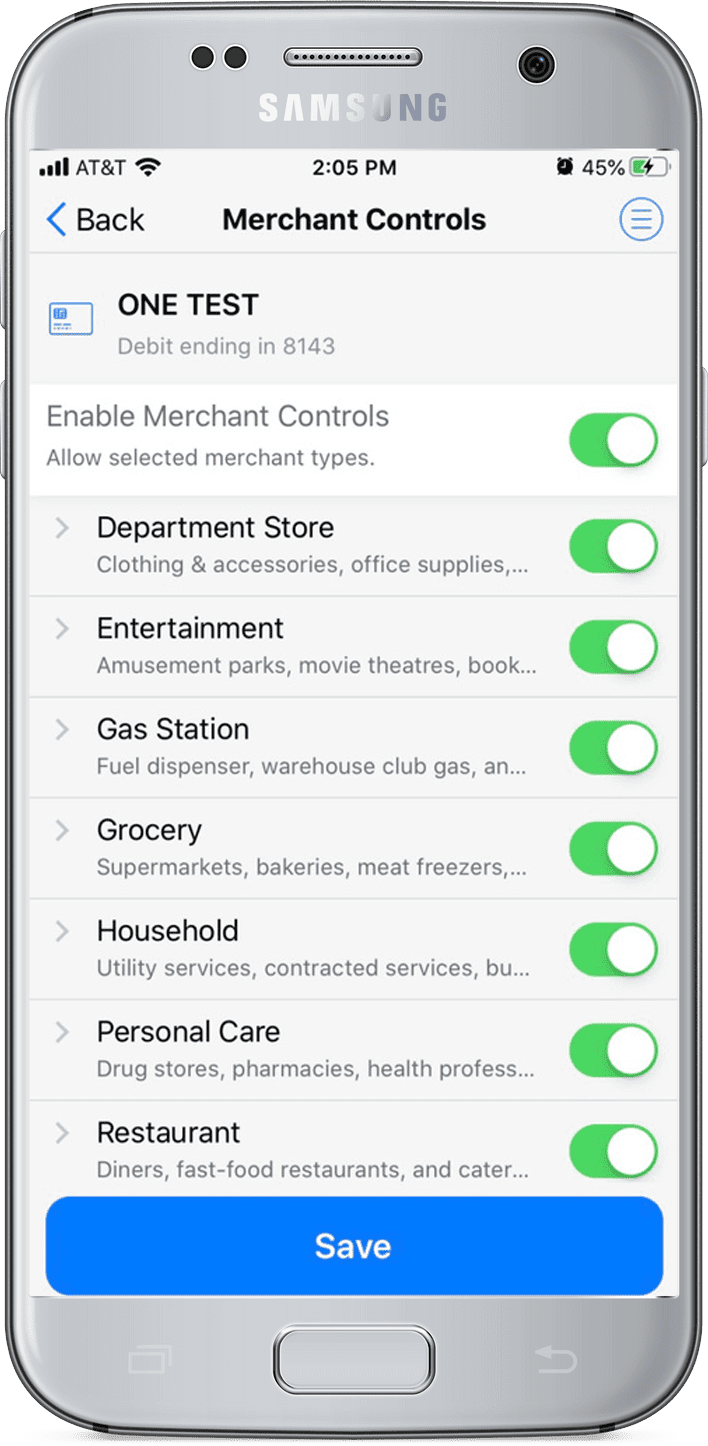
MERCHANTS – Control the types of businesses at which your card can be used.
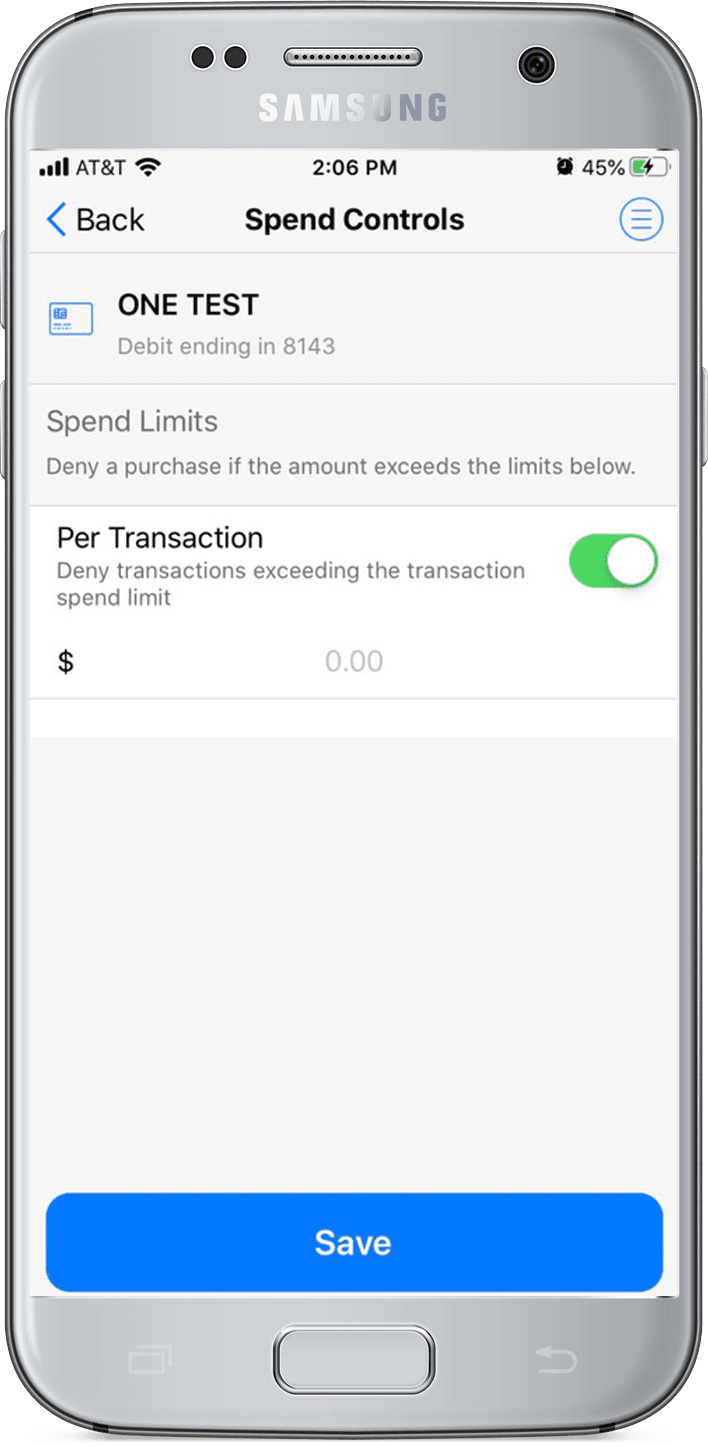
SPEND LIMITS – Set a limit on how much can be spent on one transaction. Purchases exceeding this amount will be denied.
SecurLOCK EquipTM is a trademark of FIS, LLC
SecurLOCK EquipTM – Alerts
Tailor your alert preferences to your spending patterns, and use them to notify you of unusual purchases.
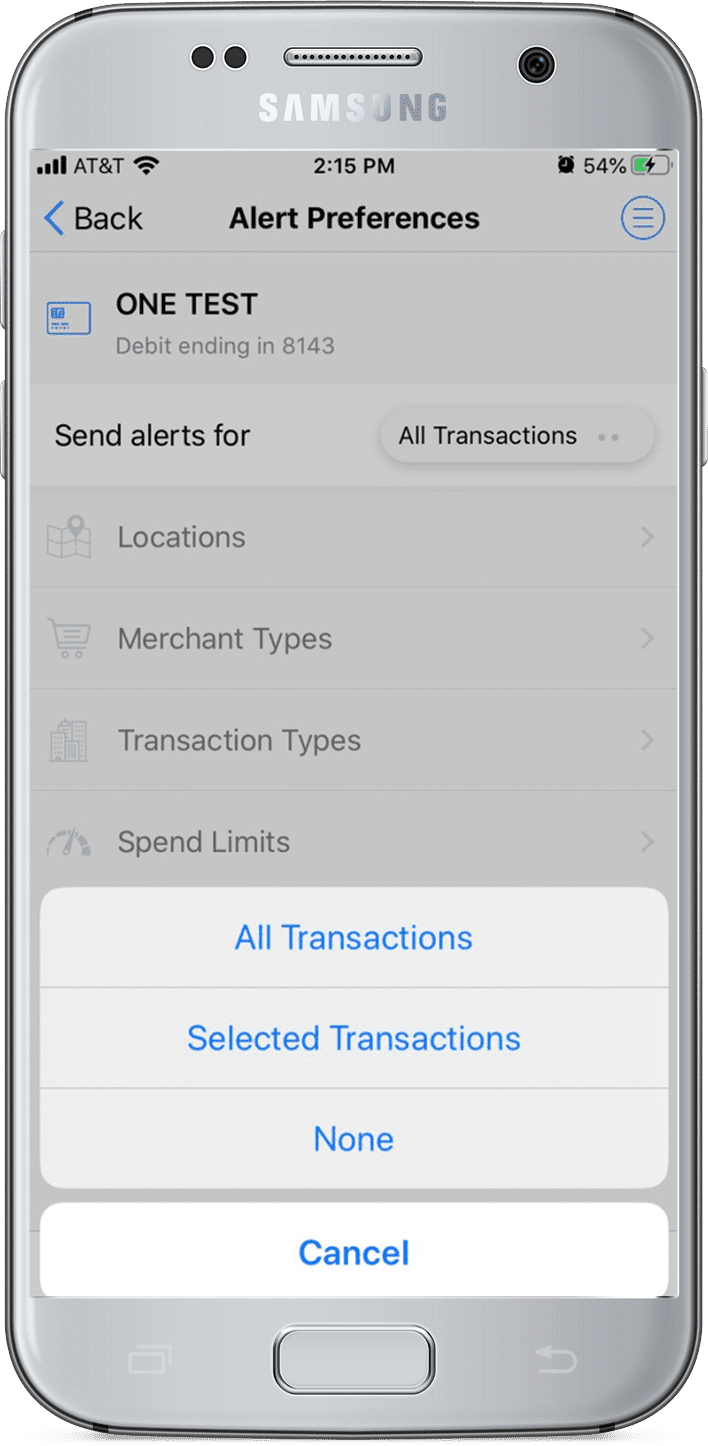
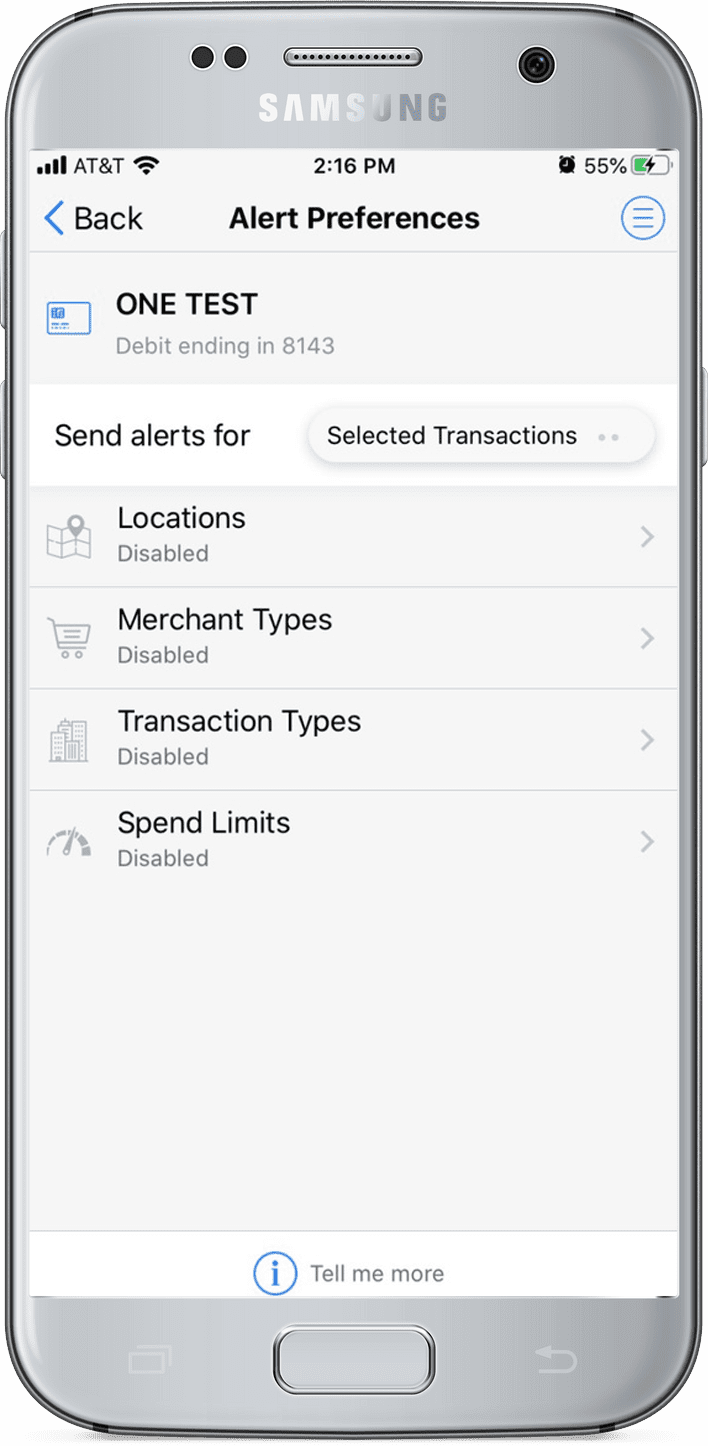
ALERT PREFERENCES – Tap Alert Preferences to enable a category to access alerts associated with it.
SEND ALERTS FOR – Choose to receive alerts for All or Selected transactions, or choose to receive None at all.
SELECTED TRANSACTIONS – If you choose Selected, tap a category to tailor the alerts to your preferences.
By clicking on this link, you will leave the website of First Farmers and Merchants Bank. You will be taken to a third party site that may offer a different privacy policy and level of security of which First Farmers has no responsibility. First Farmers is not affiliated with any of the featured links and does not offer, endorse, recommend or guarantee these products or services.
You are now leaving myfirstfarmers.com and going to ameriprise.com
Ameriprise.com is not owned or operated by First Farmers and has its own privacy policy and terms of use. We encourage you to read through the privacy policy and terms of use and familiarize yourself with the ameriprise.com site before opening an account or completing a transaction. First Farmers is not responsible for the availability or content of information on ameriprise.com and First Farmers does not represent either Ameriprise Financial, Inc. or you, should you open an account or enter into a transaction.
Investment Products:
Ameriprise Financial Services, LLC is not an FDIC insured bank; FDIC insurance only covers the insolvency of FDIC-insured banks.
You will be redirected to
Click the link above to continue or
Please note, this site relies on cookies for functionality, analytics, relevant content, and to provide a better experience. For details on how we use this information, see our Privacy Notice.