Online Banking
A Digital Banking Experience that provides you with the tools to manage your finances when convenient.
Getting Started
A simple and secure way to transfer funds, pay bills, make loan payments, and view transaction history. Please contact a First Farmers representative to set up online business banking.


STEP 3 – Create your online profile, and enjoy connecting to your money wherever and whenever you want.
- Username requirements:
- Must be at least 8 characters long
- Must contain one letter
- Password requirements:
- Must be at least 8 characters long
- Must contain one letter
- Must contain one number
- Must contain one special character
Account Alerts – Notifications
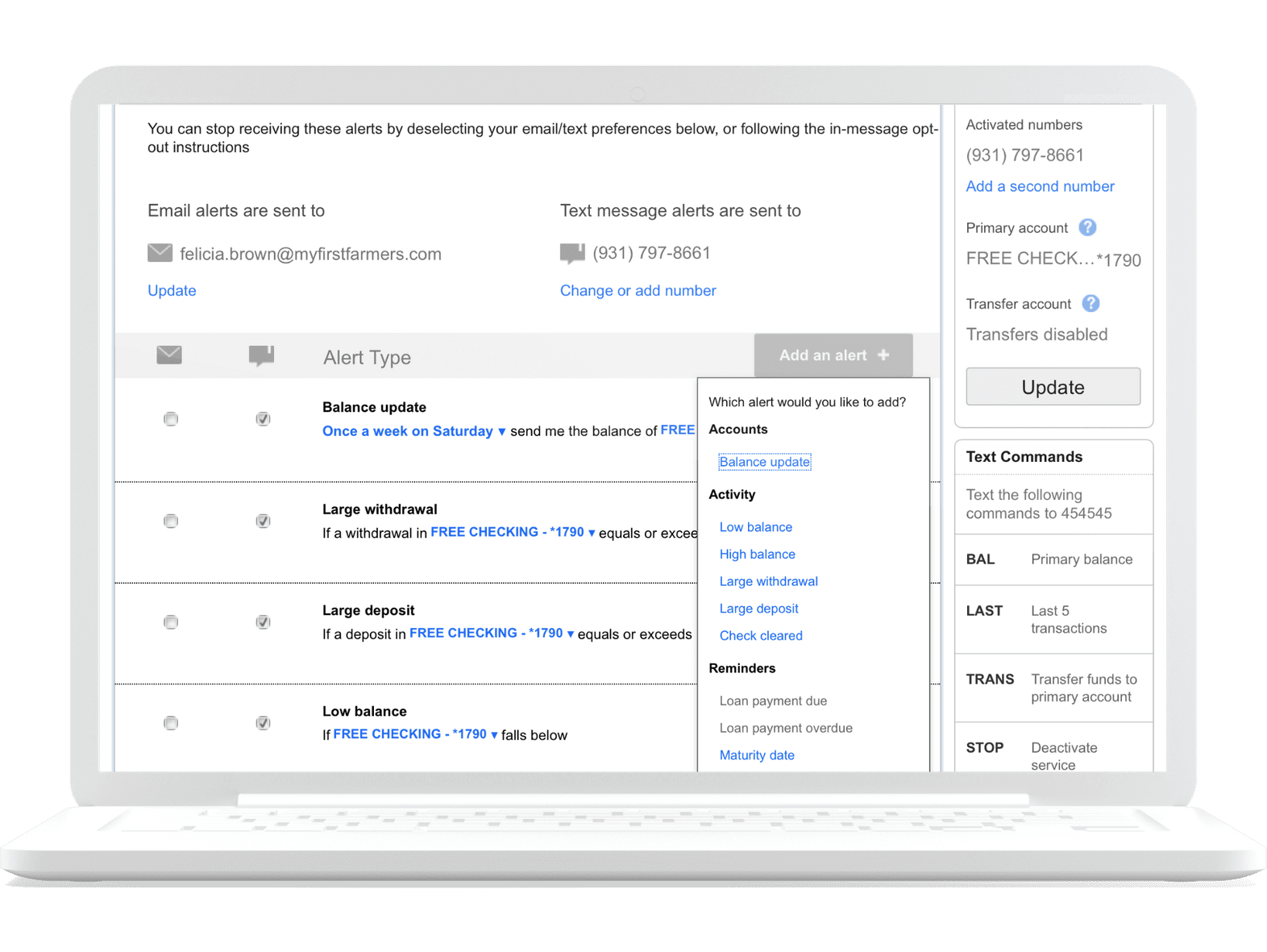
You choose the alerts that are important to you and whether you’ll receive them via text or email, or both. It’s that simple.
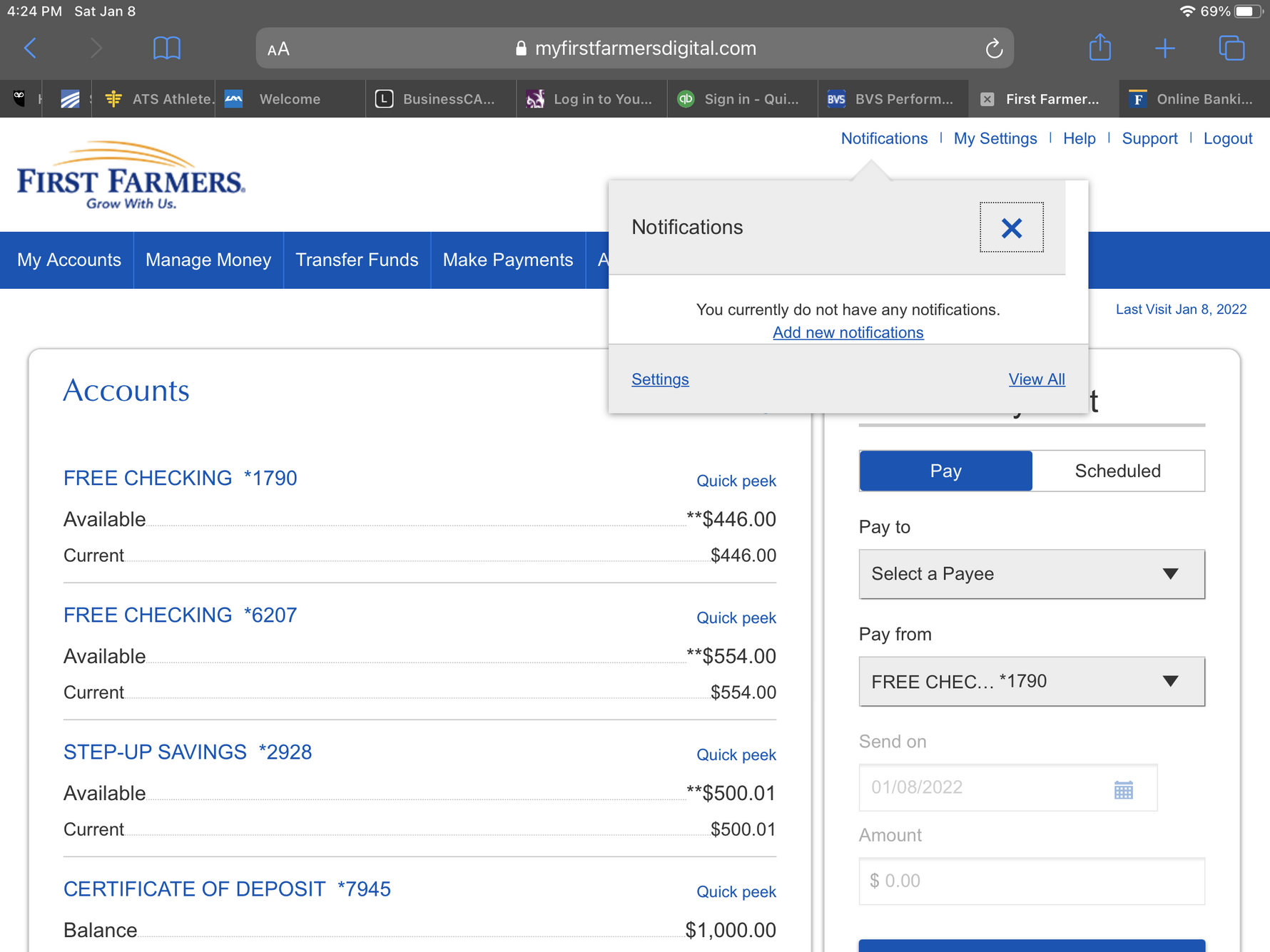
STEP 1 – Click on Notifications in the menu at the top of the screen. Then select Add new notifications.
STEP 2 – Select Add an alert for Accounts, Activity, or Reminders to specify the notification(s) you would like to receive.
Bill Pay
Forget postage and checks – pay bills online with bill pay.
ADD A PAYEE – From Make Payments, Select Bill Pay. Complete set up then type in the name of the person or company in the Add field. If the company is not on the prepopulated list, complete the information needed.
MAKE A PAYMENT – Find the company or person in your Pay To list to make a payment. Type in the amount and payment date, then click Pay.
SET UP AUTOPAY OR eBILLS – Find the company or person to pay and click Autopay under their name. On the next screen, select Pay Automatically at Regular Intervals. Choose the funding account, an optional memo, the amount, frequency, the date to begin payments, and to continue payments indefinitely or to stop after a specific time period.
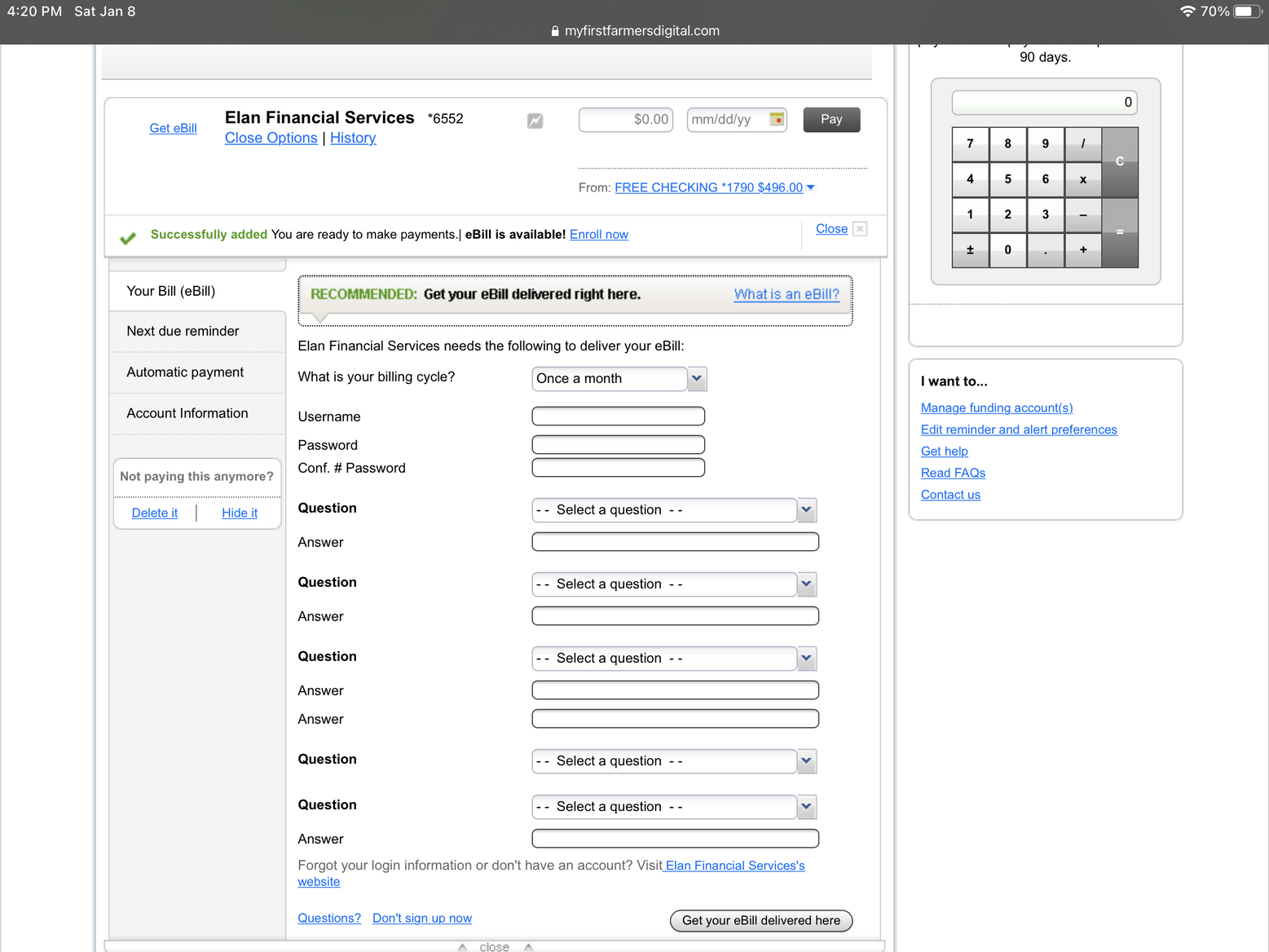
Select eBills and complete the required information to connect the account for eBills.
Credit Score
Credit Score provides a level of credit awareness by providing real-time credit monitoring alerts.
STEP 1
Login to online banking, from the home screen click the Credit Score image.
STEP 2
Once the terms and conditions are accepted, select analysis, report, or simulator for more information.
Credit Monitoring and FAQs
View history, Frequently Asked Questions, and set profile preferences.
RESOURCES
Learn how to change your credit score and other valuable credit tips.
BENEFITS
- Daily Access to Your Credit Score
- Real Time Credit Monitoring Alerts
- Personalized Credit Report
- Credit Score Simulator
- Articles and Blog on credit

Forgot Password/Username
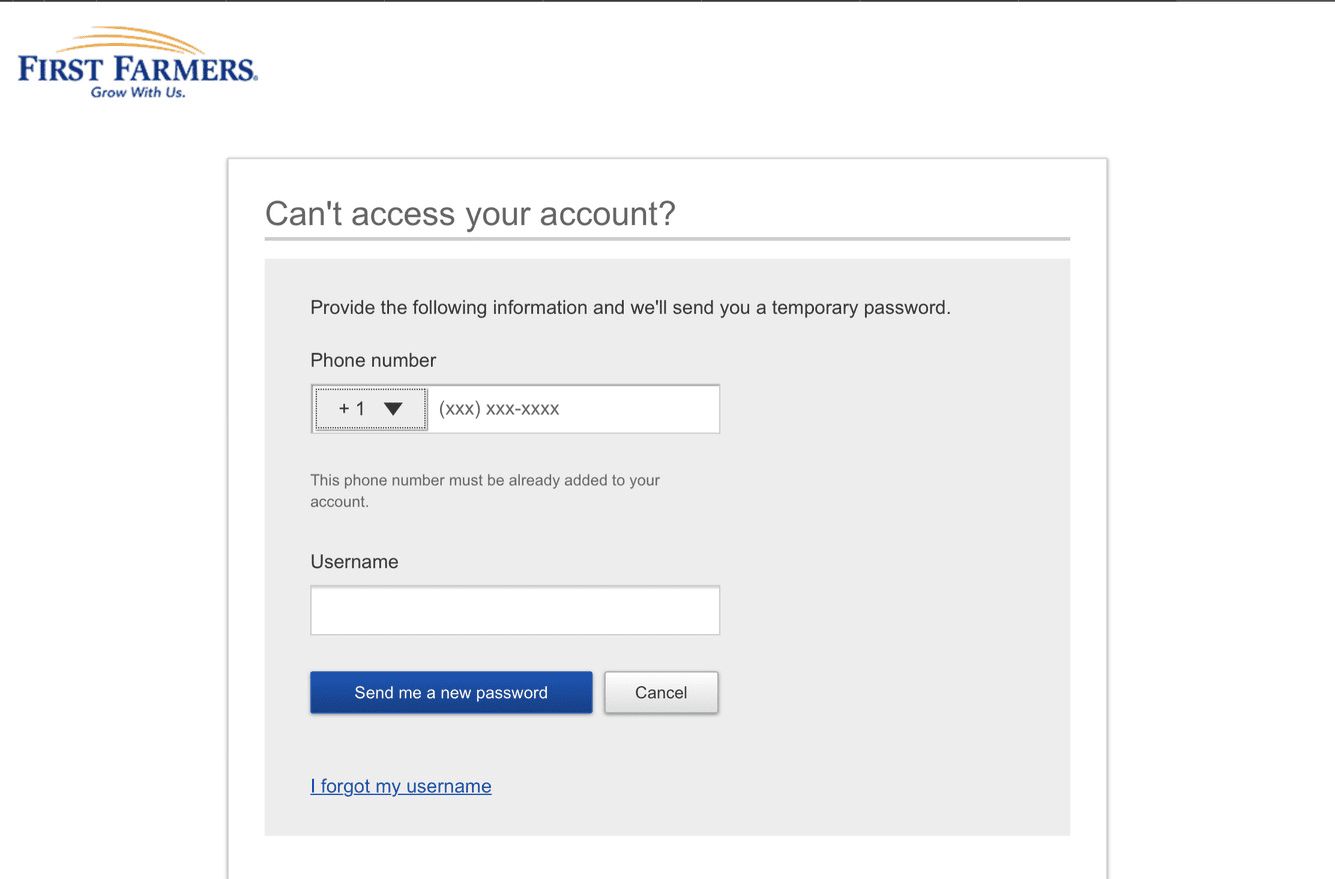
Forgot password or username? No worries, select Forgot Login to reset password or retrieve username.
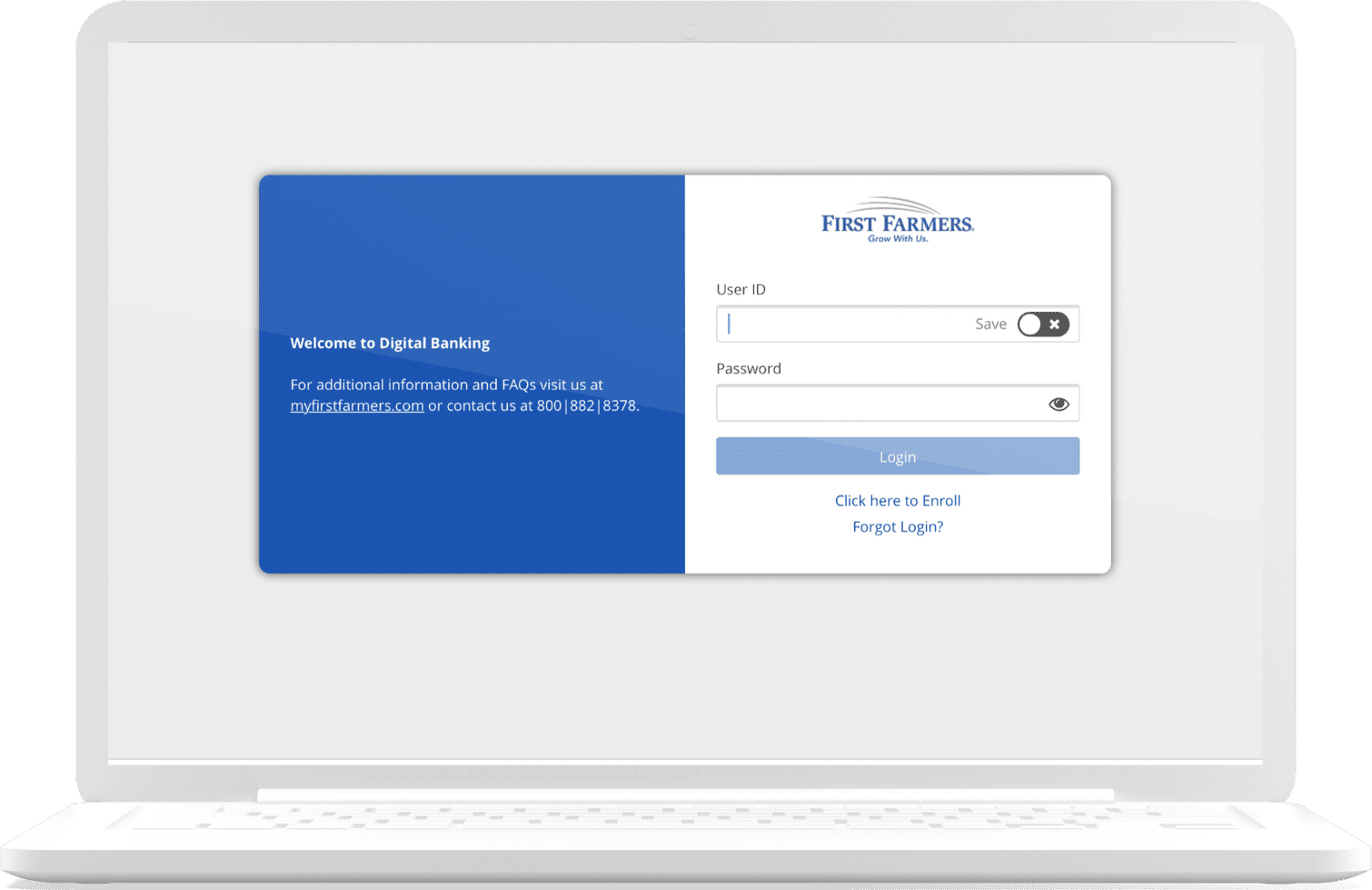
FORGOT LOGIN – To reset password or retrieve username use the Forgot Login from the home screen to quickly access your accounts. If you need additional support, contact us at 800-882-8378 or visit us online at myfirstfarmers.com.
Loan Payment
Making loan payments from any account just got easier. First set up External Transfers to establish a banking relationship between accounts. See Transfer Money/ Move Money/ External Transfers for step by step instructions.
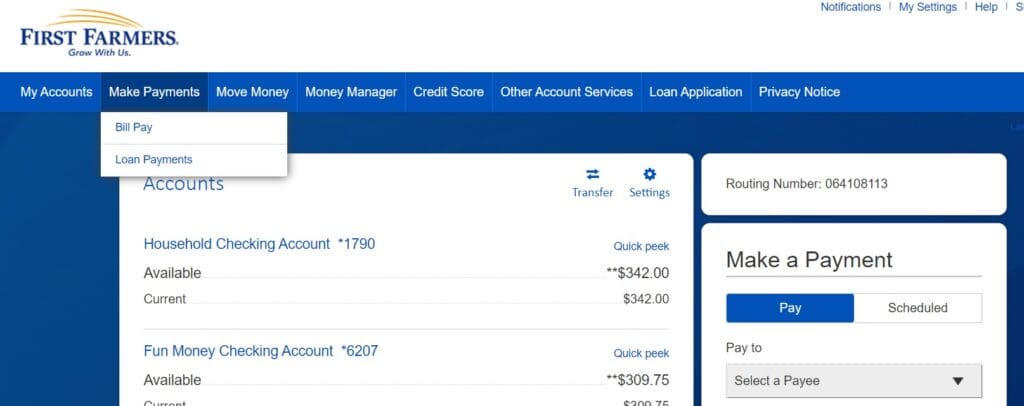
STEP 1
Select Make Payments, then Loan Payment.
STEP 2
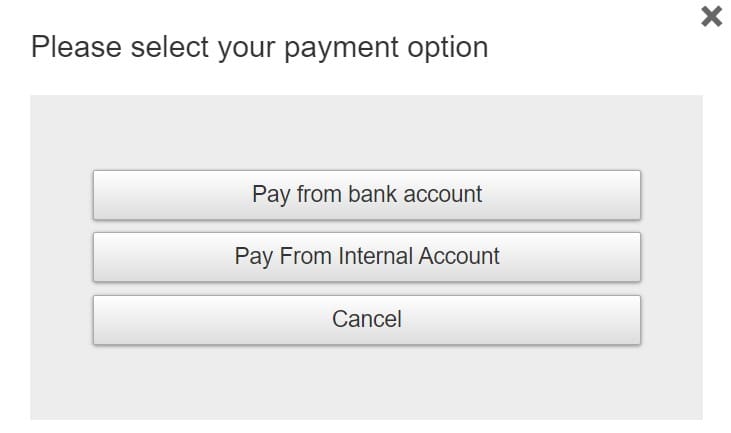
From I want to menu select Make Payment. Pay from Bank Account, Complete all required information, review the Terms and Conditions, mark I agree, Select Continue.
STEP 3
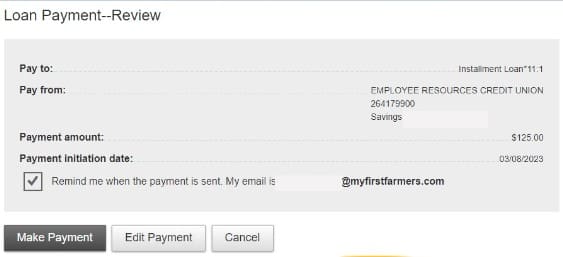
Review details, select Make Payment, Edit Payment, or Cancel. Mark Remind me when the payment is sent to receive email communications.
Money Manager – Getting Started
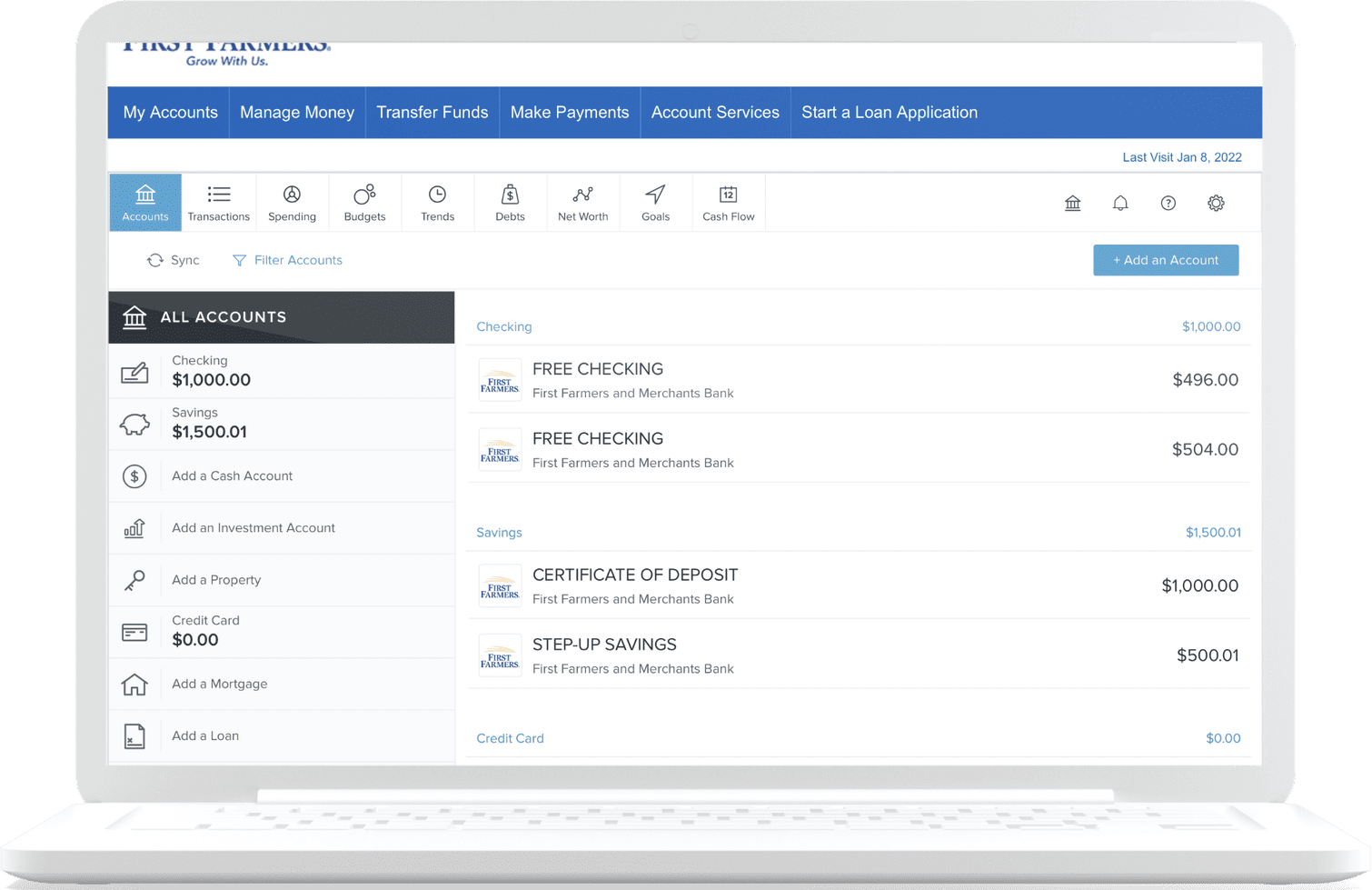
A financial dashboard for all your finances in one place. Budgeting tools to help establish and reach your financial goals.
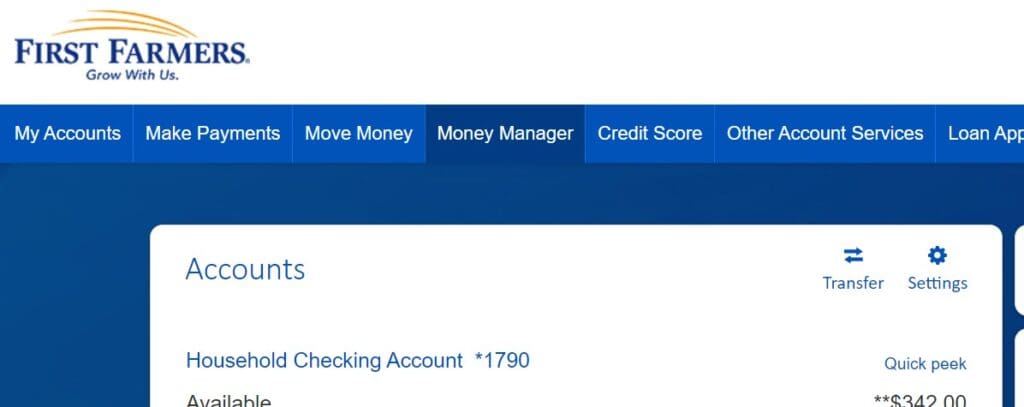
MANAGE MONEY – From the main menu select Money Manager, accept the terms and conditions to begin connecting financial accounts, loans, credit cards, retirement, and more.
Money Manager – Budgeting Tools
Budgeting Tools to track spending, income, trends, and establish goals.
BUDGETING TOOLS – After connecting all accounts, you are ready to set spending limits to monitor budget and establish goals such as retirement, savings, and pay off debt. Tools to help you take control of your finances.


Online Account Opening
Online account opening is available to existing First Farmers customers with digital banking. Online options are limited to select account types and are subject to change without notice.
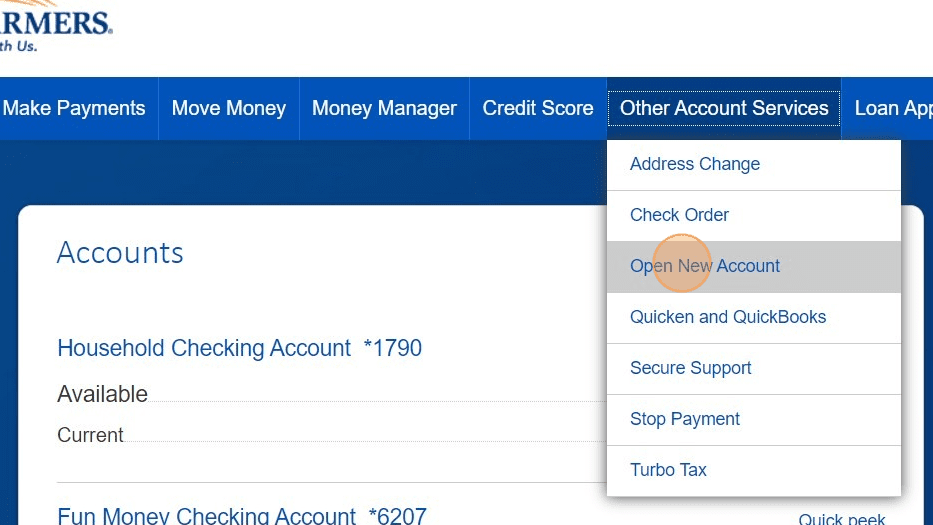
Step 1 – From the Other Account Services, select Open New Account.
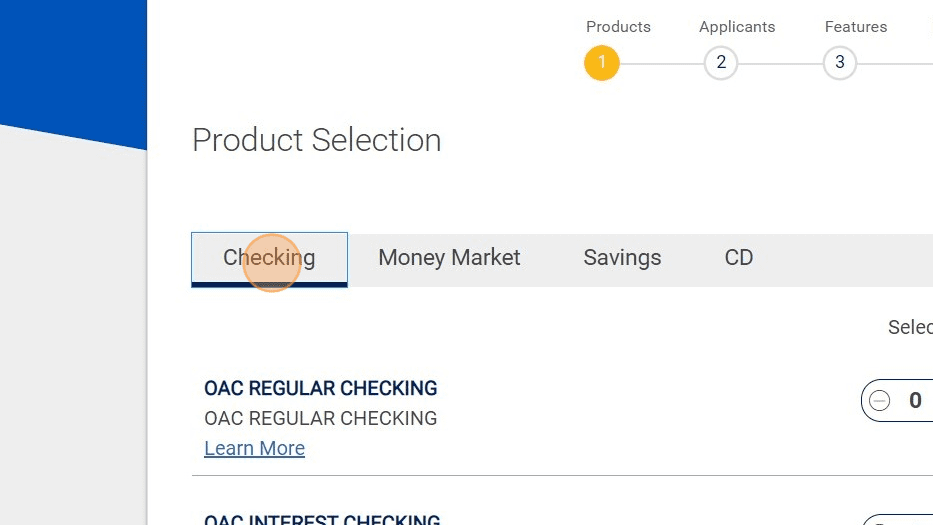
Step 2 – Next, choose the product selection. The Checking Account menu includes options for Regular, Interest, or President’s Club Checking Accounts. Other product options include Money Market, Savings, and CD. Use the Learn More for a list of features for each product option.
Step 3 – When ready to open the account, select the desired account and Click Continue. Complete the ownership, review and read the Electronic Consent.
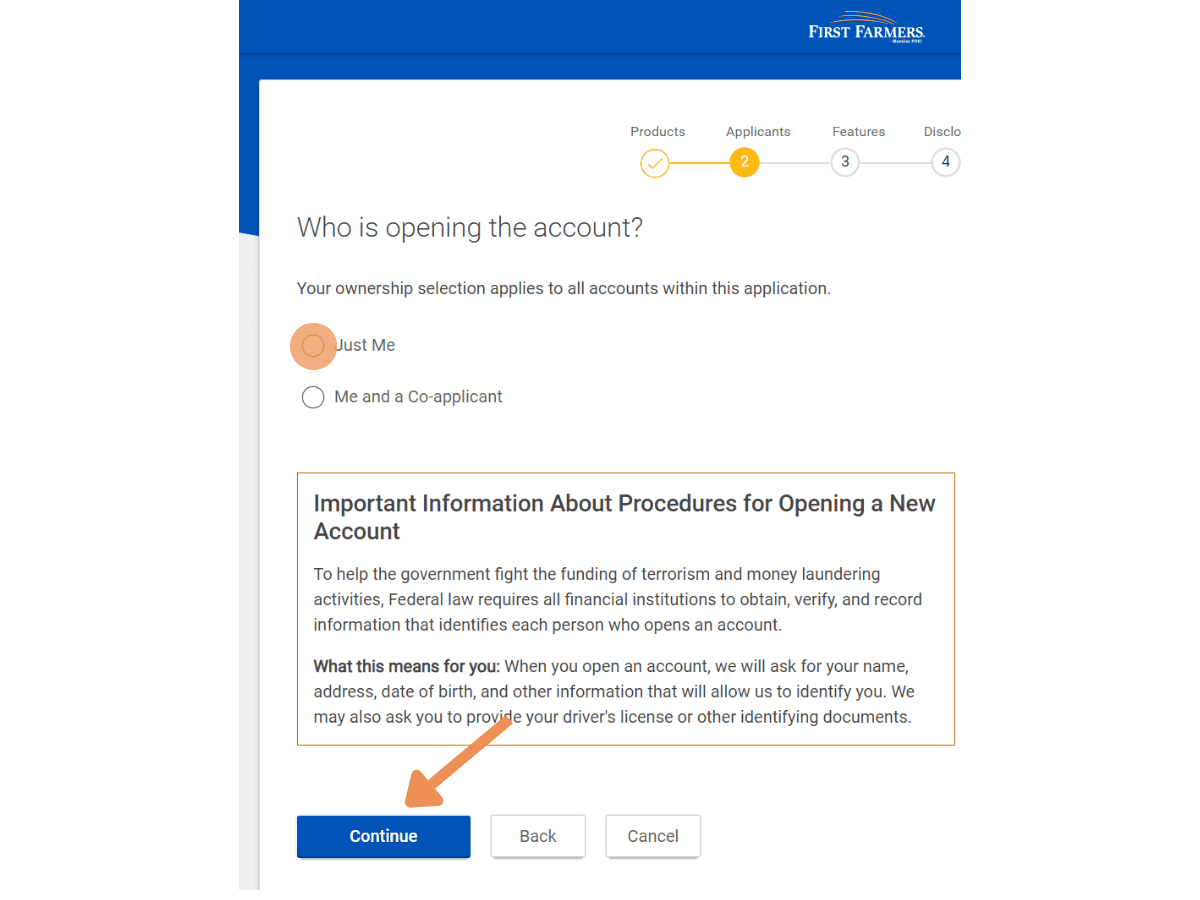
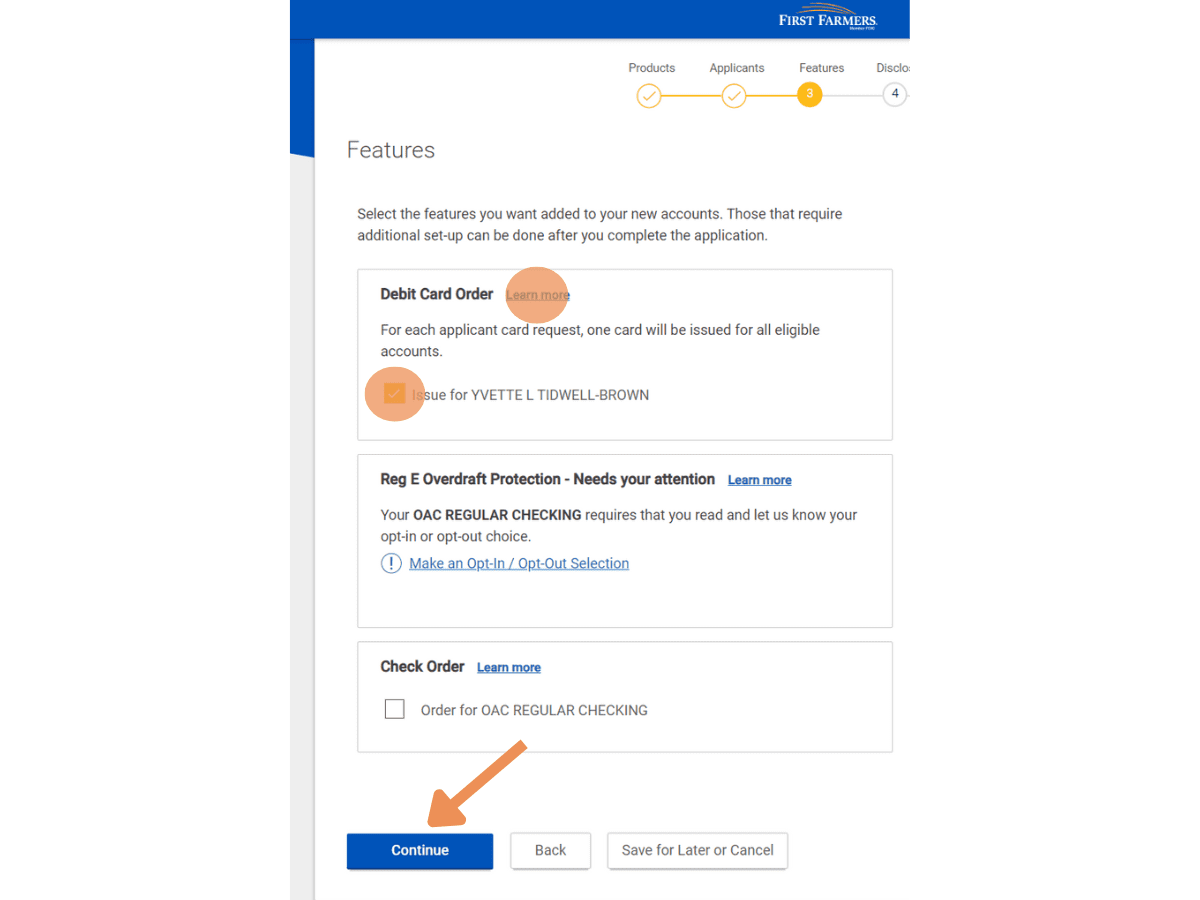
Step 4 – If additional features are available, you will have the option to opt-in or opt-out of each service. Below is an example of a debit card option. Use the learn more link for more information. After all selections have been made, click Continue.
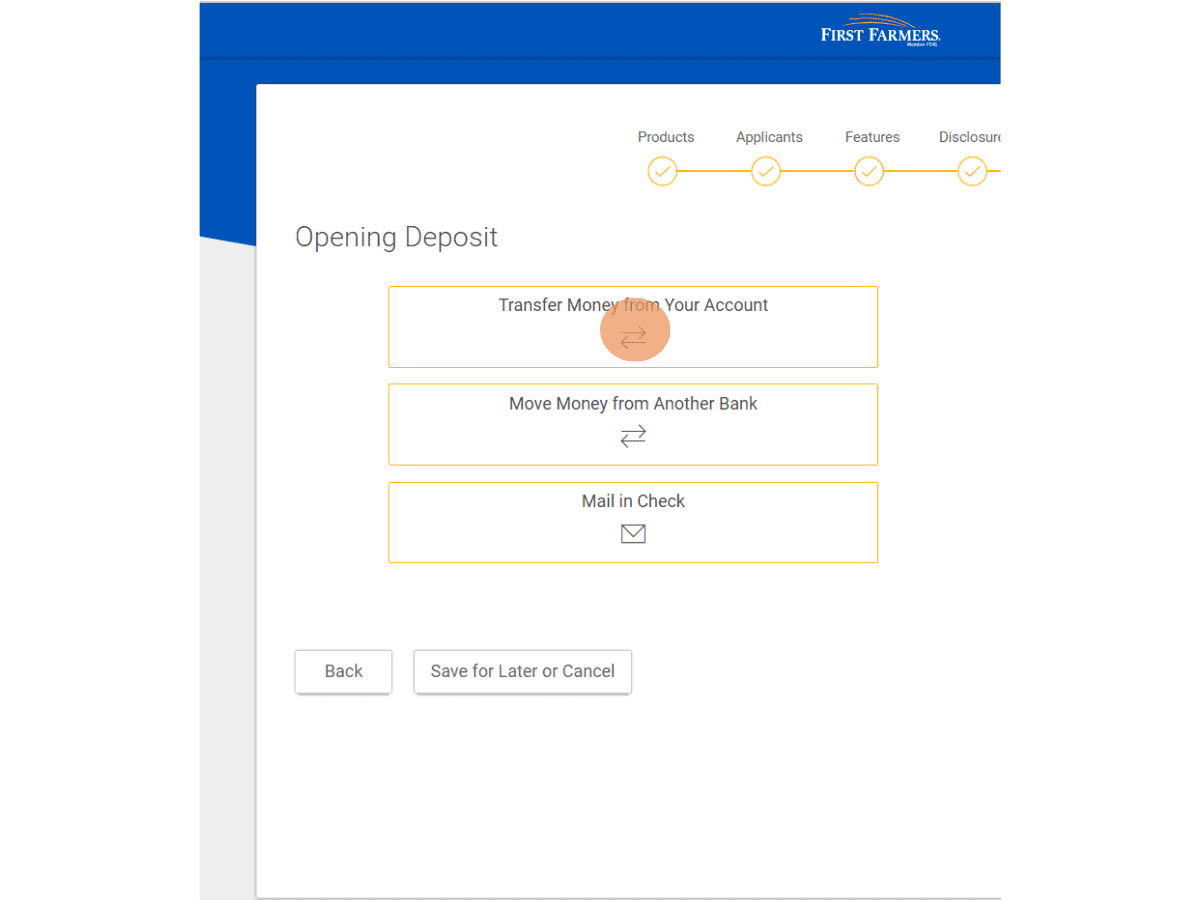
Step 5 – Next you will select the method to fund the new account. Options include: transfer funds from a First Farmers account, transfer from another financial institution, or mail a check. Complete the steps necessary depending on the selected funding option.
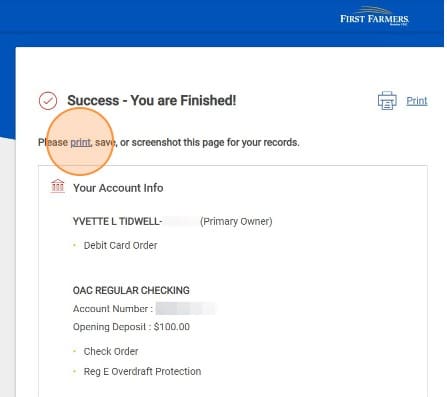
Step 6 – You are finished. Click print and check your email for confirmation.
eStatements
Electronic statements provide quick and easy access to account information. With up to 12 months’ statements, conveniently view, print, or download eStatements directly through online banking at no cost.
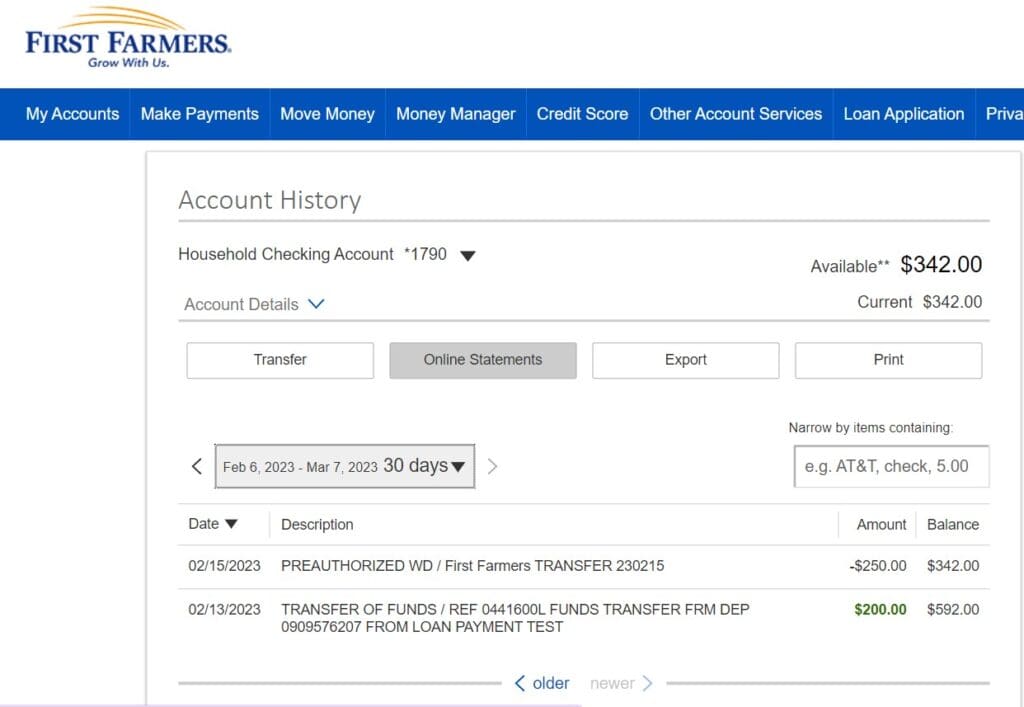
ENROLLING – Simply click on Online Document from the Account History page to receive eStatements.
VIEWING – Visit the Online Statements to view the account statement. Select the account you wish to view and month from the drop-down menu.

Reorder Checks
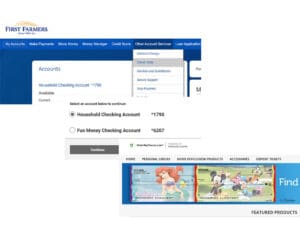
Easily and conveniently reorder checks from the comfort of your home.
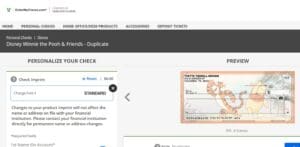
Select Account Services from the top menu. Choose the Reorder Checks, follow prompts, select check style, add to cart, then complete the checkout process.
Start an Application
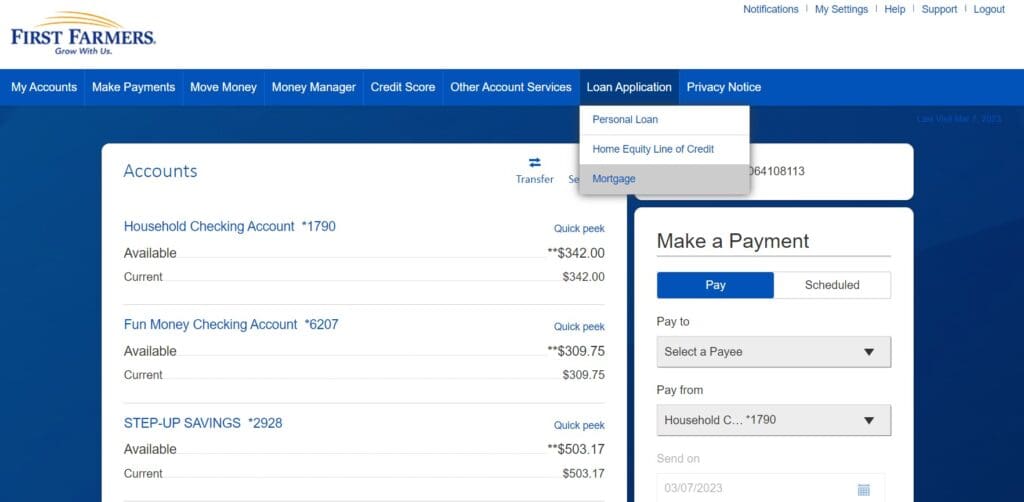
Safely and securely start an application for a variety of loans online.
Select Loan Application from the main menu. Choose loan desired from Personal Loan, Home Equity Line of Credit, or Mortgage to begin the application process.
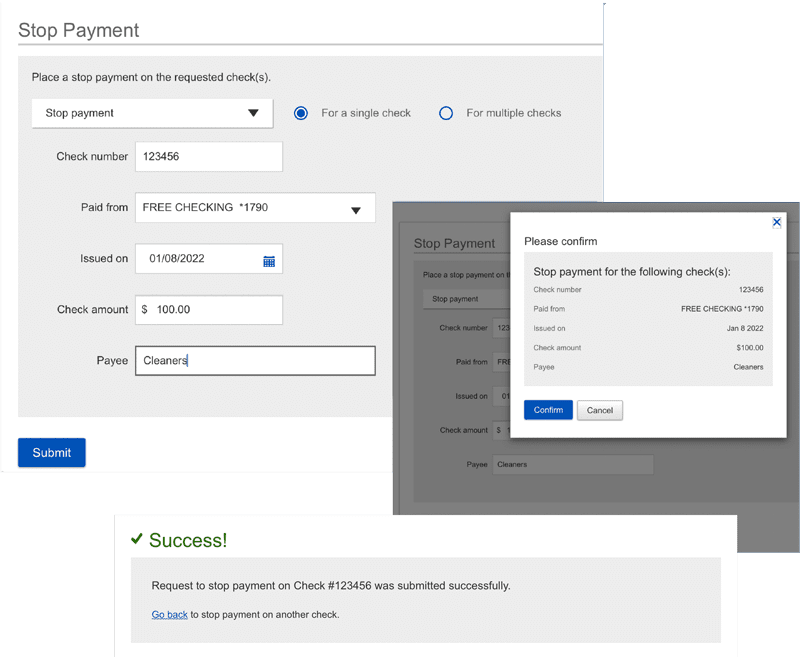
Stop Pay
Need to stop payment on a check but can’t make it to the bank? Enjoy the convenience of stop pay whenever and wherever you are.
Select Other Account Services from the top menu. Choose the Stop Pay type and complete form.
Text Message Banking
Text message banking gives you access to your accounts via text (SMS) messages on your phone.
STEP 1 – Click on the Notifications menu at the top of the screen. Then select Text Message Banking.
STEP 2 – To activate text message banking, complete the Mobile Verification Agreement. Follow the Activation Instructions to successfully enroll.*
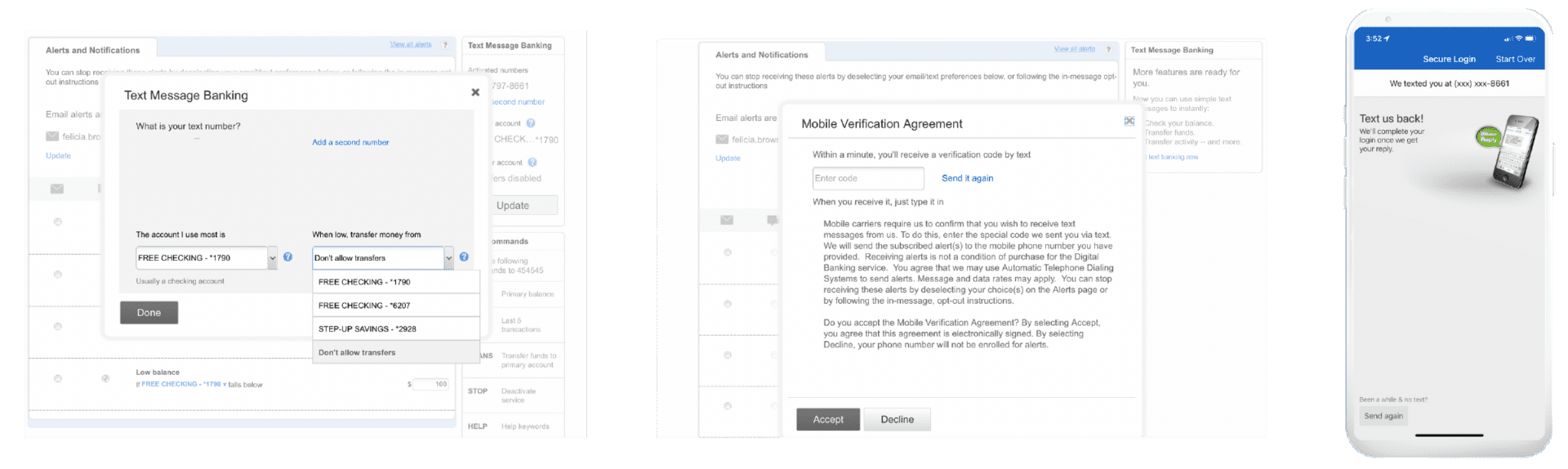
*Enrollment in Mobile Banking is free but does not cover cellular provider charges associated with data usage on your device. Always check with your cellular provider for information on data requirements before enrolling in any mobile service.
Text Banking – Commands & FAQs
To receive account information, simply text your command to 454545.
| FUNCTION | COMMAND | DESCRIPTION |
| Balance | BAL | Primary balance. |
| Transactions | LAST | Receive last 5 transactions. |
| Transfer | TRANS | Transfer funds to primary account. |
| Stop | STOP | De-activate all First Farmers and Merchants Bank text services. |
| Help | HELP | Help content for Text Banking. |
FREQUENTLY ASKED QUESTIONS
CAN I USE BOTH TEXT BANKING AND MOBILE BANKING ON MY PHONE?
Yes. Simply enroll for both Text Banking and Mobile Banking to enable this.
IS TEXT BANKING SUPPORTED ON MY PHONE?
Text Banking will work on any text message (SMS) capable phone from one of our supported carriers.*
WILL I RECEIVE UNSOLICITED TEXT MESSAGES?
No. You will only receive messages when you specifically request them with one of the Text Banking commands or if you subscribe to Mobile Alerts.
*Enrollment in Mobile Banking is free but does not cover cellular provider charges associated with data usage on your device. Always check with your cellular provider for information on data requirements before enrolling in any mobile service.
Transfer Funds / Move Money
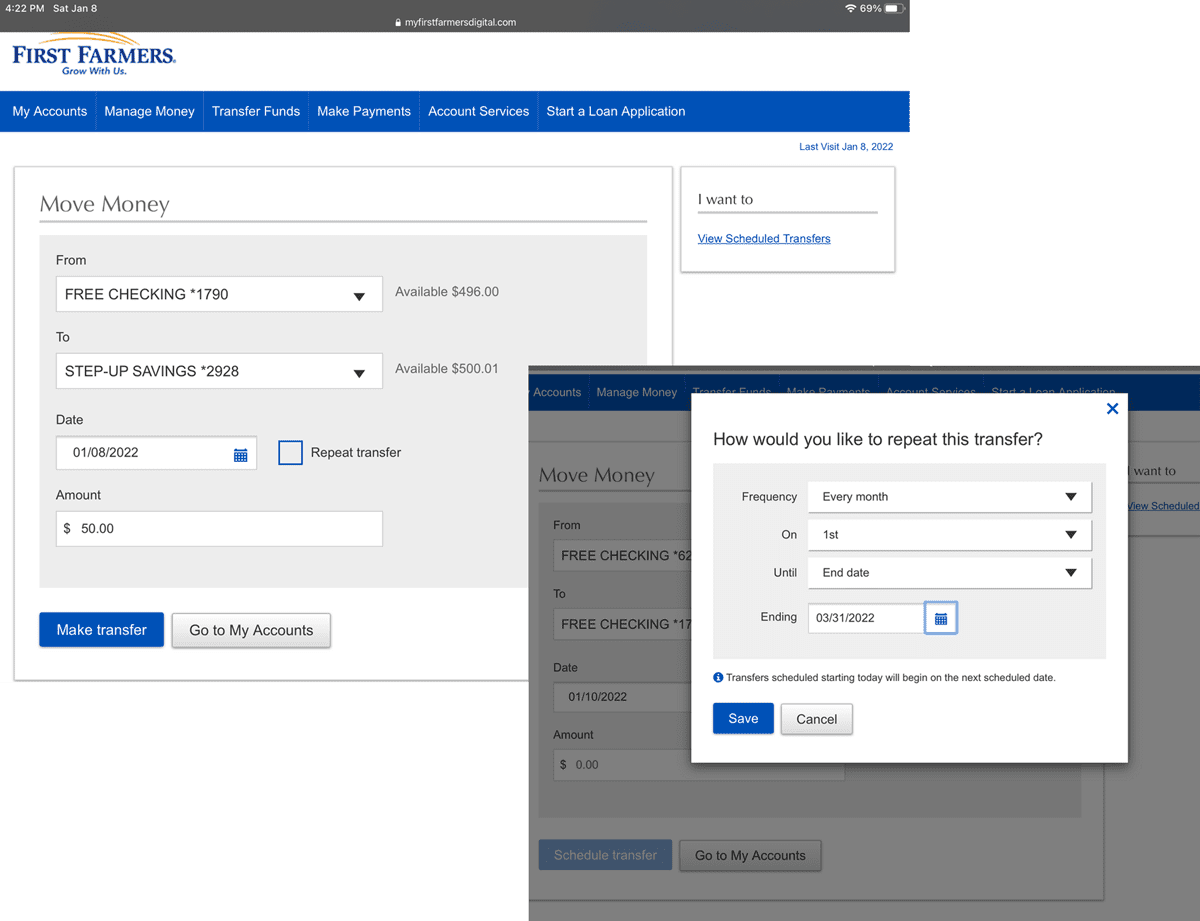
Easily transfer or schedule money transfers between your First Farmers accounts.
ONLINE – Simply select Move Money from the main menu then Transfer Funds, choose the account to transfer to/from, enter the amount and frequency, click Make Transfer to review and complete the transfer.
SCHEDULE TRANSFERS – To set up a scheduled transfer, click Move Money, Schedule a Transfer. Choose the accounts you want to transfer to/from, enter the amount and frequency and click Save.
Move Money / External Transfer – Validation
Set up external transfers for the convenience of moving money from another financial institution.
ESTABLISH RELATIONSHIP BETWEEN ACCOUNTS
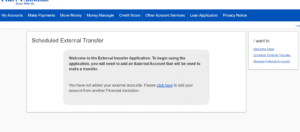
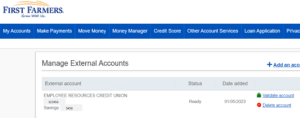
From the main menu select Move Money then External Funds. Select click here from the external transfer welcome page. Before you get started, have ready the account number and routing number from the external account. Click continue when you are ready to begin the setup process and complete required account information.
VALIDATE ACCOUNT RELATIONSHIP
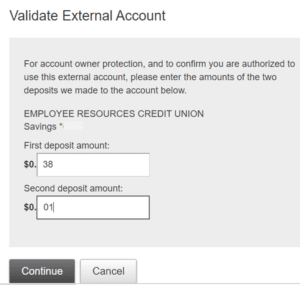
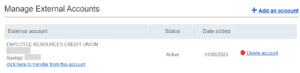
From the external transfer welcome page select click here to validate the external account deposit activity. You will need to log into the external account to obtain the deposit amounts to verify the account relationship. This step may take up to three days to post to the external account.
Move Money / Schedule External Transfer
Schedule external transfers for the convenience of moving money from another financial institution.
SCHEDULE TRANSFERS
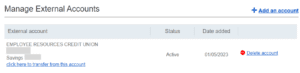
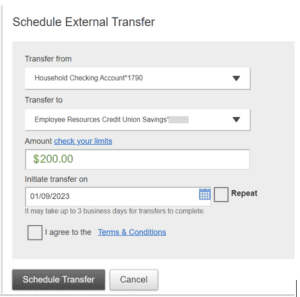
Select click here to transfer from this account. Complete the required information, read the terms & conditions, mark I agree, then select Schedule Transfer.
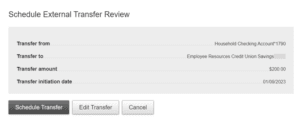
VERIFY INFORMATION
Verify the information is correct and select the Schedule Transfer button. Select Confirm and the external transfer is scheduled. Transfer may take up to 3 business days to complete.